


Here are the steps to get your brand-new Realme Android phone bootloader unlocked so you can install custom recovery and root your phone. With a locked bootloader, you cannot install .img files (such as TWRP) or any other modified image files. However, once you have unlocked the bootloader of your Realme phone, you will be able to install ANY recovery image file, install any modded image file and/or ROOT your phone. On their forum, Realme officially published a bootloader unlocking guide. Below is our version of that guide with each step detailed.
As you can see from below, there are many ways to unlock an Android bootloader. Unlocking the bootloader is an option available to a few Android devices. Unfortunately, some manufacturers such as Huawei, LG, HTC, Motorola and Sony, etc., do not allow bootloader unlocking through the FastBoot command. Instead, they require you to submit a bootloader unlock code request through their website. However, since Realme has already provided an official bootloader unlock guide on the Realme Forum, we’ll go through the process of how to do this for you.
In Short
- Realme Android phones have a locked bootloader, preventing flashing of custom recoveries and rooting until unlocked.
- Unlocking the bootloader allows installation of TWRP, custom ROMs, and other modifications, but it also lowers security risks.
- Realme provides an official bootloader unlock guide, using the DeepTesting app and fastboot method for a straightforward unlocking process.
- Before unlocking, users should back up their data, charge their device, and enable specific developer options.
- Once unlocked, users can re-lock the bootloader any time to resume OTA updates and maintain their warranty.
Benefits after Unlocking Bootloader of Realme Devices
When you unlock the bootloader of your Realme smartphone, it will allow you to install a variety of Mod’s (including TWRP Recovery), root the phone, install an alternative ROM and make other customization changes to the device. In addition, if you have bricked your phone and want to fix it, you may use the bootloader to flash a boot.img, system.img, recovery.img or userdata.img to repair the issue.
In addition to these advantages there are some potential drawbacks as well. One is that the basic level of security in your phone is reduced slightly. If you are not careful, a hacker could potentially exploit your phone by installing malicious apps. In addition, a few banking applications do not work fully when installed on an unlocked Android device.
All old Realme Phones
Pre-requisites & Downloads:
- Before starting the Bootloader Unlock process, do a complete backup of your device, including Apps, Contacts, Messages, Gallery file, and Internal Storage Files.
- Charge the device for interrupt installing.
- Enable Developer Options, USB Debugging, and OEM Unlock to connect your device in ADB and fastboot mode.
- Install ADB-FASTBOOT Driver.
- Download fastboot Tool ⇒ Minimal ADB and Fastboot Tools.
- Download the realme DeepTesting Tool APK file for Your Model
Download Realme DeepTesting Unlocking Tool APK file
| DeepTesting Tool | Download link |
|---|---|
| Universal 2025 V1 (New Phones) | DeepTesting-encrypt-realme.apk |
| Universal 2025 V2 | DeepTesting-realme.apk |
| Realme GT 7 Pro | Realme-GT-7-Pro-Deep-Testing.apk |
| Realme GT 8 / GT8 Pro | DeepTesting-GT8_Series.apk |
| Universal 2023 Version | DeepTesting-universal-Android-P.apk |
| Universal 2022 Version | DeepTesting_realme-release_signed.apk |
| Realme 3 Pro | DeepTesting-realme-3-Pro.apk |
| Realme X2 Pro | DeepTestin-realme-X2pro.apk |
| Realme 5 Pro | DeepTesting_realme-5pro.apk |
| Realme XT | DeepTesting_realme-XT.apk |
| Realme 6 /6 Pro | DeepTesting_realme_6pro.apk |
| Realme X2 | DeepTesting_realme_X2.apk |
| Realme 3 | DeepTesting_Tool_realme3.apk |
| Realme U1 | DeepTesting_Tool_realmeU1.apk |
| Realme 7 Pro | DeepTesting-realme-7-Pro.apk |
| Realme 7 | DeepTesting-Realme-7.apk |
| Realme 7i | DeepTesting_Realme_7i.apk |
| Narzo 20 Pro | DeepTesting_Narzo_20_Pro.apk |
| Narzo 20 | DeepTest_Narzo20.apk |
| Realme X7 / X7 Pro | DeepTest_Realme_X7.apk |
How to Unlock Realme Phones Bootloader via Fastboot Method
1. First, read Pre-requisites and Enable Developer Options, USB Debugging and OEM Unlock.
2. Download the realme DeepTesting APK and fastboot Tool.
3. Install the DeepTesting Apk unlock tool and run the app, and tap on “Start applying”.
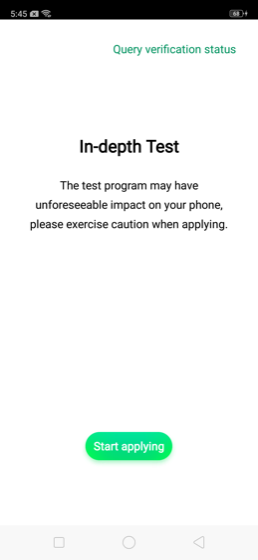
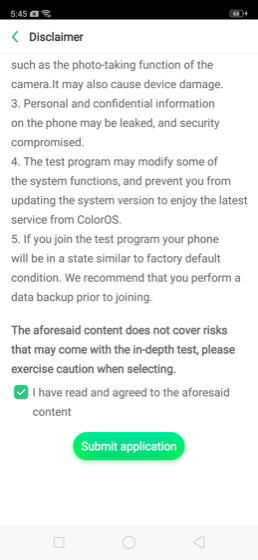
4. Select the checkbox, and submit your application.
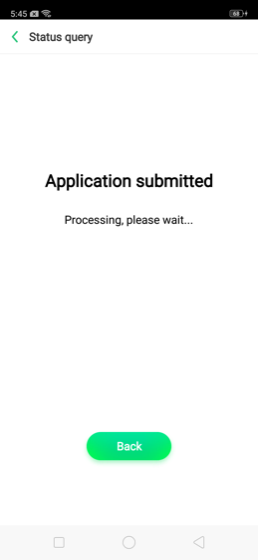
5. The application will be checked by the realme server and will take approximately 1 hour to approve the unlock.
6. Once the app show shows the unlocking is successful you can go to the fastboot step to proceed the unlock.
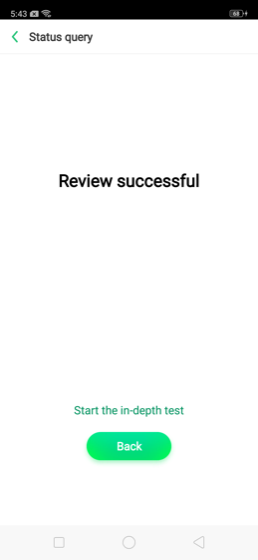
7. Tap on “Start the in-depth test” and the device will reboot into bootloader mode automatically and will display on the screen: fastboot_unlock_verify ok. To enter your phone in fastboot mode manually, use the “adb reboot bootloader” command in the ADB tool to enter your phone into fastboot mode.
8. Download and unzip the adb-fastboot tool from the Download section.
9. Connect your device to the PC and go to the fastboot Tool folder.
10. Now open the command prompt and navigate to the ADB & fastboot folder by holding Shift + Mouse Right Click and typing the command one by one.
adb reboot bootloader- This command will reboot your device into fastboot mode, or you can do this from the DeepTesting unlocking app by Start the in-depth test.
11. Use this command to Unlock Realme Phones Bootloader.
fastboot flashing unlock
12. Press Volume Up or Down key on your phone to confirm unlocking.

- Once you confirm the unlocking, your phone will be reset, and all data will be erased.
Relocking the bootloader
You can re-lock the bootloader anytime if you want to receive the OTA updates or get the warranty.
- Follow the procedure to re-lock the bootloader.
- Download and install the DeepTesting unlocking app again.
- Run the app and tap on “apply to exit in-depth test“. and hold the power key to reboot your phone into the bootloader or use the “adb reboot bootloader” command.
- Go to the adb-fastboot tool folder and open the cmd window and use this command.
fastboot flashing lock
- Press the Volume Up or Down key on your phone to confirm the re-locking.
Now your device is ready for modding, flashing recovery, and ROMs.
FAQ
Unlocking is officially supported on some models, but it will wipe all data and may void warranty and break OTA updates, so proceed only if you understand the risks
Yes, the official DeepTesting + fastboot flashing unlock method performs a full factory reset, so you must back up apps, photos, and files first.
Yes, after approval in the DeepTesting app you must use ADB and fastboot tools on a PC to send the unlock command.
The app must match your exact model and supported firmware version; unsupported devices or Realme UI builds often reject or disable the tool.
Many Realme models allow relocking through fastboot or the unlock tool, but you should first return to complete stock firmware to avoid bootloops.






Is it possible to perform bootloader unlock with this method on realme 11 pro plus?
I am generally looking for how to root this phone because I need call recording
At present Realme have stopped supporting the required tool. (Depp test or in-depth test depending on OS).
There is no sign they will resume the service.
So at present, you can unlock the bootloader with MTK client. But you CANNOT use fastboot.
This means no rooting, etc…
Which means no TWRP etc… (because the non-root method requires fastboot)
So we’re stuck.
Anyone have suggestions, please feel free to share them.
Nothing to seet