Discord is a text and voice chat app for gamers, founded in 2015. It’s free to use, and it includes both a text chat feature and the ability to do voice chats with other gamers. Additionally, it is compatible with Windows, macOS, Android, iOS, Xbox One, and Nintendo Switch. Discord has been used by over 150 million gamers since its inception in 2015. While it’s a great platform with a huge number of active followers, it however lacks one particular aspect- themes. The official Discord client has only two themes – Dark mode and Lite mode. However, you can now install the custom theme on it. Thankfully, a third-party app that allows you to set a theme for the Discord app.
BetterDiscord is a third-party application that provides customization options for the official Discord app. It allows users to install different kinds of themes and utilize various plugins. As of now, Discord is focusing on adding more features and developing a great user experience for the gaming community. Since the app is available on many platforms, they likely decided to omit the themes section. However, BetterDiscord allows users to customize visually your Discord application. If you really want to install the theme on Discord, this is the guide for you.
How to Install Themes on Discord
BetterDiscord offers more than 200 themes, with additional themes in development, and over 100 plugins. Before installing the theme on Discord, you need to understand that BetterDiscord is a third-party application. After installing a theme, if your Discord application is not working, you will need to reinstall the Discord application.
Download BetterDiscord Application
First, visit the BetterDiscord website and download the latest version of the application.
Install the BetterDiscord Application
- Once the application is downloaded, open the application and install it on your PC.
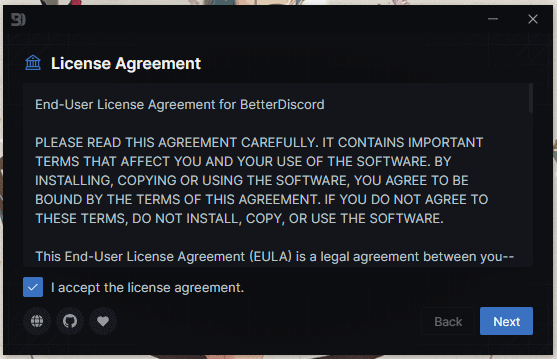
- When the application opens, you have to accept the license agreement to proceed with the installation process. Select the checkbox and click on Next.
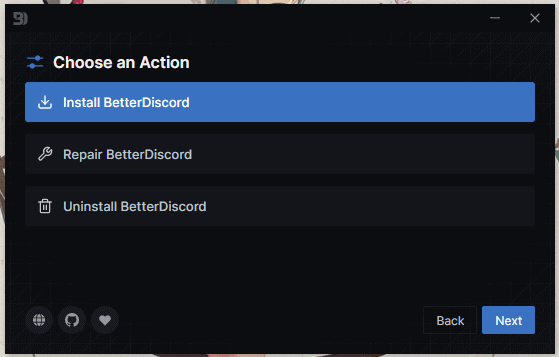
- Now, you will see a few options; select ‘Install BetterDiscord’.
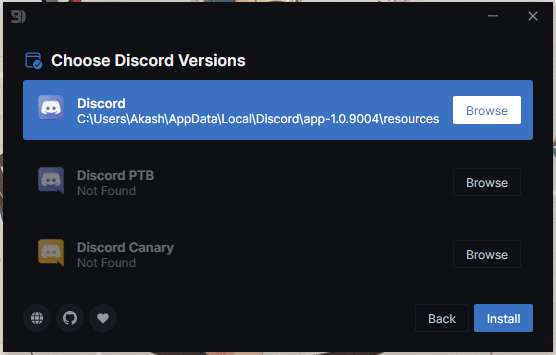
- On the next screen, you have to select the type of Discord application you have installed.
- Now, click on the install option to install it on your PC.
- Once the installation process has been done you can click on the close button to exit the setup window.
Install Themes from the BetterDiscord Application
- Launch the Discord application, after launching it for the first time, it shows a pop-up with the new changes that have been made in the update.
- Now click on the Setting icon in the bottom left corner next to your name.
- In the Settings option scroll down and go to the BetterDiscord header.
- In the BetterDiscord header, you will see a few new settings menus such as Custom CSS, Plugins, Themes, etc.
- Then go to the Theme option and click ‘Open Themes Folder’.
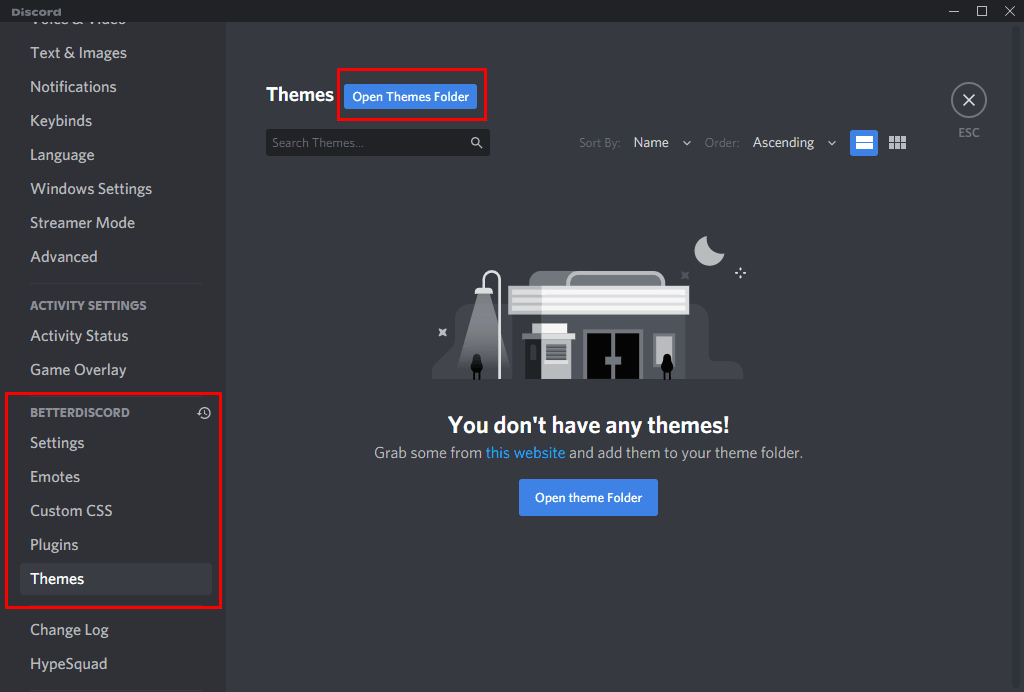
- Now you have to download the theme file from BetterDiscord’s website.
- Go to the link below and download any theme that you want to install on Discord.
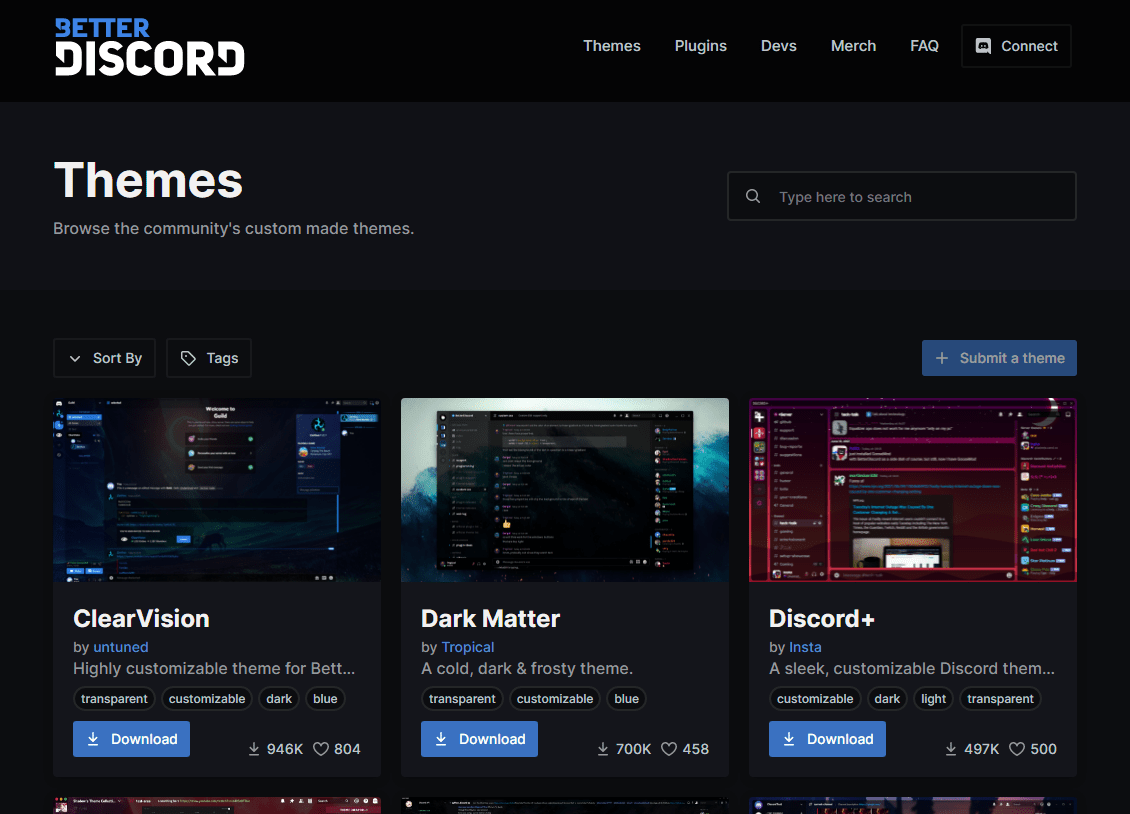
- Once downloaded, move the file to the theme folder.
- Again, go to the Theme option, and you will see all the themes listed in Discord.
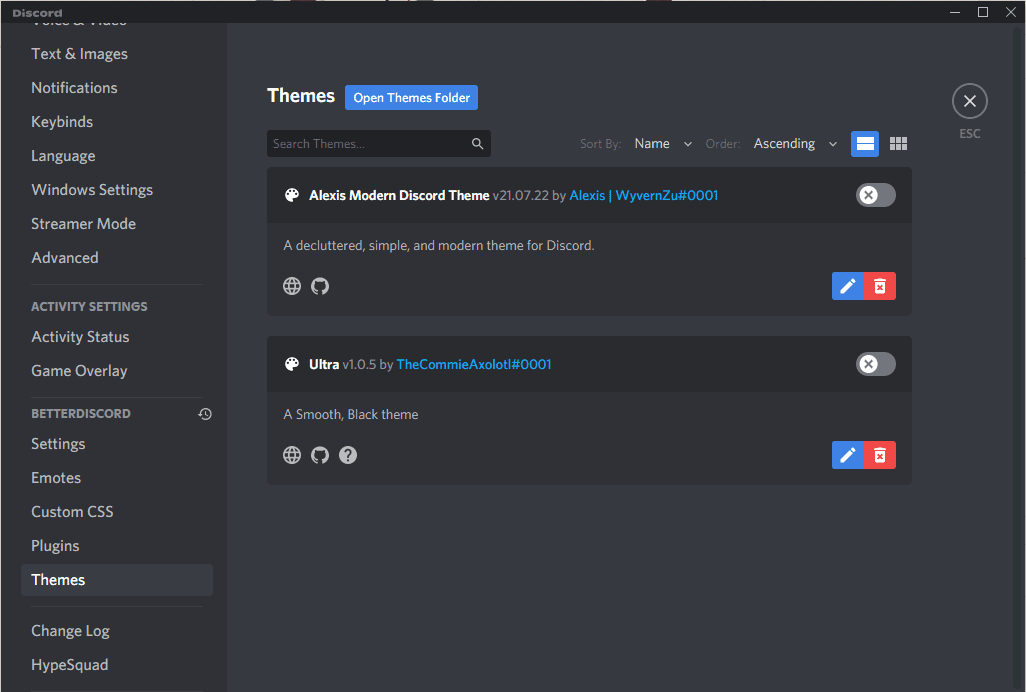
- Simply select it and switch the toggle to On.
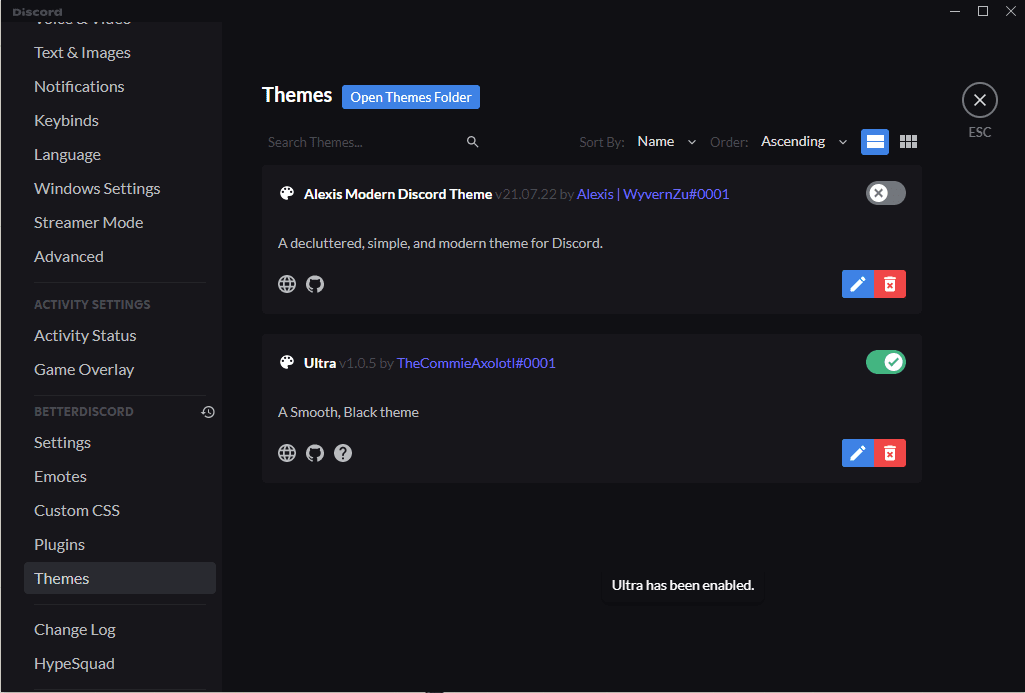
- The theme will be instantly applied to your Discord application.
- To uninstall or delete the theme, just click on the red trashcan icon, and it will be removed immediately.
More Walls:
- Universal Media Creation Tool Wrapper For Windows 11
- Guide to Install Windows 11 using ISO Image File
If you like this guide, please share it with other communities and forums. Please share your thoughts on BetterDiscord’s theme. Also, don’t forget to join our Telegram group for more wallpapers, Themes, Ringtones updates