
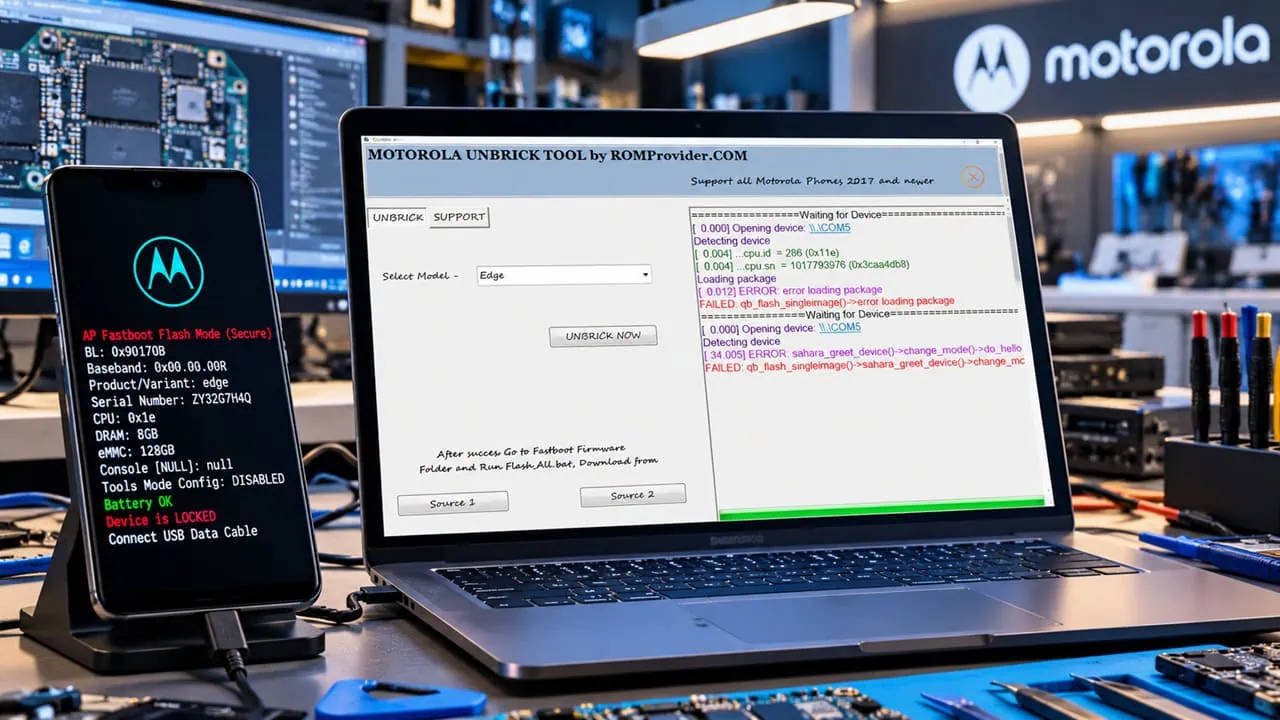
A hard brick of a Motorola phone means a dead end: no logo, no fastboot and just a phone that works like a paperweight. Usually it is not really dead though. The bootloader is gone and the chipset is in emergency download mode waiting for a PC that knows how to communicate with it. That is precisely what the Motorola unbrick tool does. It restores the bootloader for hard bricked Motorola phones using Qualcomm EDL mode or MediaTek BROM mode, and gets the device back to a state where normal firmware flashing can then complete the process.
This tool is built for dead devices. It’s a small utility for Windows that combines the usual blank flash into a single click and covers a lot of the Moto range: G series, Edge, E series and One series, and also the Razr. There is still one more step to take afterward: to reflash the full stock firmware so the phone works properly. The guide walks through driver setup, the tool itself, and flashing the firmware.
What the Motorola Unbrick Tool Does
| Feature | What It Does |
| Bootloader restore | Brings back the bootloader on a hard-bricked device so it can boot into fastboot again |
| EDL support | Talks to Qualcomm chips in emergency download mode (QDLoader 9008) |
| BROM support | Talks to MediaTek chips in BROM mode for the MTK Moto models |
| Model coverage | Around 70 Motorola models including G, Edge, E, One and Razr series |
| Scope | Restores the bootloader only – full stock firmware must be flashed afterwards |
Supported Models
The supported list covers most retail Motorola devices from the last few years. Highlights:
- G series: G6 / G7 / G8 / G9 / G10 / G30 / G31 / G41, G50, G52, G60, G71 5G, G82, G100, G200 5G, G Play 2021, G Power 2021/2022, G Pure, G Stylus 5G, G 5G
- Edge series: Edge, Edge 20 / 20 Lite / 20 Pro, Edge 30 / 30 Pro / 30 Plus, Edge Plus, Edge X30
- E series: E 2020, E5 Plus, E6, E7 Plus
- One series: One, One Action, One Fusion / Fusion+, One Hyper, One Macro, One Vision, One Zoom, One 5G ACE, One Power, Z3 Play, Z4
- Others: Defy 2021, P30 Note, P30 Play, Razr 2019, Razr 5G
Download Motorola Unbrick Tool
Download the Motorola unbrick tool from the button below and extract it to a simple folder path on your Windows PC. The tool does not need installation – run the executable as administrator when you are ready.
How to Unbrick Your Motorola
The entire process consists of three parts: install the right drivers, run the tool to restore the bootloader, and then flash the full firmware.
Install the Qualcomm (or MediaTek) USB Drivers
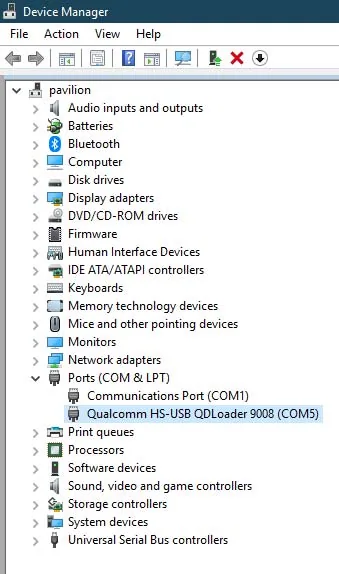
- Download and install the Qualcomm HS-USB QDLoader 9008 driver package on your PC. MediaTek Moto models need the MTK USB driver instead.
- If the install wizard does not detect the phone right away, use the manual Device Manager method: plug the bricked phone in, find the unknown device, and point it at the driver folder.
- Restart the PC once the driver is installed.
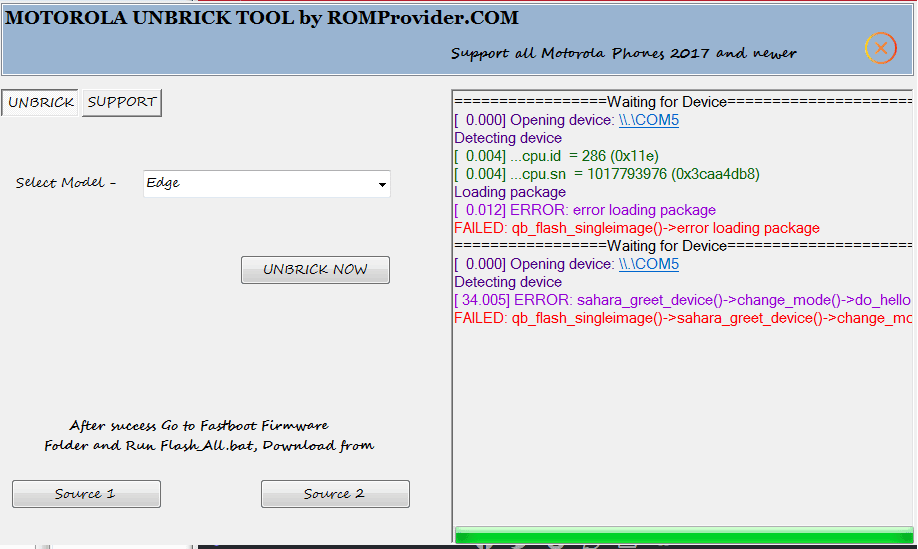
Run the Tool and Restore the Bootloader
- Launch the Motorola unbrick tool with administrator rights.
- Put the phone in EDL mode (Qualcomm) or BROM mode (MediaTek). With the phone off, most Moto models enter EDL with the volume down button held while plugging the USB cable in – check your model’s blank-flash notes if the PC shows nothing.
- Connect the phone. The PC should now recognize it as a Qualcomm HS-USB QDLoader 9008 device in Device Manager.
- Press the restore button in the tool and wait. The whole flash takes a few minutes and the phone stays on a black screen while it works.
- When the tool reports success, the bootloader is back. Unplug and boot to fastboot to confirm.
Reflash the Stock Firmware
The tool fixes the bootloader only. To finish the unbrick:
- Download the full stock firmware that matches your exact model and region code.
- Reboot the phone into fastboot mode.
- Flash the firmware with fastboot (or the flashing tool meant for your model) and let it complete.
- The phone reboots into the system, and the device works like a normal Moto again.
Troubleshooting
- Phone not detected at all – reinstall the QDLoader 9008 driver using the manual Device Manager method, and try another USB cable.
- PC sees the phone but the tool does nothing – make sure you are in EDL or BROM mode, not fastboot. Re-enter the mode and try again.
- Restore runs but fails at the end – run the tool once more; some models need a second pass after the first flash.
- Still black after bootloader restore – the firmware flash step was skipped, or the wrong region build was used.
- Do not run the tool on a working device – it is built for dead phones, and using it on a live one can wipe the bootloader.
Understanding exactly what recovery really does can ease fears about bricking a phone. The Motorola tool that removes brick status works for Motorola phones with hard brick: install drivers, enter EDL or BROM mode and press a button and bootloader comes back. Then flash firmware normally completes the job. Keep zip file on PC and have matching firmware ready and the next black screen becomes just a weekend project not a funeral.