

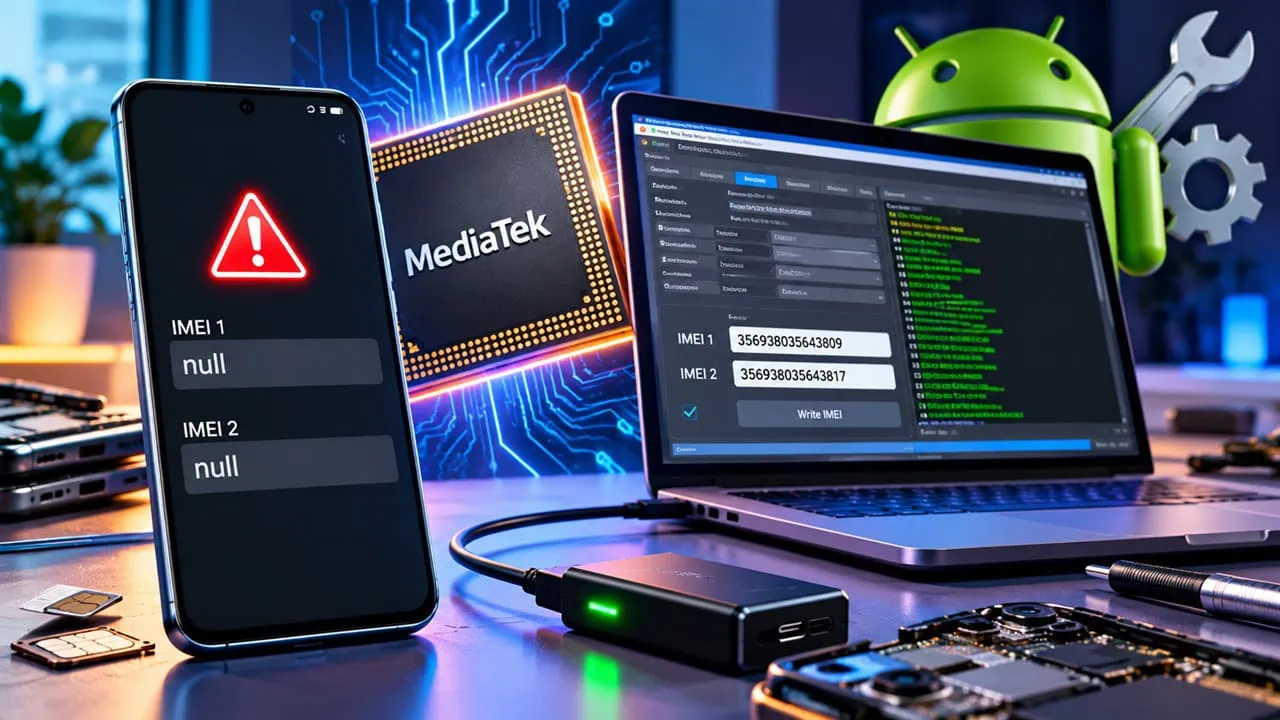
If your MediaTek phone shows a null or unknown IMEI, do not worry. This guide works on every MTK Android smartphone, whatever the brand, you only need the Maui Meta tool, the stock firmware of your model, and a working USB cable. The tool is free of cost and easy to use even if you are new to this process. In this guide, we will show you how to fix null IMEI on MTK devices using the MAUI Meta tool. Every step below is tested and explained in plain language, so you can follow it even if it is your first time.
The IMEI or International Mobile Equipment Identity is a unique 15-digit code that identifies your device model, whether you have used a SIM card or not. Every handset in the world carries its own IMEI, which is why carriers can track a phone before a SIM card even touches it. You can check the number on any MTK phone by typing *#06# in the dialer. When the screen comes back blank or shows zeros, the baseband cannot register, and calls, texts and mobile data all stop working. You can fix the Null IMEI Number on MTK Devices using the database file on your Mediatek device firmware and using the MAUI Meta tool.
Why MediaTek Phones Show Null IMEI
The IMEI usually gets corrupted, or turns invalid, or goes completely null while flashing any third-party firmware or a custom file on your device. The loss shows up as a blank *#06# screen, and the phone refuses to register with any network. The good news is that on MediaTek devices the damage stays limited to a small NV partition, and that partition can be rewritten, which is exactly what this guide does.
Prerequisites
Before you start, gather everything you need. The list below is short, and every item is easy to find for your exact model.
- A Windows PC or laptop, and the original USB cable of the phone.
- Charge the phone to at least 50% before touching any tool.
- Take a full backup of your data first, the process wipes the NV area and it is better to be safe.
- Enable USB Debugging: Settings → Developer options → USB debugging (unlock Developer options by tapping Build number seven times).
- Install the MediaTek VCOM drivers on the PC, the phone will not enter Meta mode without them.
- Download MAUI Meta Tool (free) and SP Flash Tool on the PC.
- Download and extract the stock firmware of your exact phone model, we need the BP database file from it. The Infinix Zero 8i, for example, is codenamed X687B.
- Install ADB and Fastboot on the PC for the NV wipe step.
Fix Null IMEI on MTK Devices using MAUI Meta
Here is the fastest way to fix null IMEI on MTK devices, and it starts with this free tool. Maui Meta is a free Windows tool designed for MediaTek chips. It directly commands your phone in Meta mode and bypasses normal startup; it allows you to rewrite IMEI back into the NVRAM area where it should be. This process takes just a few minutes and you need the tool, stock firmware for your phone and a good USB cable to do this.
Step 1: Wipe the Corrupted NV Data
The phone keeps a small NV partition that stores the IMEI, and a botched flash usually corrupts it. Wipe it first so MAUI Meta writes into a clean area.
- Power the phone off completely.
- Boot it into fastboot mode with the key combo of your model, most MTK phones use Volume Up + Power held together, some use Volume Down.
- Plug the phone into the PC with the USB cable.
- Open a command prompt in the fastboot folder and run these two commands one after the other:
fastboot erase nvdata
fastboot erase nvram
Step 2: Write the IMEI with MAUI Meta
- Right-click the MAUI Meta Tool and choose Run as administrator, then install it on the PC.
- Launch MAUI Meta and pick the Connection Type: choose Smartphone, not feature phone.
- Click the Reconnect button in the tool.
- Connect your phone to the PC with the USB cable. The phone stays on the boot animation, which is normal, Meta mode freezes the display on the logo.
- Wait for the yellow dot on the tool interface, it means the phone is detected and talking to the PC.
- Open the dropdown and select IMEI Download. The IMEI Download dialog opens.
- Click Change NVRAM Database File and browse to the BP database file from the stock firmware you extracted earlier.
- Enter the 14-digit IMEI in the IMEI box and the 15th digit in the CheckSum box, exactly as printed on the box sticker.
- Click Download to Flash and wait. A success message appears at the bottom of the tool when the write finishes.
- Unplug the phone and restart it.
- Dial *#06# on the keypad and check that the IMEI is back.
Alternative: Fix Null IMEI Number on MTK with SN Write Tool
If you are having trouble with Maui Meta on your computer SN Write Tool is a solid backup choice: it does the same job for MediaTek phones and service centers rely heavily on this tool. Steps are nearly identical: load the bplgu firmware file, type in IMEI, and then start.
- Install the MediaTek USB drivers on the PC and run SN Write Tool as administrator.
- Load the BPLGU file from the same stock firmware using the Browse button.
- Type the IMEI from the box sticker in the IMEI field.
- Click Start, then power off the phone and connect it to the PC.
- Wait for the green status bar, then disconnect and reboot the phone.
Troubleshooting
- Phone stuck on the boot animation – Normal. Phone is in Meta mode and display stays frozen until write completes. Do not unplug it during write.
- The tool shows a yellow dot instead of the green circle – Incorrectly installed VCOM drivers. Reinstall them, unplug phone and click Reconnect again.
- The IMEI returns after a few hours or days – NV area unstable usually due to mismatched firmware. Flash full official ROM of your model first then try getting IMEI number again.
- “Not registered on network” right after the fix – Restart phone, toggle airplane mode once and change network to 2G or 3G for a minute; usually baseband reregisters.
- Dual SIM models need both IMEIs – Slot 1 for SIM1 and Slot 2 for SIM 2 before pressing Download to Flash before flashing.
- You do not have two IMEI numbers – IMEIs are printed on the sticker on the box as well as on back panel of most models. Use original numbers and random numbers will lock you out of network.
That’s it. We hope this walkthrough helped you fix null IMEI on MTK devices, whatever model you are holding this guide was useful for MediaTek Android Smartphone. If you encounter problems along the way please ask questions below and include *#06# shows and we can resolve them faster.