
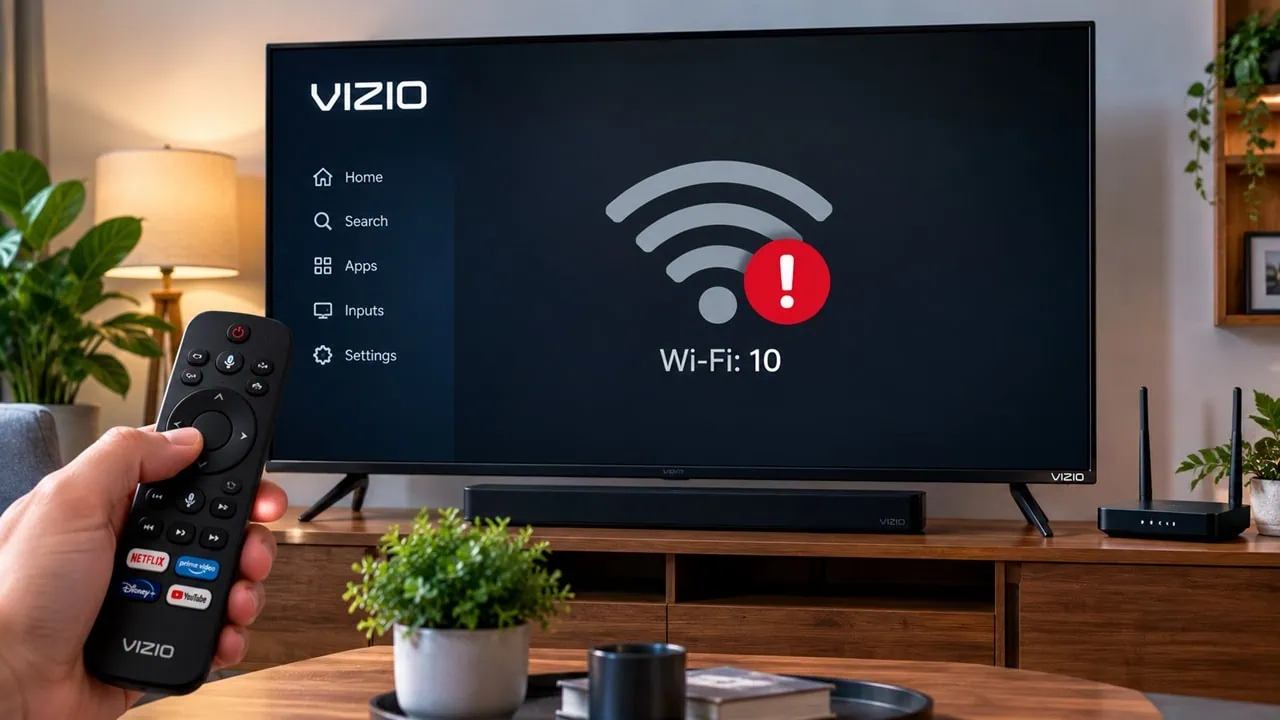
Seeing Wi-Fi: 10 on your Vizio TV is frustrating. Usually every other device connects fine. SmartCast reports this error when your TV cannot connect to the network even if your router is fine. Good news: This code generally does not mean hardware is broken. Usually this is due to stale lease for DHCP, a glitch in networking stack, or some settings that have quietly changed. In this guide we will show you all the fixes to Fix Vizio TV Wi-Fi Not Connecting Error Wi-Fi: 10 code easily.
If your Vizio TV Wi-Fi is not connecting, this is commonly seen after a firmware update or a new router, even after a power failure. TV lingers on old network information and fails to refresh. Instead of reconnecting it gives you this error. Sometimes the Wi-Fi adapter in TV goes dead. You then have to drain all power before it can talk to the network again.
What Causes the Wi-Fi: 10 Error on Vizio TV?
- A stale DHCP lease that the TV cannot renew after a router change or power cut.
- A glitched network stack inside SmartCast after a firmware update.
- Router-side blocks like MAC address filtering or band steering pushing the TV to a band it cannot hold.
- A frozen Wi-Fi adapter that only recovers after a full power drain.
How to Fix Vizio TV Wi-Fi Not Connecting (Wi-Fi: 10)
1. Restart Everything (Power Cycle)
Start with the three restarts, since they clear most cases. Unplug your TV from wall socket. Then press and hold the power button for 15 to 20 seconds and wait five minutes before plugging back in. Do the same for the router and modem, unplugging them for two minutes. Go to menu, then select Network and perform connection test yourself; if that test fails too then reconnect by hand. Be careful when typing password it is case sensitive.
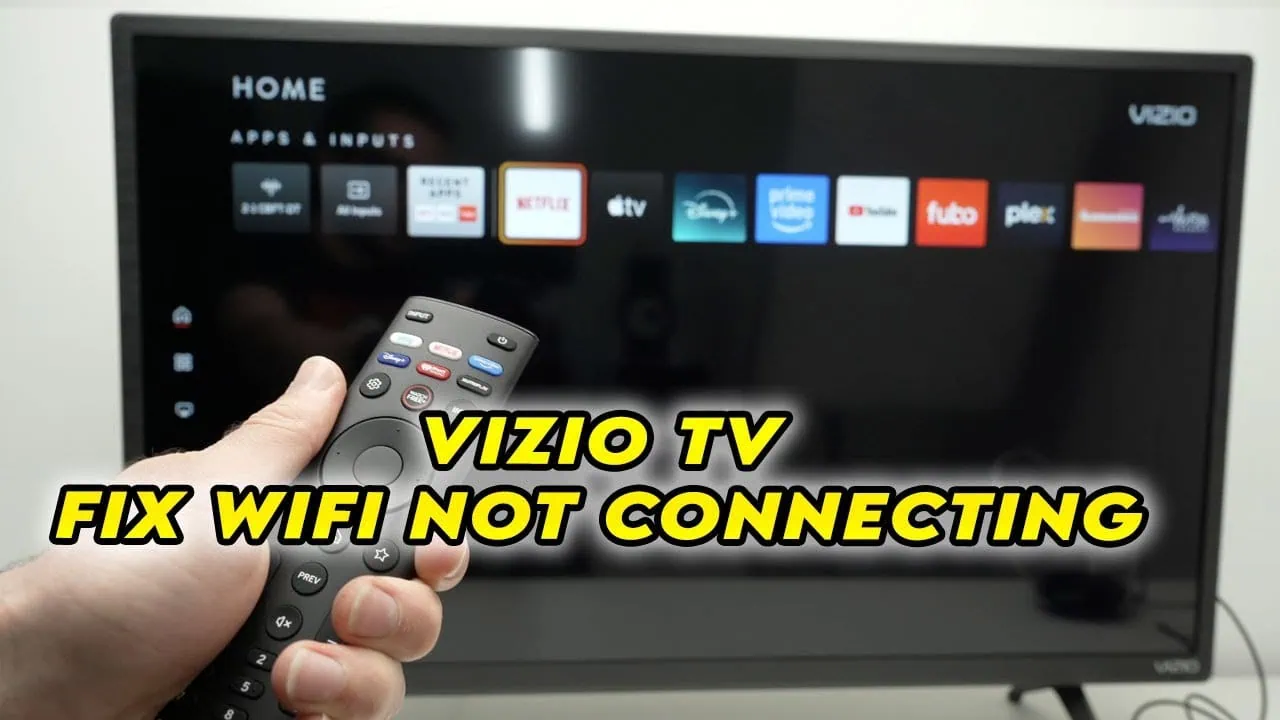
- Unplug the TV from the wall socket.
- Press and hold the power button on the TV for 15 to 20 seconds to drain the capacitors.
- Wait five minutes, plug the TV back in, and switch it on.
- Unplug the router and modem for two minutes, plug the modem back first, then the router.
- On the TV, go to Menu > Network > Test Connection.
2. Reconnect and Check the Password
- Go to Menu or Gear > All Settings > Network.
- Select your network name and re-enter the password slowly. Passwords are case-sensitive, and zero vs letter O mistakes are common.
- If the TV saved a bad password, pick Forget Network first, then reconnect.
- If your router broadcasts separate 2.4 GHz and 5 GHz names, try the 2.4 GHz network, which gives the TV better range.
3. Toggle the DHCP Setting
The next step is the DHCP toggle. Press Menu, open All Settings, go to Network, pick Manual Setup, and find DHCP. Is it turned off? Turn it on. If it is already on, turn it off and then back on. That forces the TV to request a fresh IP address from the router. While you are in router settings check MAC address filtering. Make sure the TV is not blocked, and turn off the auto-optimize network or band steering feature, which can push the TV onto a band it cannot hold.
- Press Menu or Gear on the remote.
- Open All Settings > Network > Manual Setup > DHCP.
- If DHCP is off, turn it on. If it is already on, turn it off and then back on.
- Reconnect to Wi-Fi and test the connection again.
4. Check the Router Settings
- Log in to your router’s admin page and open the advanced settings.
- Turn off MAC address filtering, or make sure the TV’s MAC address is on the allowed list.
- Turn off Auto-Optimize Network or band steering, which can push the TV to a 5 GHz band it cannot hold.
- If the router uses WPA3 only, switch the security mode to WPA2 or WPA2/WPA3 mixed, since older Vizio models have trouble with strict WPA3.
- Restart the router and the TV once more.
5. Clear the TV Memory (Volume Down + Input)
If the problem still exists, try this: Hold Volume Down and Input buttons simultaneously for about five seconds. The screen flashes “memory is being cleared,” and the TV reboots with a fresh network stack. This usually fixes things for most users on community forums and do not worry, apps won’t be deleted. Next correct date, time and region in settings. Then update firmware with Ethernet. If this still doesn’t fix it you have to resort to factory reset; you can find this option in Settings, Admin and Privacy, Reset TV to Factory Settings.
- With the TV on, press and hold Volume Down and Input together for about five seconds.
- Wait for the memory is being cleared message on the screen.
- Let the TV reboot, then try connecting to Wi-Fi again. This clears the network stack without deleting apps or accounts.
6. Fix the Date, Time, and Region
An incorrect date, time, or region on the TV can break the secure connection to the router. Open Menu > All Settings, set the correct date and time, pick your region, and restart the TV. Owners on the community forums report that this alone fixed the Wi-Fi: 10 error after a power cut.
7. Update the Vizio Firmware
Vizio ships firmware fixes for known network bugs, but the TV needs a stable internet connection to fetch them. Plug in an ethernet cable, go to Menu > Admin and Privacy (or System on older models), and check for updates. With Wi-Fi broken, the cable is the only way to get the TV online for this step.
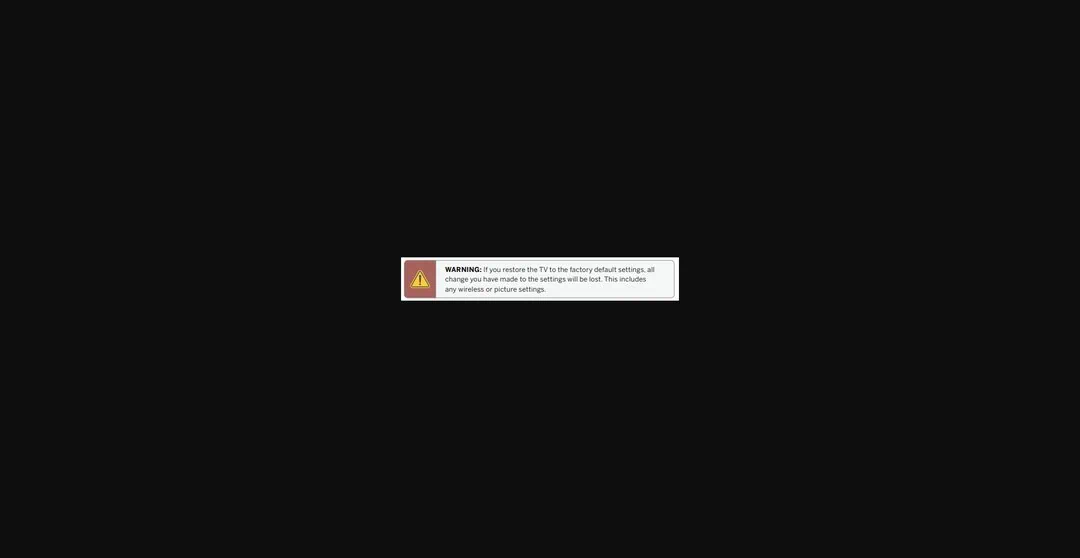
8. Factory Reset the TV
If the error survives every step above, wipe the TV and start fresh. You will have to set up the TV and sign back into your apps, so keep your passwords handy.
- Press Menu or Gear.
- Go to All Settings > Admin and Privacy > Reset TV to Factory Settings (look under System or Help if that path is missing).
- Select Reset TV and follow the on-screen instructions. The TV returns to the initial setup screen.
Still Not Working?
If the TV still shows Wi-Fi: 10 and Wi-Fi Not Connecting after a factory reset, first confirm that a phone or laptop connects to the same network without problems, and check with your internet provider for a local outage. A faulty Wi-Fi module inside the TV is the last suspect. Replacing it means opening the back panel, which voids the warranty, so contact Vizio support with the model number before you go down that road.