
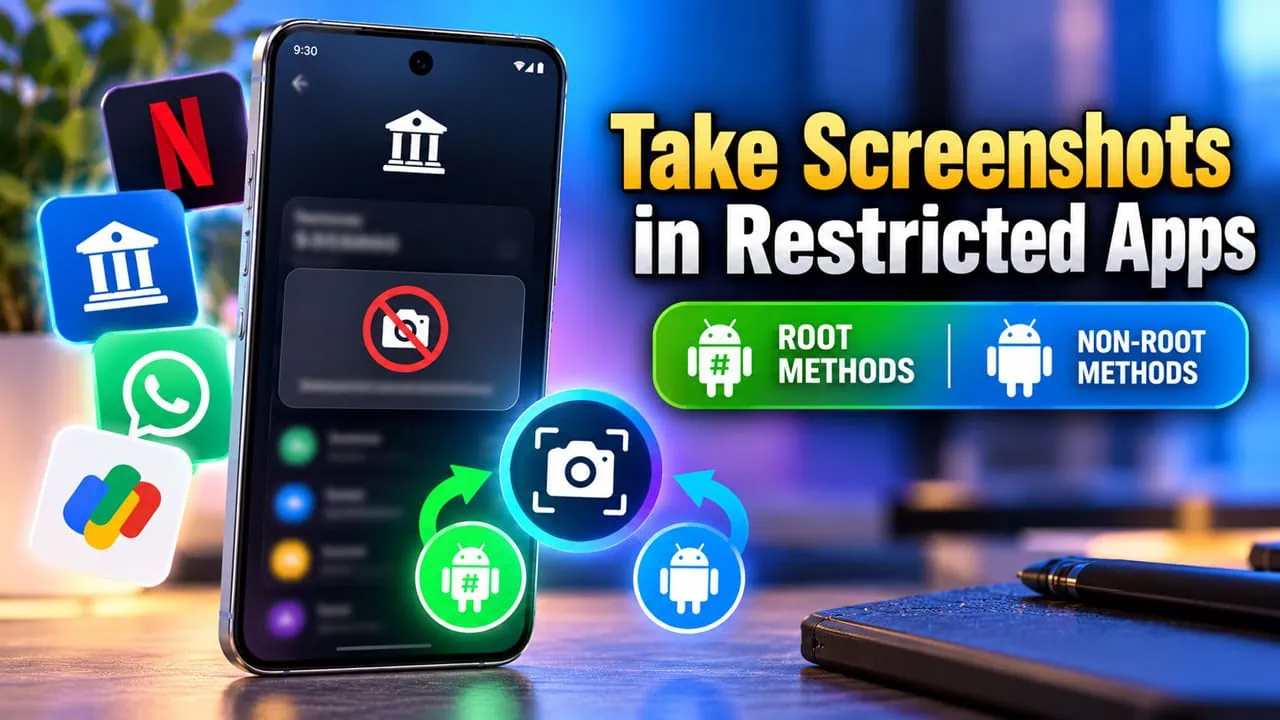
Taking a screenshot in a banking app on an Android smartphone is restricted by Android security. When you try to take a screenshot in a banking app by Volume Down + Power key or from the status bar, the screenshot will be blocked by a warning message, “Couldn’t save screenshot. The same barrier appears for Netflix, Prime Video, Disney+, Hotstar, and a long list of apps dealing with payments and KYC. There are two ways you can unrestrict the screenshot capturing. In this guide, we will share how to Take Screenshots in Restricted Apps using Root and Non-Root Methods.
Everything depends on a single window flag. Apps request FLAG_SECURE directly themselves, and the Android security system refuses to share pixels with the screenshot API or screen recorders. As a result, the capture ends up empty or a black screenshot or video. Latest Android builds also took further steps: from Android 14 apps can now detect that a screenshot has been taken and from Android 15 they can detect recording as well.
- What Is FLAG_SECURE?
- Method 1: Take Screenshots in Restricted Apps Using Gemini [Non-Root]
- Method 2: Take Screenshots in Restricted Apps Using scrcpy [Non-Root, PC Required]
- Method 3: Take Screenshots in Restricted Apps with LSPatch [Non-Root]
- Method 4: Take Screenshots in Restricted Apps Using LSPosed [Root]
- Which Method Should You Use?
What Is FLAG_SECURE?
FLAG_SECURE is a flag that an app sets on its own activity. Once set, the system protects app window: screenshot API returns an empty frame and screen recorders capture black screen. Banking and KYC apps use it to hide account details in the gallery and streaming services add it along with DRM so that videos cannot be copied. You can remove the flag by modifying the Android security system by a module, So the Restricted app acts as the restriction was never there.
Method 1: Take Screenshots in Restricted Apps Using Gemini [Non-Root]
Google Gemini can capture screens on various devices and no app or module installation is required. However, some banking apps receive a clean image but streaming apps usually show black.
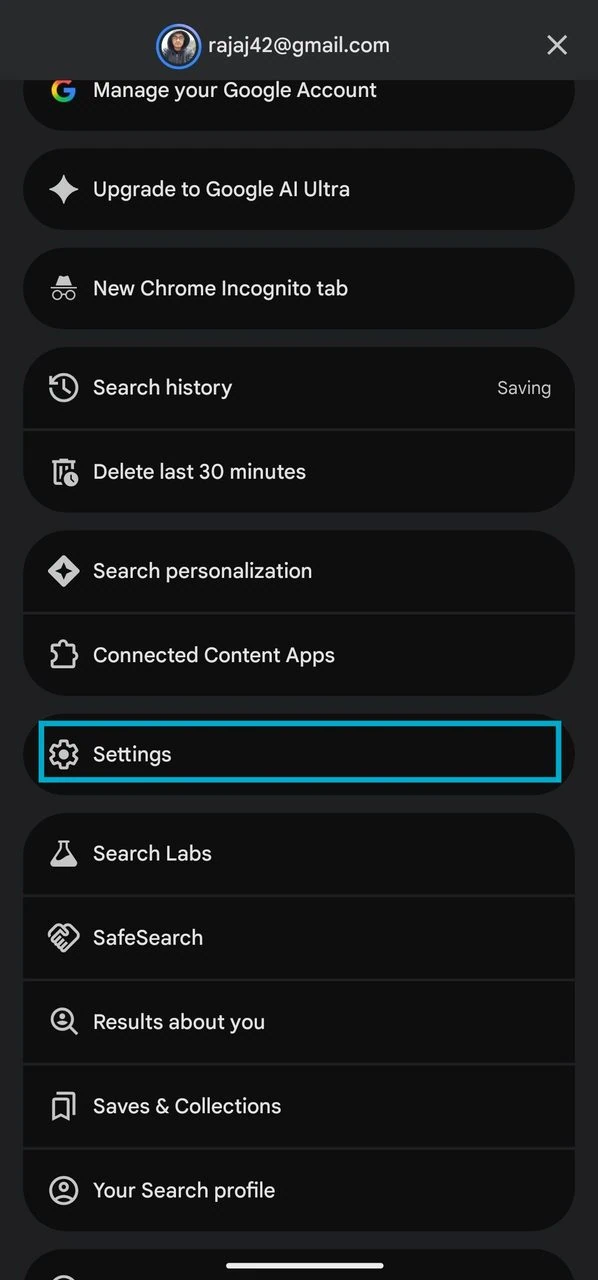
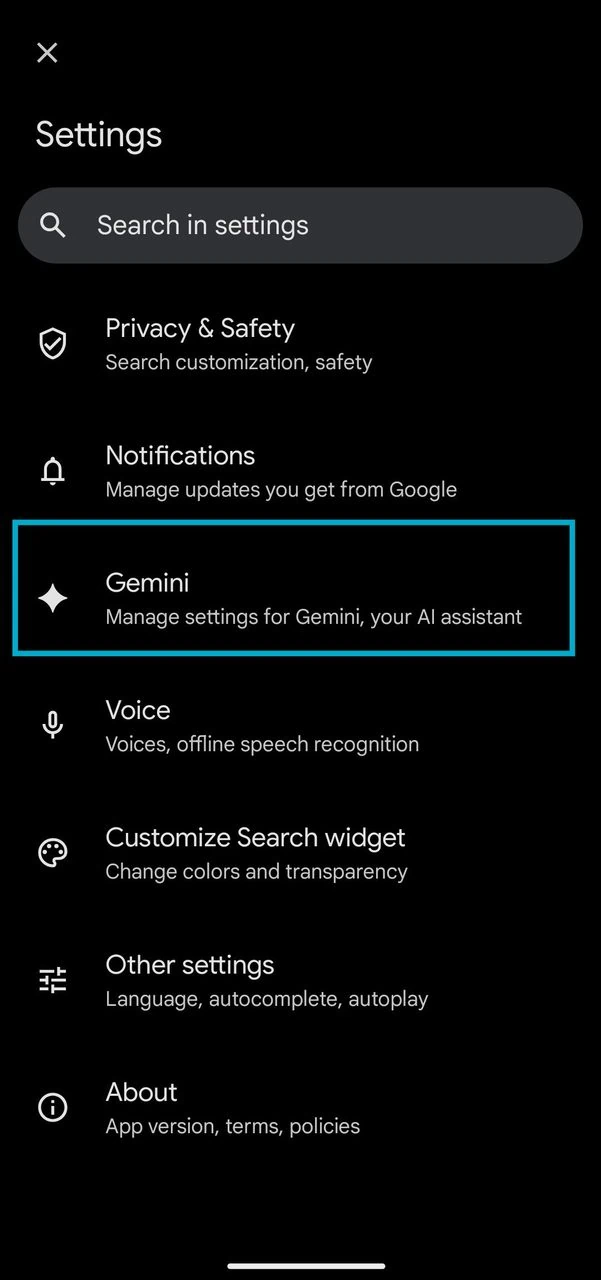
- Open the Google app and tap your profile picture at the top right.
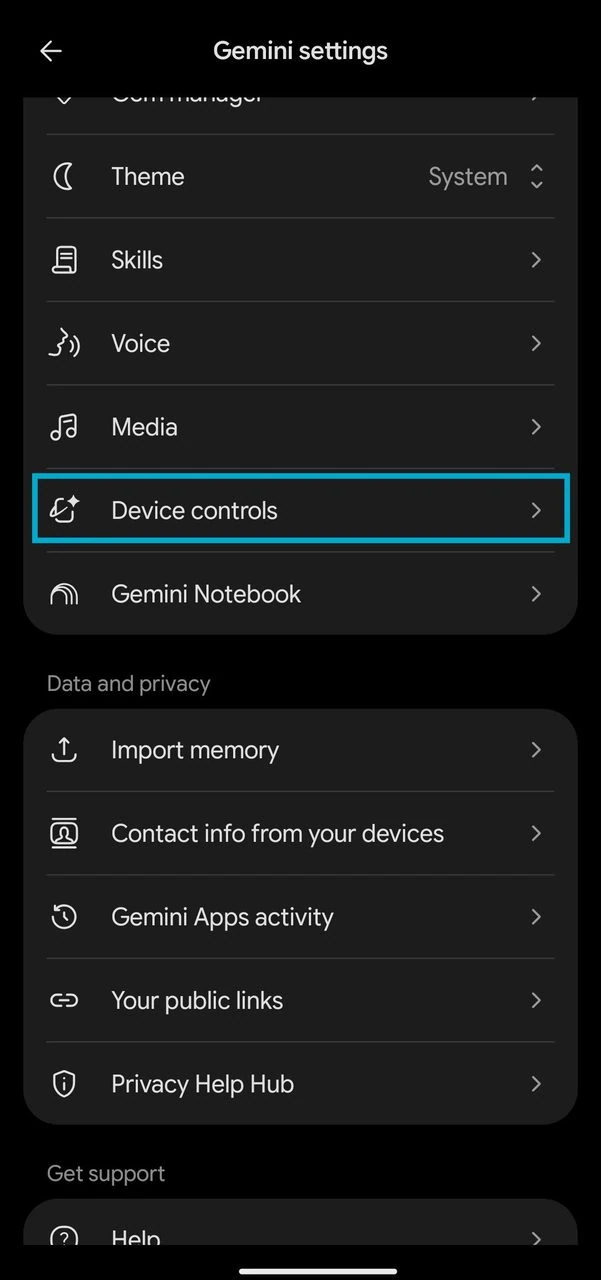
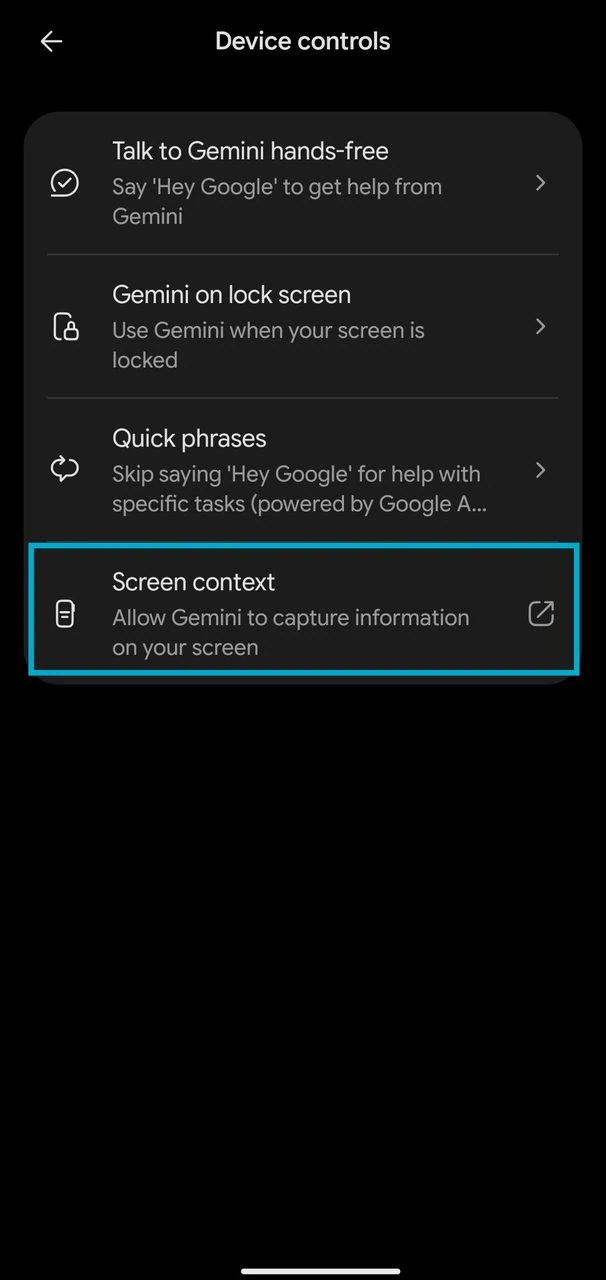
- Go to Settings, then open Gemini and scroll to Device Control.
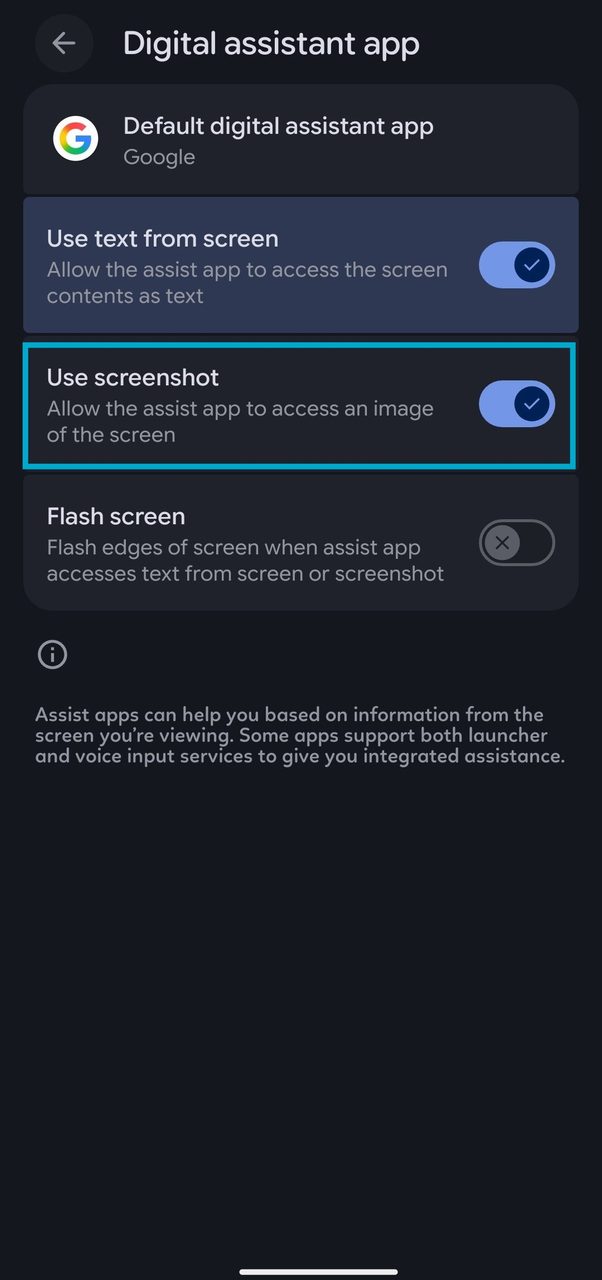
- Tap on the screen context option and turn on the Use Screenshot.
- Switch to the app that blocks screenshots and leave it on screen.
- Trigger the Gemini by long-pressing the home button or saying “Hey Google”.
- Say “Take a screenshot” and let the Gemini Assistant handle the capture.
Method 2: Take Screenshots in Restricted Apps Using scrcpy [Non-Root, PC Required]
This works on phones with a locked bootloader and no root required, because the phone is just streaming the display directly over USB. The only requirement is a computer and a USB cable.
Step 1 – Enable USB Debugging
Open Settings, go to About Phone, and tap Build Number seven times. Developer Options now appears under Settings → System, and Turn on USB Debugging.
Step 2 – Connect the Phone and Mirror the Screen
Download the scrcpy release for your operating system, now create a scrcpy folder in the C drive “C:\scrcpy”. Open Command Prompt from the Windows Start menu or Search bar.
Go to the scrcpy folder by using this command.
cd C:\scrcpyThen paste the command and approve the ADB daemon on your phone, hit enter after Approve, a new screen window will open where you can control your phone and take a screenshot.
scrcpy -r restricted_app_capture.mp4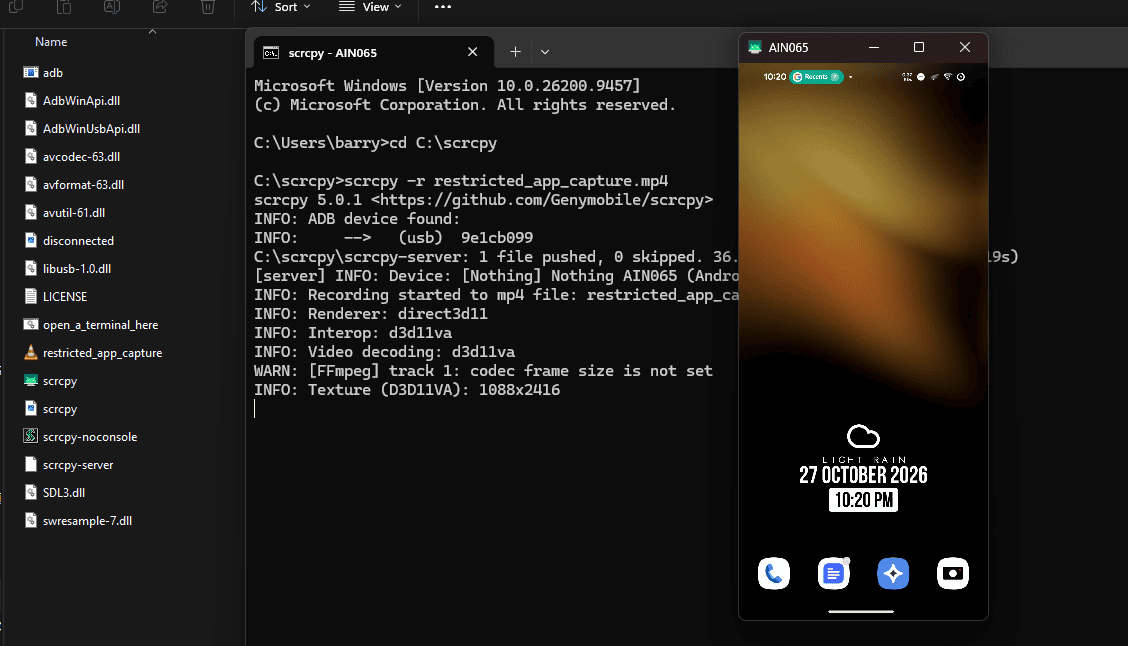
Step 3 – Grab the Frame You Need
Two ways you can take a screenshot: The auto screen recording is already started when you start scrcpy service, and pull the frame later from the scrcpy folder, or freeze the action and capture the window with Windows+Shift+S on Windows, Cmd+Shift+4 on macOS or your desktop screenshot tool on Linux. The recording is saved in the same folder where the scrcpy files are located.
Method 3: Take Screenshots in Restricted Apps with LSPatch [Non-Root]
LSPatch works by replacing an app module and rebuilding the target app around it; you install a patched app copy instead of the original one. Signatures change, and app updates will overwrite what you patch using the LSPatch; some apps may notice the modification and refuse to run. Follow our guide on how to install LSPatch on Android without rooting the phone.
- Install the LSPatch manager APK on the phone and grant it storage access.
- Install Disable Flag Secure module, or DisableFlagSecure which allows us to take screenshots in restricted apps.
- In the manager, open the patch section and pick the app whose screenshots you want to unlock.
- Choose local mode, then select the Enable Screenshot disable_flag_secure module as the module to embed.
- Start the patch and wait for it to rebuild the package.
- Install the patched APK. If Android refuses to install it, uninstall the original app first — the signature will not match.
- Open the patched app and take your screenshot normally.
Method 4: Take Screenshots in Restricted Apps Using LSPosed [Root]
You can take screenshots normally by removing the flag_secure at the system level with root access. The current module is named Enable Screenshots: it is a successor of previous Disable FLAG_SECURE and is maintained by team LSPosed.
The module has been renamed to Enable Screenshot because version 4.0.0 switched to a completely new approach on Android 12 and newer. The latest change allows for capturing secure layers, including Netflix playback at L3. On Android 14 it also disables screenshot detection, and on Android 15 it covers screen-record detection too.
Step 1 – Install LSPosed and the Module
- Root the phone with Magisk or KernelSU, ResuSU using the patched boot image, and enable Zygisk.
- Install the official LSPosed framework and open the LSPosed manager.
- Open the repository, search for Enable Screenshot and download the latest release APK, or download the latest DisableFlagSecure apk from here.
- Install the module APK, then go to the Modules tab and enable the toggle next to it.
Step 2 – Set the Module Scope
Open the module and tick System Framework plus the app you want to screenshot. Do not add the module itself or unrelated apps to the scope; the module will complain with an “incorrect module usage, remove this app from scope” notice when the scope is wrong. Keep the scope tight so the module only helps you take screenshots in restricted apps and nothing else.
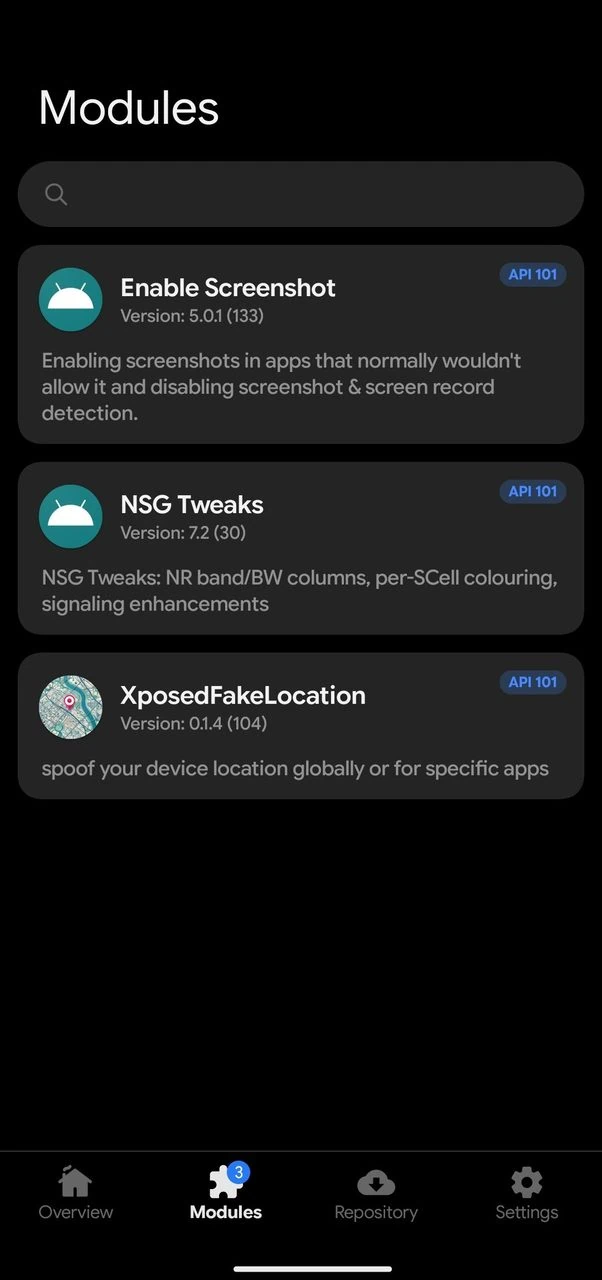
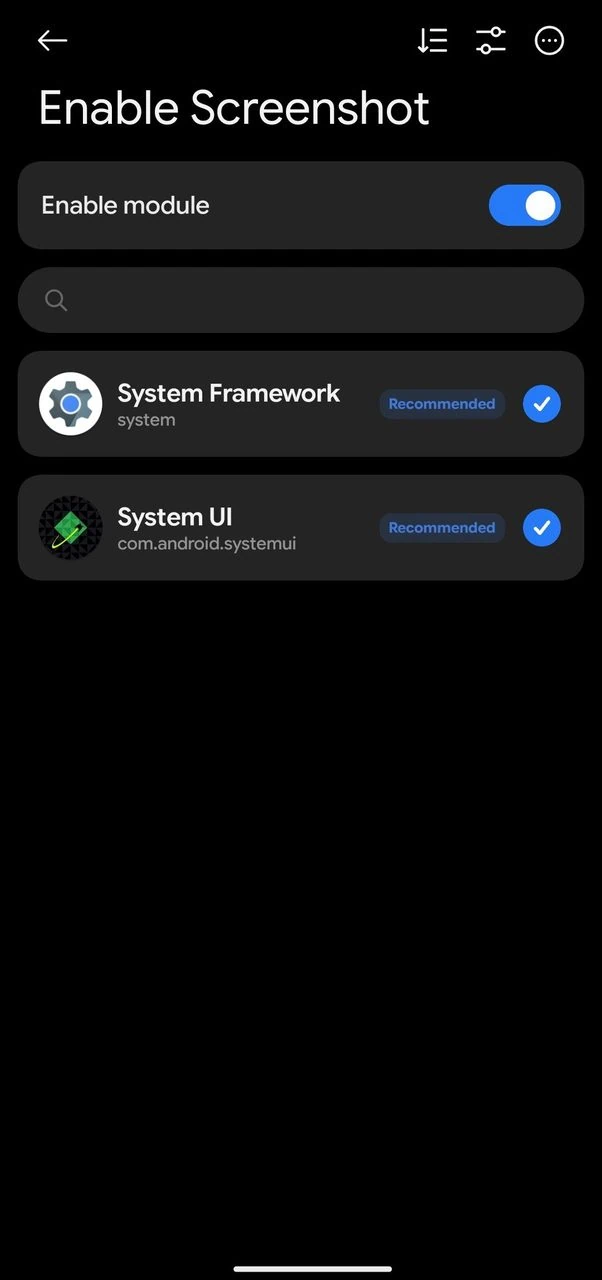
Reboot the device and take a screenshot normally by Volume Down + Power key or from the status bar. From now on you can take screenshots in restricted apps as if the flag never existed.
Which Method Should You Use?
Here is how the four methods compare once you decide how to take screenshots in restricted apps on your device:
| Method | Root Needed | PC Needed | Best For |
| Google Assistant | No | No | Quick one-off captures |
| scrcpy mirror | No | Yes | Locked bootloader, DRM apps |
| LSPatch | No | No | One app at a time, no root |
| LSPosed + Enable Screenshot | Yes | No | System-wide fix, detection off |
Troubleshooting
- Screenshot is still black – DRM-protected playback at hardware level (L1). Use the Screenshot module for L3 layers; if the stream is L1, mirror the screen with scrcpy instead.
- Module does nothing after a reboot – check that Zygisk is on, that the module is enabled, and check you are on official LSPosed.
- Incorrect module usage, remove this app from scope – you added the module itself or an unrelated app to the scope. Untick everything except System Framework and the target app.
- Restriction comes back after an app update – the flag is re-applied to the new process. Force stop the app, or clear its data, and the module takes over again.
- Patched APK will not install – the signature no longer matches the installed copy. Uninstall the original, then install the patched build.
- Banking app quits on launch – root detection or the modified package is the cause. Hide root for that app, or fall back to the scrcpy method which leaves the app untouched.
If you have a PC and locked bootloader you can use Scrcpy to mirror screen and capture cleanly without system interaction. If you root your phone, then Enable Screenshot gives a neat answer that keeps the app intact and also hides the Android 14 and 15 detection layers. Whichever methods you pick, these are the proven ways to take screenshots in restricted apps on Android, root and non-root. Keep it personal, keep a backup, and remember that DRM-protected streams can still hold out even after all of this.