

Google Play Store Services and Apps updates silently in the background. If you keep an older version of ROM or custom ROM and downgrade to the older firmware, it grabs the new version of Google Play Store in a day or two. Here are three rooted ways to stop the Play Store auto update permanently, with detailed undo instructions for each. Here How to Turn Off Play Store Automatic Updates Only for Root users.
The Google Play Store has two hidden services that check Google servers and download the latest builds automatically without asking for permission. Blocking these services doesn’t interfere with the store itself; downloads and updates continue to work exactly as usual in the background. Most Android modders use methods such as a per-service rule, a spoofing module that disables or turns off Play Store Automatic Updates.
What You Need to Turn Off Play Store Automatic Updates
- Rooted device – Root your device with the methods KernelSU, Magisk, ReSukiSU. The methods below are only for Rooted users.
- The Play Store version you want to keep – downgrade or sideload it first, then disable Play Store Automatic Updates.
- A complete backup – The changes are reversible. Make sure to take a full backup before modifying anything system-level.
Method 1: Stop Play Store Automatic Updates by Blocking the Self-Update Services
The App Manager gives you full control over Play Store services, and blocking its two self-update services is the cleanest way to proceed. This app is open source and designed for just this kind of modification work.
- Install App Manager from its official release page (github.com/MuntashirAkon/AppManager) and grant it root access.
- Open the app, search for the Play Store and open its app page.
- Go to the Services tab and type SelfUpdate in the search box.
- You will see two services: Emergency Self-Update Service and Safe Self-Update Service.
- Tap the overflow menu on each one and choose Apply Rule → Disable.
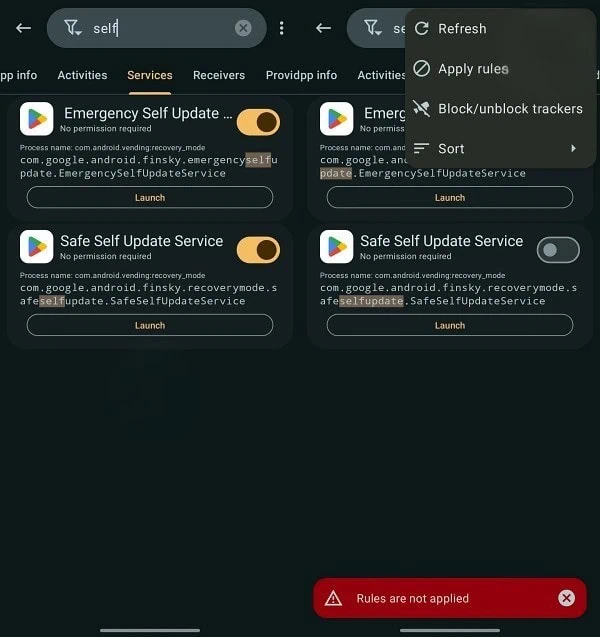
Restart the phone and check whether the Play Store updates automatically.
Method 2: Stop Play Store Auto Update with LSPosed + PlayVersionSpoofer
Play Version Spoofer is a module for LSPosed that handles version checks performed by the Play Store itself. The store believes it has the latest build and never pulls down a new one. Older versions of the Play Store show spoofed number 999.999.999 in About; newer versions report that they are up to date when you click on “Update.”
- Install and set up the LSPosed framework on your rooted device.
- Grab PlayVersionSpoofer from its release page (github.com/byemaxx/PlayVersionSpoofer) and install the APK.
- Open LSPosed, go to Modules and enable PlayVersionSpoofer.
- Add Play Store to the module’s scope, then restart the device.
- Open Play Store → Profile → About to verify.
Verification differs by Play Store build: on older versions the version number displays as 999.999.999; on Play Store 47 and newer the About page may not change, so tap Update Play Store instead – if it answers “Google Play Store is up to date”, then module is working.
Method 3: Stop Play Store Auto Update with a Magisk Module (Flash and Forget)
If you prefer not to touch services or install LSPosed, a small Magisk module does the same job with one flash. The PlayStoreSelfUpdateBlocker module (github.com/himanshujjp/PlayStoreSelfUpdateBlocker) blocks the store’s self-update path from the Magisk layer.
- Download the module ZIP from the project’s release page.
- Open Magisk → Modules → Install from storage and pick the ZIP.
- Reboot the device.
- To restore updates later, just toggle the module off in Magisk and reboot.
How to Undo the Changes – Re-enable Play Store Auto Update
Whatever reason you had to stop Play Store auto update, every method is one step away from stock behaviour. Do not uninstall App Manager, LSPosed or the module until the reversal below is done on that method:
- App Manager – Open Play Store → Services → search SelfUpdate → overflow → Remove Rule on both services (Emergency and Safe), then uninstall App Manager if you no longer need it.
- LSPosed – Modules → uninstall PlayVersionSpoofer → restart. LSPosed itself can be removed afterwards.
- Magisk module – toggle PlayStoreSelfUpdateBlocker off (or delete it) and reboot; the store resumes normal updates.
Notes and Warnings
- App auto-updates still happen – these methods only stop the Play Store from updating itself. Apps you have set to auto-update keep updating; disable “Auto-update apps” in the store settings if you want an all-stop.
- Root detection surface – service-blocking and version spoofing are visible to some Play Integrity checks; modules like Play Integrity Fix can be layered on when needed.
- Keep the APK – store the Play Store build you are locking in as an APK file, because future clean installs of the store will re-enable updates immediately.
- Verify after every boot – check Profile → About a few times in the first days; if the version changed, the rule did not stick and needs reapplying.