

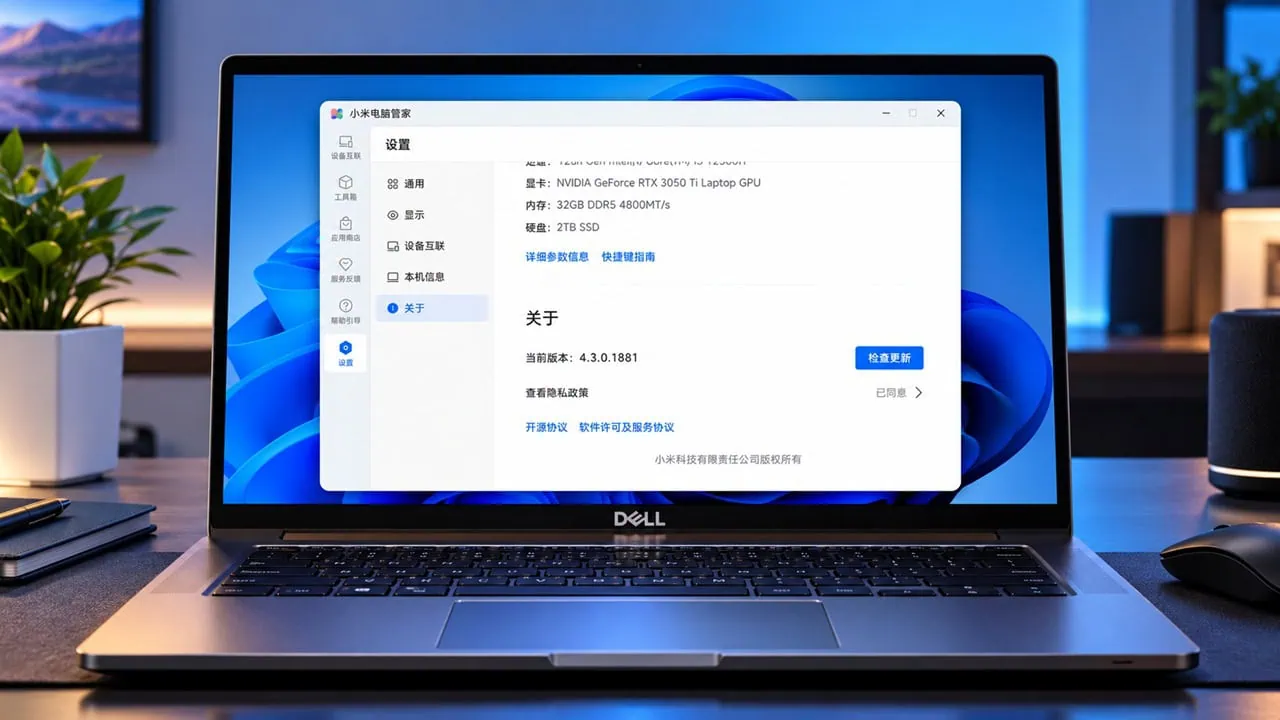
You don’t need a Xiaomi laptop to use Xiaomi HyperConnect PC Manager. Xiaomi checks laptop models at the official installer, and a small patch file, wtsapi32.dll, suffices so that any Windows PC can run it smoothly. This guide covers the installation of HyperConnect Xiaomi PC Manager with screenshots. And a full guide on Xiaomi phones to laptops that interact like the Redmi Book.
Xiaomi PC Manager Version 5.8 for phones running HyperOS 2+ and supports clipboard sharing, network sharing, screen mirroring, and call forwarding through a single app. The official installer refuses non-Xiaomi PCs and laptops until you use the patch file in the same folder, so you can install HyperConnect Xiaomi PC Manager on your non-Xiaomi pc laptop. After that, it goes through the normal Windows setup.
What You Get with HyperConnect on Windows
| Feature | What It Does |
| File transfer | Drag and drop files between phone and PC over the same network; same-account devices are auto-trusted |
| Shared clipboard | Copy on the phone, paste on the PC and the other way around; instant for short snippets |
| Phone mirroring | The PC shows the phone screen and controls apps with the mouse; needs a working iGPU on the laptop |
| Network sharing | The laptop borrows the phone’s mobile data when its own connection dies |
| Call forwarding | Incoming calls show the number on the PC, and you can hang up from the keyboard |
| App relay | Start a task on one device and continue it on the other |
Download Xiaomi PC Manager (Official)
For the Xiaomi HyperConnect PC Manager you need to download two files: an official installer from the HyperConnect page and a small patch for wtsapi32.dll for laptops that are not Xiaomi and everything is free download with no paid tools or mirrors.
We have uploaded the working Xiaomi PC Suite v5.3 with Patch in the download section. You can also download from the official link. Open the official Xiaomi Continuity page and scroll to the PC Manager section. The current version is 5.8 and was released together with HyperOS 2. You need 64-bit Windows 10 build 1903 or newer, or Windows 11 on the PC side, and HyperOS 2 for the phone to run it smoothly.
Download Xiaomi PC Manager v5.3 with Patch –
Official Link – https://hyperos.mi.com/continuity
The Patch for Non-Xiaomi Laptops
The official installer runs a hardware check and aborts on hardware other than Xiaomi. A single file patch called wtsapi32.dll is placed next to the installer and handles this check. This file is very small and common among modders. You can put your wtsapi32.dll in the same folder as the setup EXE exist before you start it.
Download: wtsapi32.dll – devdrive
How to Install Xiaomi HyperConnect PC Manager
- Download the Xiaomi PC Manager installer from the HyperConnect page or our Mirro Link (see above).
- Download the wtsapi32.dll patch and put it in the same folder as the installer EXE.
- Double-click the setup file. With the patch in place, the machine-type check passes and the installer window opens.
- Leave every option at its default and let the setup finish – it behaves like a normal Windows installer.
- Copy wtsapi32.dll file to “C:\Program Files\MI\XiaomiPCManager\5.3*** Folder
- Click the start-experience button or relaunch the PC Manager.
- Sign in with the Xiaomi account used on the phone, and keep both devices on the same Wi-Fi network.
- Pair through the account – the phone appears in the device list and the connection starts automatically.
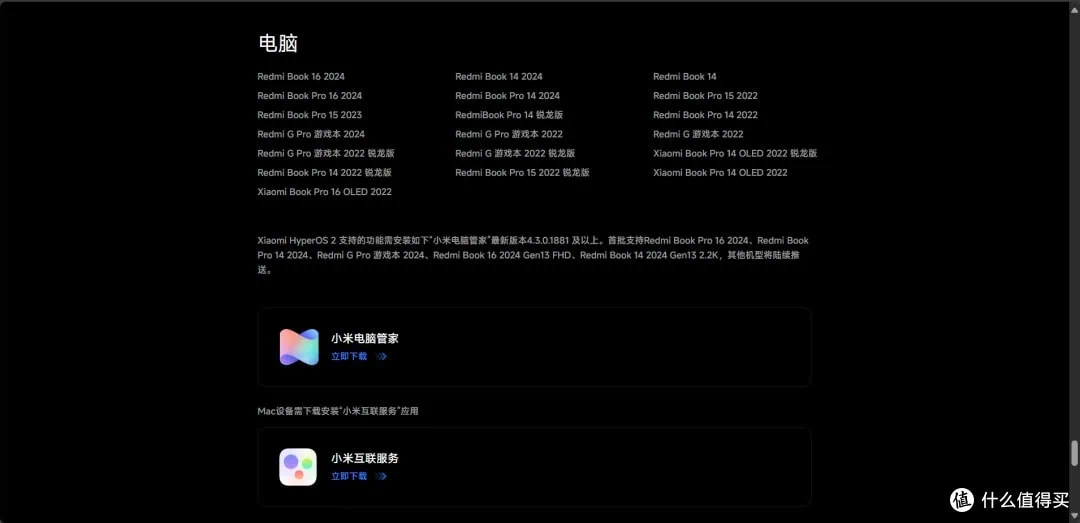
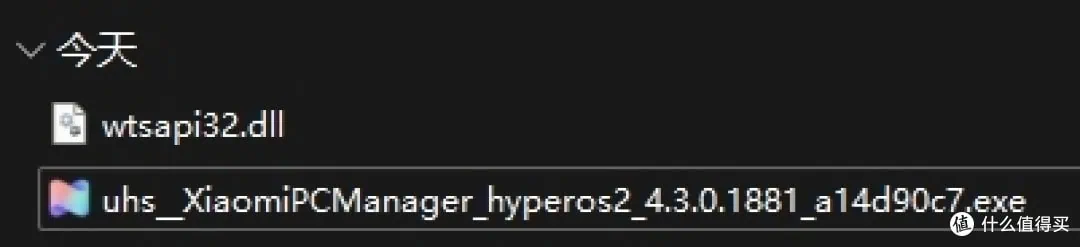
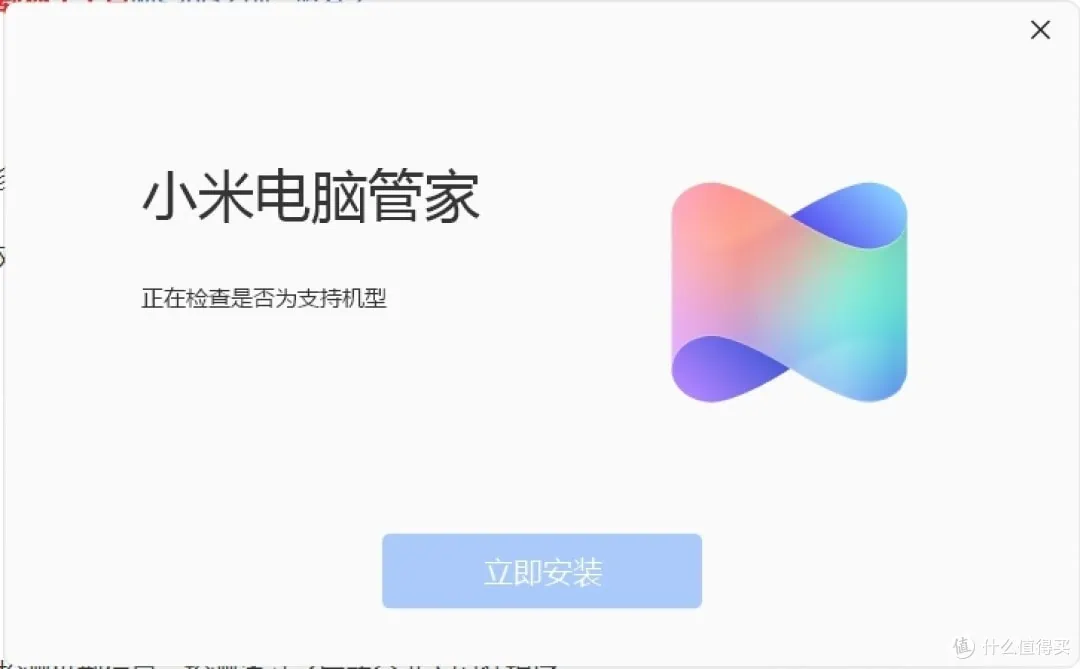
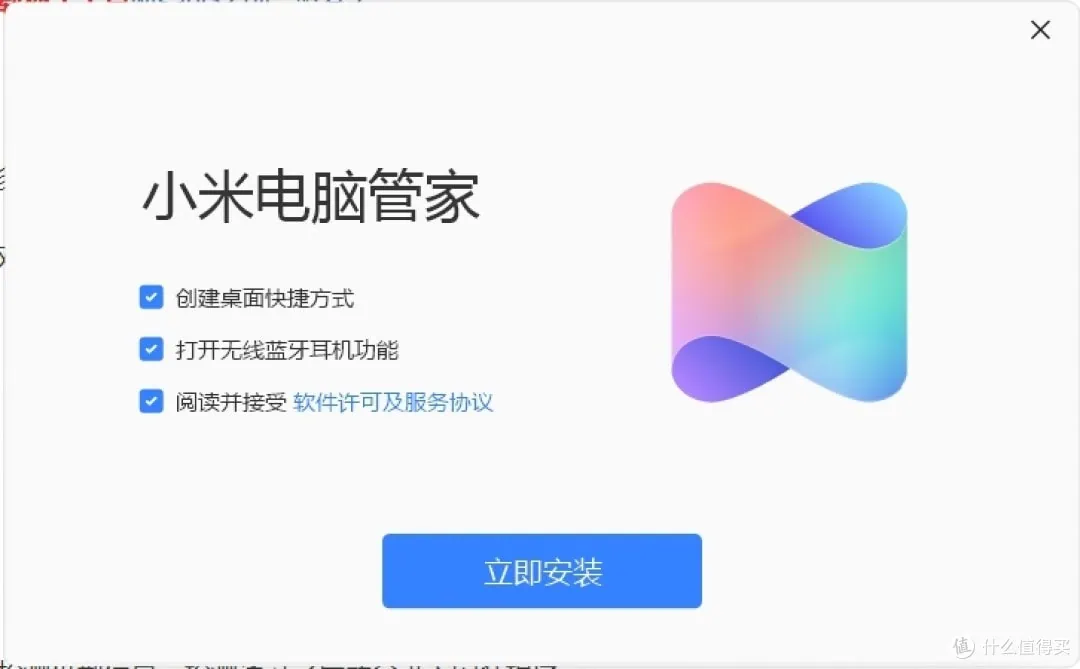
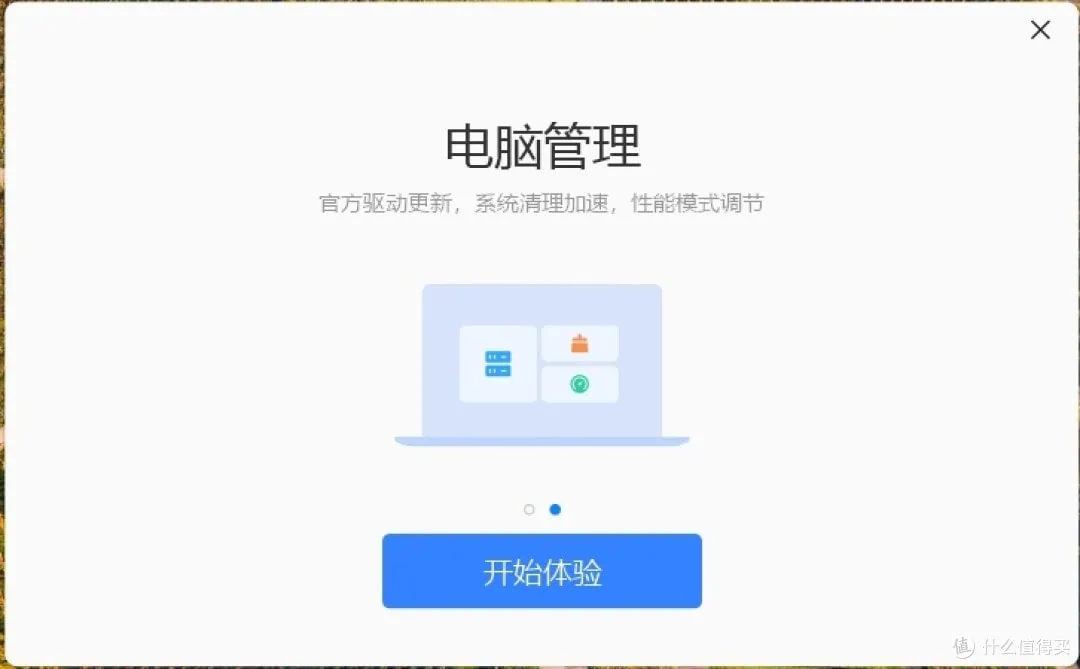
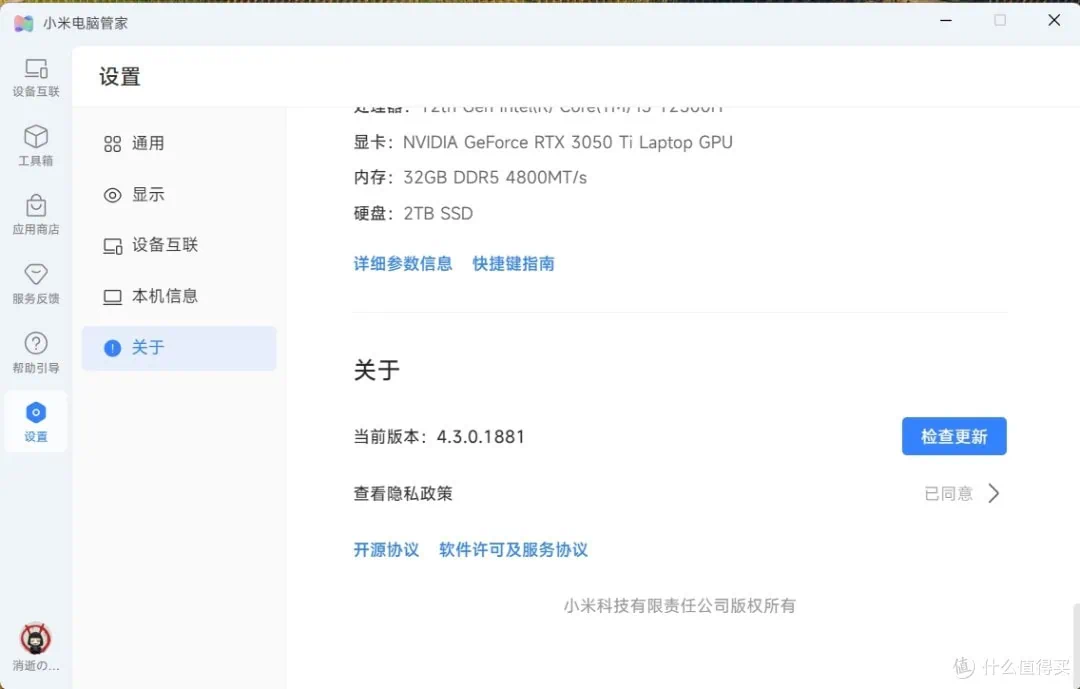
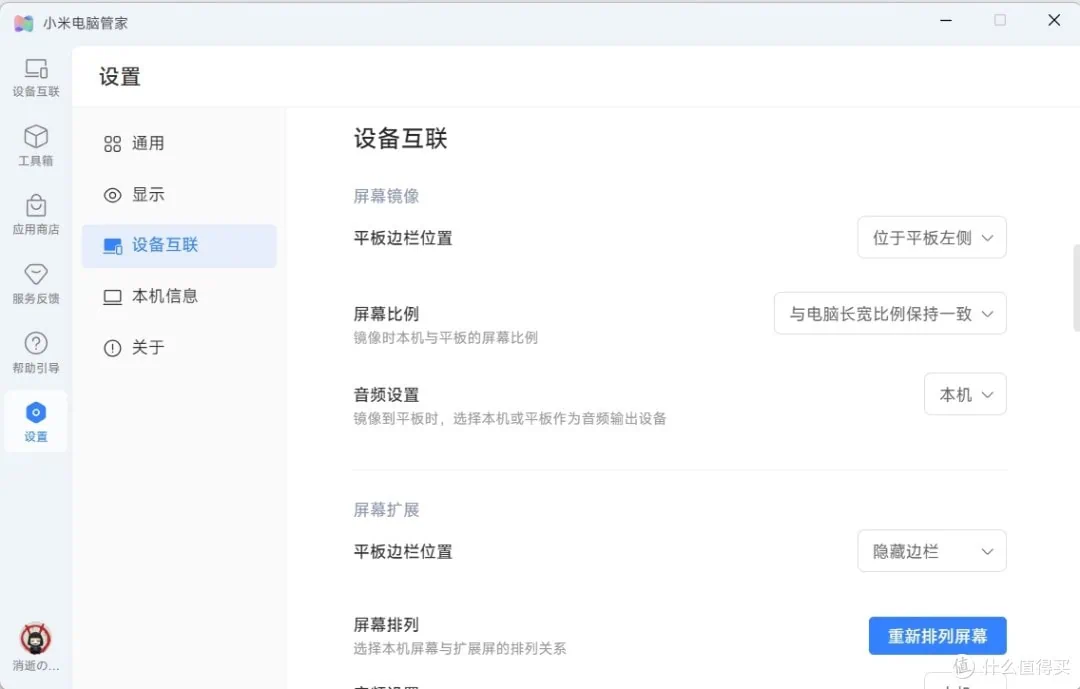
Using HyperConnect on a Non-Xiaomi Laptop
- Shared clipboard – short snippets like verification codes copy immediately but longer text takes a few seconds.
- Network sharing – the laptop falls back to the phone’s data roughly a minute after its own connection drops; smooth once active.
- Call forwarding – You see caller ID on PC as soon as you hear a ringtone on phone and ending calls from PC is very fast.
- Device interconnect panel – Layout same as Xiaomi laptops; quick toggles and shortcuts for transferring data to connected devices.
- No notification relay in 4.3 – This feature is still not present on PC Manager from Xiaomi; it will be included in a later build.
Troubleshooting
- Qualcomm Wi-Fi beats Intel – laptops with Qualcomm wireless cards transfer files more smoothly, whereas those with Intel cards can have file copying glitches.
- No iGPU, no mirroring – casting to tablets or a secondary display requires a working GPU. The clipboard and file transfer work fine.
- Firewalled office networks – Firewall on corporate LANs with deep packet filtering blocks pairing; using a hotspot from a phone or a home network hotspot works.
- Chinese interface – Windows uses an interface with icons and translation works, and the layout is in Chinese.
- Windows version floor – Minimum Windows 10 build 1903, 64-bit, and older builds will not install
Installation summary: Xiaomi PC Manager on a non-Xiaomi laptop is no longer a beta hack; after applying the patch, the app runs the same build Xiaomi sends and updates normally. Keep safe the file wtsapi32.dll as it will be checked in each future update and patch, still works.