

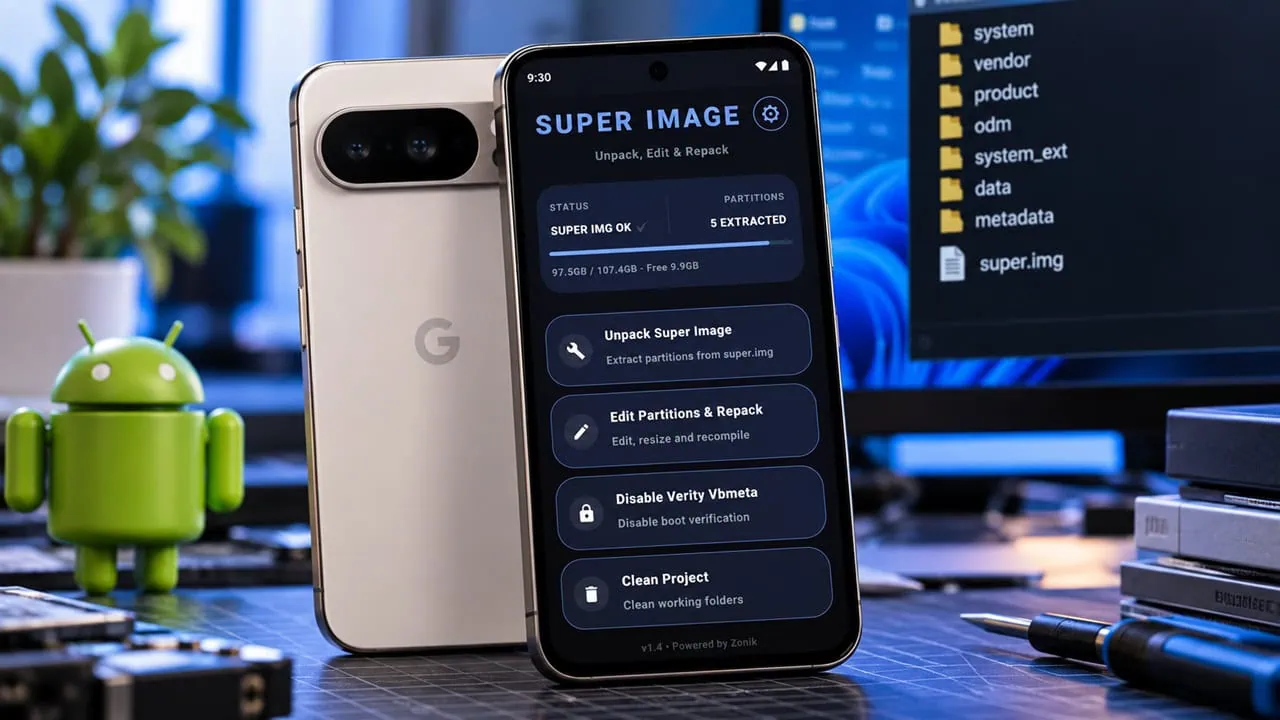
Modding Android used to mean standing in front of a PC: pull firmware, unpack super image using command line tools, edit partitions, repack everything and flash it back. The super image tool moves that whole process entirely to the phone; it is a rooted app that lets you unpack Super.img, edit its partitions and repack everything directly on the device, no PC needed.
The super partition contains system, product, vendor and other dynamic partitions on modern Android and messing with it directly can be a fast route to bricking your phone. So the app warns clearly: root is required, a current backup is strongly recommended, and you need eight to ten gigabytes of free space for the extracted files. Magisk or KernelSU is the supported root route.
What Super Image Tool Does
| Feature | What It Does |
| Unpack Super Image | Extracts every partition from the device block or an existing image file; supports EROFS, EXT4 and EXT2 |
| 8-step repack assistant | Guided flow from debloat to a rebuilt super image, with a summary screen between edits |
| Auto Debloat | Scans all partitions and removes preinstalled bloatware with one tap using presets for system, product, vendor and data-app |
| Manual Debloat | Built-in partition explorer to browse, delete, edit, import and rename files without mounting anything |
| DFE & overlay fix | Disables forced encryption from fstab and restores read/write mounting on supported Xiaomi devices |
| Resize & expand | Shrinks partitions to their minimum size, then hands the freed space to the partitions you choose |
| Disable Verity | Turns off vbmeta and dm-verity checks with automatic backups of the original images |
Download Super Image Tool
The super image tool is a free APK by zonikprojects that runs on rooted arm64 devices with Android 10 or newer. Install the file and grant root access when Magisk or KernelSU prompts. It works on both A/B and A-only devices.
How to Use Super Image on Your Phone
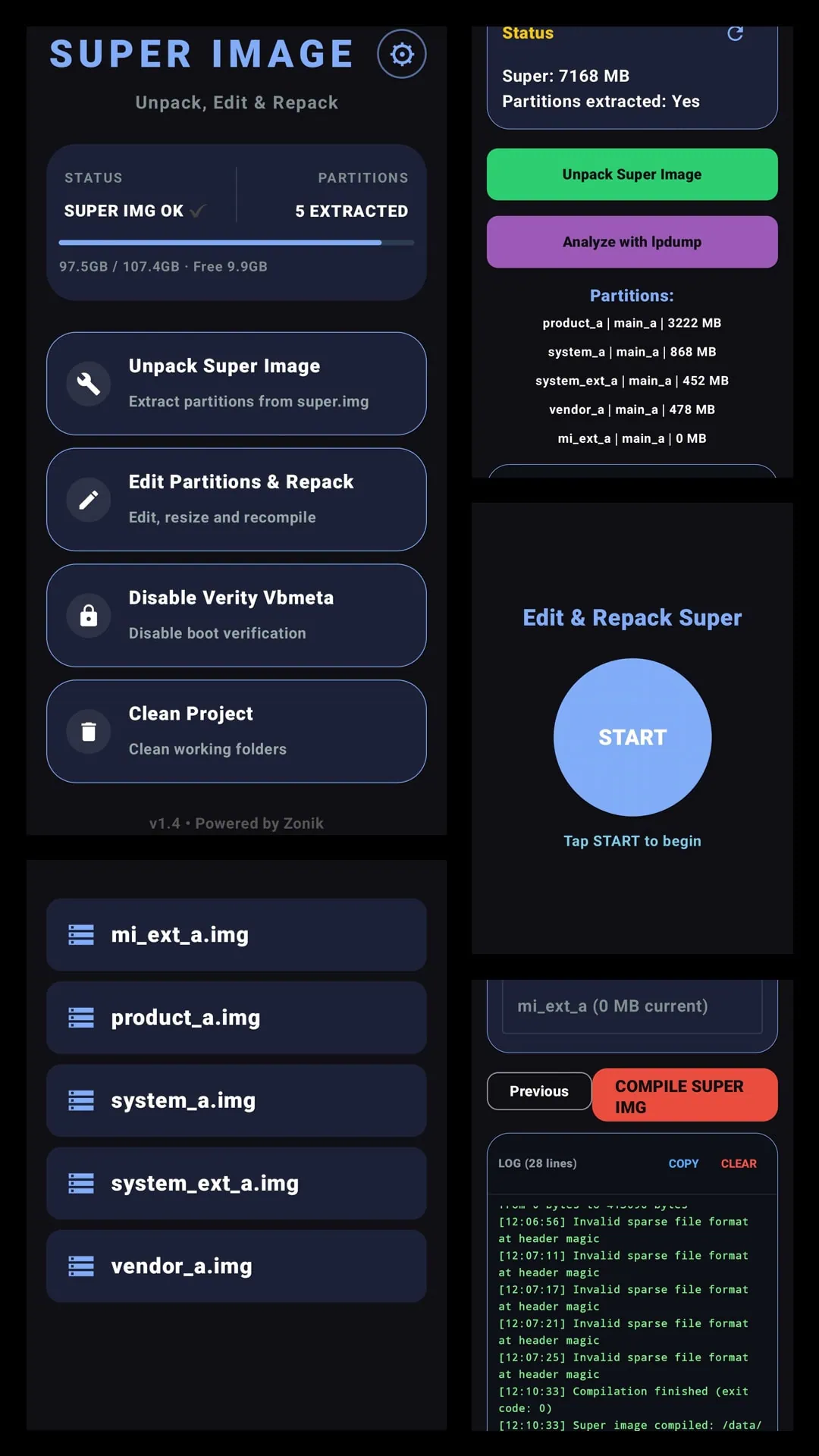
Once your device is rooted, the super image tool handles the whole workflow through just three simple screens: unpack, edit and repack.
Install and Grant Root
- Download and install the APK, then open the app.
- Grant root access when the Magisk or KernelSU prompt appears. The app needs root for every operation, so do not skip this step.
Unpack Super.img
- Pick the source: the app can read the super block straight from the device, or unpack Super.img from a file sitting on your storage.
- Start the unpack. The tool splits the image into its partitions and handles EROFS, EXT4 and EXT2 formats automatically.
- Wait for the extraction to finish – with several gigabytes of system data this takes a minute or two. The result is a folder tree ready for editing.
Debloat and Resize with the 8-Step Assistant
The super image tool walks you through a clean debloat in eight ordered steps, and each one can be skipped if your device does not need it:
- Auto Debloat – scan every partition and remove preinstalled bloatware in one tap using the built-in presets.
- Manual Debloat – open the partition explorer and delete, edit, import or rename files and folders directly, no mounting required.
- DFE – remove the encryption flags from fstab to disable forced encryption.
- Fix overlay RW (Xiaomi) – clear the overlay entries that block read/write mounting on supported devices.
- Prepare Partitions – automatically resize every partition down to its minimum size to free up space.
- Summary – review the super metadata: slots, sizes, groups and remaining free space.
- Expand Partitions – allocate the freed space to the partitions you want.
- Compile Super Image – rebuild the final image, with optional sparse conversion when you plan to flash it the standard way.
Disable Verity (Vbmeta)
The super image tool disables boot verification through a built-in vbmeta module, so no separate flasher is needed:
- Open the Disable Verity option and pick the vbmeta source – your device partitions or an existing image.
- The app disables boot verification (dm-verity) and keeps automatic backups of the original images before touching anything.
- Reboot once it finishes and verify the device still boots cleanly.
Done? Use Clean Project to wipe all extracted files and temporary data with one tap before you move on.
Troubleshooting
- Out of storage – the super image tool needs eight to ten gigabytes of free space for extraction and repacking. Move the project to a device with more space, or clean up media first.
- Root not granted – add the app to the Magisk or KernelSU allow list and reopen it; some setups hide the prompt behind a notification.
- Repacked image will not flash – repeat the compile step with sparse conversion enabled; many fastboot paths expect a sparse super image.
- Device soft-bricks after flashing – restore the automatic vbmeta backup or your full backup, then redo the edits one step at a time.