
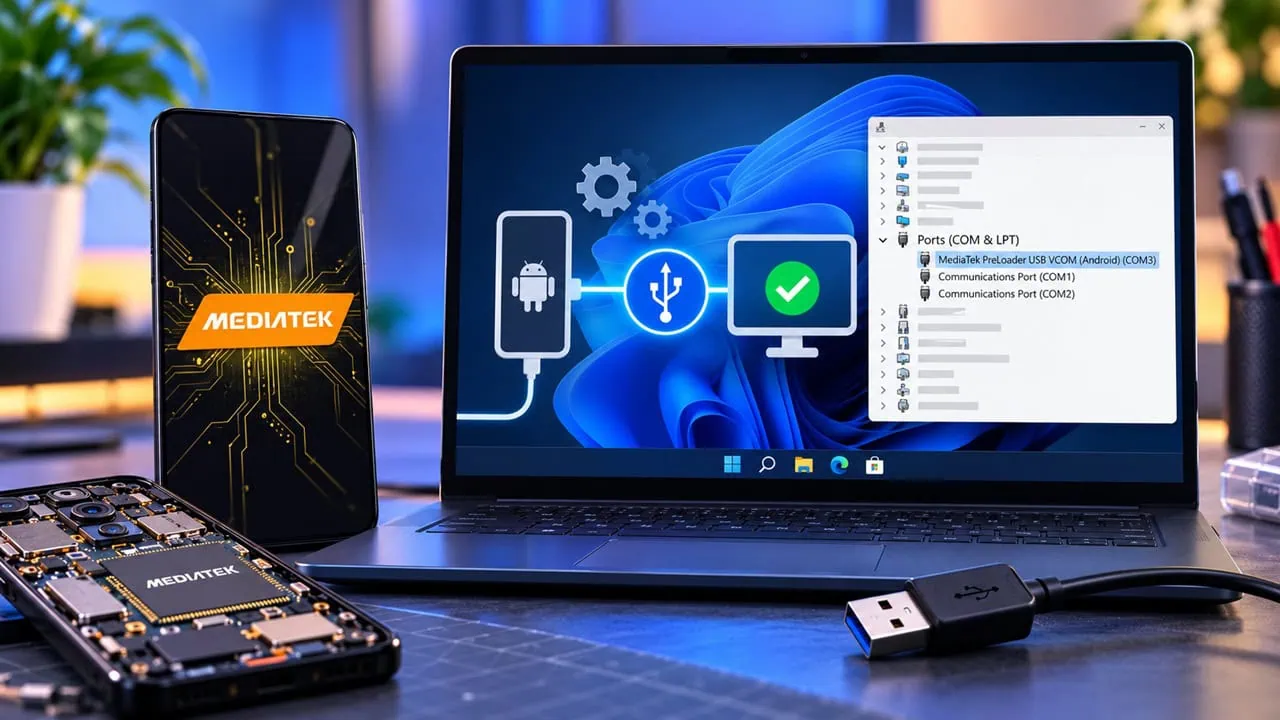
By 2026, all MediaTek phones will use processors ranging from Dimensity 9500 to budget Helio chips. Almost all connect to the PC using a small piece of firmware called Preloader. Windows does not automatically recognize this connection. You need to install driver for MediaTek Preloader USB VCOM first before using any tool such as SP Flash Tool or SN Write or simple backup scripts. This page has latest 2026 driver packages for new MediaTek chips along with a clean install guide for Windows 7 to 11.
To get a MediaTek device into Preloader USB VCOM mode, turn off the phone, press the right combination of keys, and the device enters Preloader mode. Windows looks for a USB driver usually unsuccessfully. Then the VCOM driver comes in and fills the gap by registering phone as a VCOM Port for MediaTek Preloader USB. Then SP Flash Tool can read the device and flash the stock ROM or back up the full. This is exactly what you need for a hard brick phone.
What Are MediaTek Preloader USB VCOM Drivers?
These drivers act as bridge between the phone hardware and the flashing software on your PC. The computer only sees an unknown device with a yellow warning icon without them. It appears as a clean COM port on the phone, allowing every MediaTek tool on your desktop to start working with it. In that same package is a solution for ADB and MTP connection, so file transfers and command-line work are stable as well.
Supported Chipsets (2026)
MediaTek provides only a single core VCOM driver, updating it whenever new boards come out, hence the legacy MT65xx, MT67xx and MT68xx packages will continue to function on classic phones. Below are the 2026 packages that add new INF entries for the Dimensity 9500s, Dimensity 9500, Dimensity 8500 and latest Helio G boards so Windows 11 will stop whining about unknown hardware.
- Dimensity 9500s / Dimensity 9500 (MT6993)
- Dimensity 8500 / Dimensity 9400 series
- Dimensity 8300 / 7300 and Helio G100 series
- MT65xx / MT67xx / MT68xx boards (legacy phones)
Download MediaTek Preloader USB VCOM Drivers (Latest 2026)
You can install this in two different ways and both result in the same outcome. You do this by using the automatic way which runs a setup wizard taking about two minutes. Or you can do it manually by telling Windows where to find the INF file included in the package. Use the manual method if the wizard does not work or your device is still showing as “unknown”. We will cover both ways step by step below.
| Driver Package | Supported Chipsets | Windows | Size | Download |
|---|---|---|---|---|
| MediaTek Preloader USB VCOM Drivers (Auto Installer) | Dimensity 9500s / 9500 / 8500 + all older MTK | 11 / 10 / 8.1 / 8 / 7 | ~9 MB | MTK-Driver-v5.1632.zip |
| MediaTek Preloader USB VCOM Drivers (Manual INF Package) | Dimensity 9500s / 9500 / 8500 + all older MTK | 11 / 10 / 8.1 / 8 / 7 | ~9 MB | Windows 10 x64 MTK USB Drivers.inf |
| MT65xx / MT67xx / MT68xx USB VCOM Drivers (Legacy) | MT65xx / MT67xx / MT68xx boards | 11 / 10 / 8.1 / 8 / 7 | 8.85 MB | devdrive.cloud |
| MTK USB All Drivers (SP Driver Bundle) | All MediaTek chipsets | 11 / 10 / 8.1 / 8 / 7 | – | GizDev post |
Pre-requirements
- A Windows PC or laptop with administrator access.
- A working USB data cable, not a charge-only one.
- Charge the phone to at least 50% before flashing anything.
- Remove older MediaTek driver versions first if the device was connected before.
How to Install MediaTek Preloader USB VCOM Drivers (Automatic)
- Download the MediaTek Preloader USB VCOM Drivers installer package and extract the zip to a folder.
- Double-click the MediaTek_Preloader_USB_VCOM_Drivers.exe file.
- Click Yes when the User Account Control prompt appears.
- Pick the destination folder in the setup wizard and click Next.
- Click Install and wait for the wizard to copy the driver files.
- Disconnect the phone if the installer asks you to remove USB devices.
- Click Finish and restart the PC.
How to Install MediaTek Preloader USB VCOM Drivers Manually (INF Method)
- Download the Manual INF Package and extract it. Keep the android_winusb.inf file location handy.
- Open Control Panel > Device Manager.
- Click your PC name at the top, open Action and choose Add legacy hardware.
- Select Install the hardware that I manually select from a list and click Next.
- Pick Show All Devices and click Have Disk.
- Browse to the extracted folder, select android_winusb.inf and hit Open.
- Choose Android Bootloader Interface for flashing work, or Android ADB Interface for ADB, then click Next.
- Finish the wizard and restart the PC. The phone should now show up as a MediaTek Preloader USB VCOM Port.
How to Fix MTK USB VCOM Driver Problems
Driver problems on MediaTek phones are almost always one of three things. An old driver still sitting in the registry, a signature check blocking the INF, or a dead USB port. Each one has a quick fix and they are listed in the troubleshooting section, so start there before blaming the phone.
- Code 10 error after install: ignore it, reboot the PC and reconnect the phone.
- Phone still shows as unknown device: an older driver is fighting the new one. Uninstall every MediaTek driver (USBDeview helps) and install fresh.
- “INF does not contain digital signature” warning: disable driver signature enforcement on Windows 8 / 10 / 11, then install again.
- No detection at all: use a USB 2.0 port, test another cable and skip hubs entirely.
- ADB not working: the ADB interface is part of the same package, just pick Android ADB Interface during the manual install.