
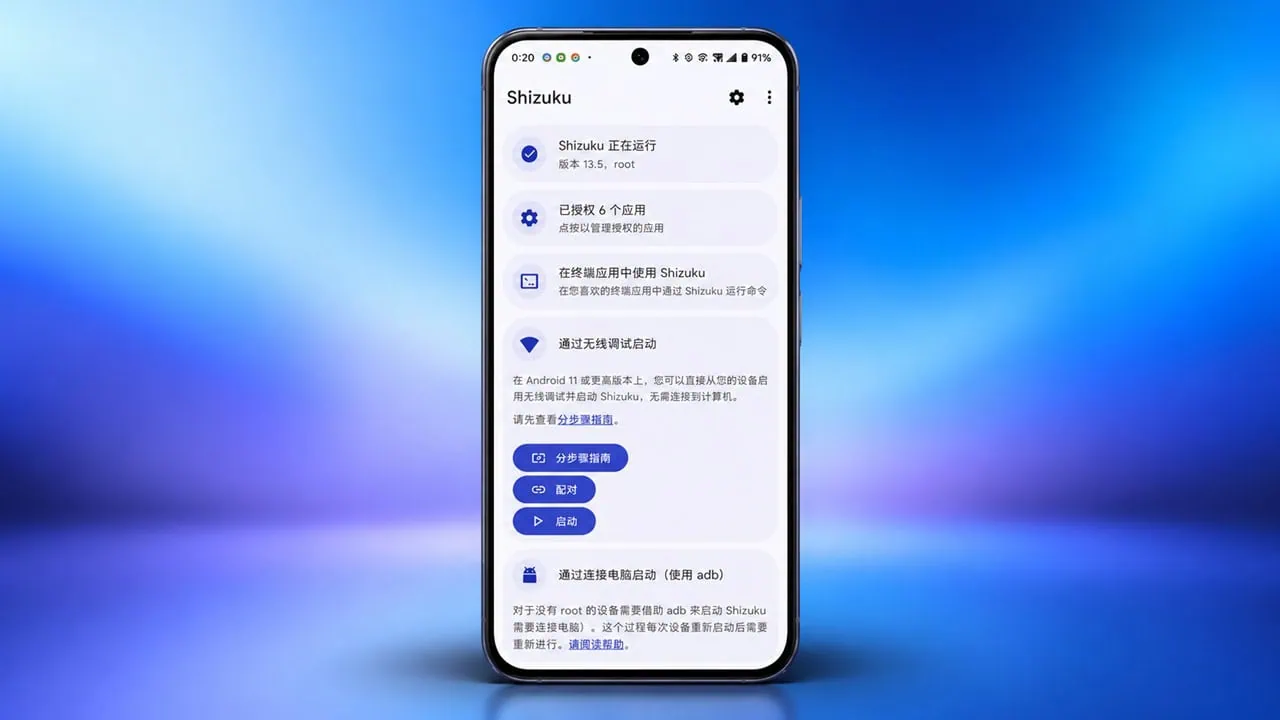
This whole secret about Shizuku is granting privileges to apps that normally require ADB or root, and it does this on your phone without pc, even if you have not rooted your device. Apps that previously required connecting a PC and using API commands can now be used directly on a phone. This guide walks you through three different ways to install Shizuku on Android and start it: wireless debugging, root, and the classic ADB route from a computer.
If you want the short version, the first method below covers how to install Shizuku on Android step by step. Today this project is reliable enough and almost all serious tweaking apps for Android support it. From lightweight debloaters to quick settings tiles and dark mode enforcers, rootless module injectors and file managers all ask for permissions through Shizuku rather than requiring root. You simply restart the Shizuku service after rebooting the phone, and it only takes two taps after pairing you can use Shizuku on your phone.
- What Is Shizuku?
- Method 1: Install Shizuku on Android with Wireless Debugging [No Root, No PC]
- Method 2: Install Shizuku on Rooted Android [Magisk]
- Method 3: Install Shizuku on Android Using a PC [ADB]
- How to Keep Shizuku Running After a Reboot Without Root
- Shizuku Not Working? Common Problems
- Which Method Should You Use to Install Shizuku on Android?
- Things to Know Before You Install Shizuku on Android
What Is Shizuku?
Shizuku is an Android app that lets supported apps access higher-level system APIs and perform advanced operations, and thus bypass root access. Shizuku works by allowing apps to use privileged services and either use a debugging wireless link or ADB (Android Debug Bridge) through a computer. This service is useful for users who want to customize their devices, manage system settings and use features which are normally off limits to regular apps.
One of the major advantages is that apps that work with Shizuku can perform high level tasks directly that normally require the device to be rooted permanently. For example apps can use Shizuku to edit system settings, manage permissions and remove unwanted apps as well as customize features of Android. Whichever route you pick, the goal is the same: install Shizuku on Android once and keep the service running.
Method 1: Install Shizuku on Android with Wireless Debugging [No Root, No PC]
This is the method most people want: no computer, no root, and Shizuku handled entirely on the phone. Pairing only needs to happen once; after a reboot, just tap Start with wireless debugging to enable it.
Step 1 – Enable Developer Options Before You Install Shizuku on Android
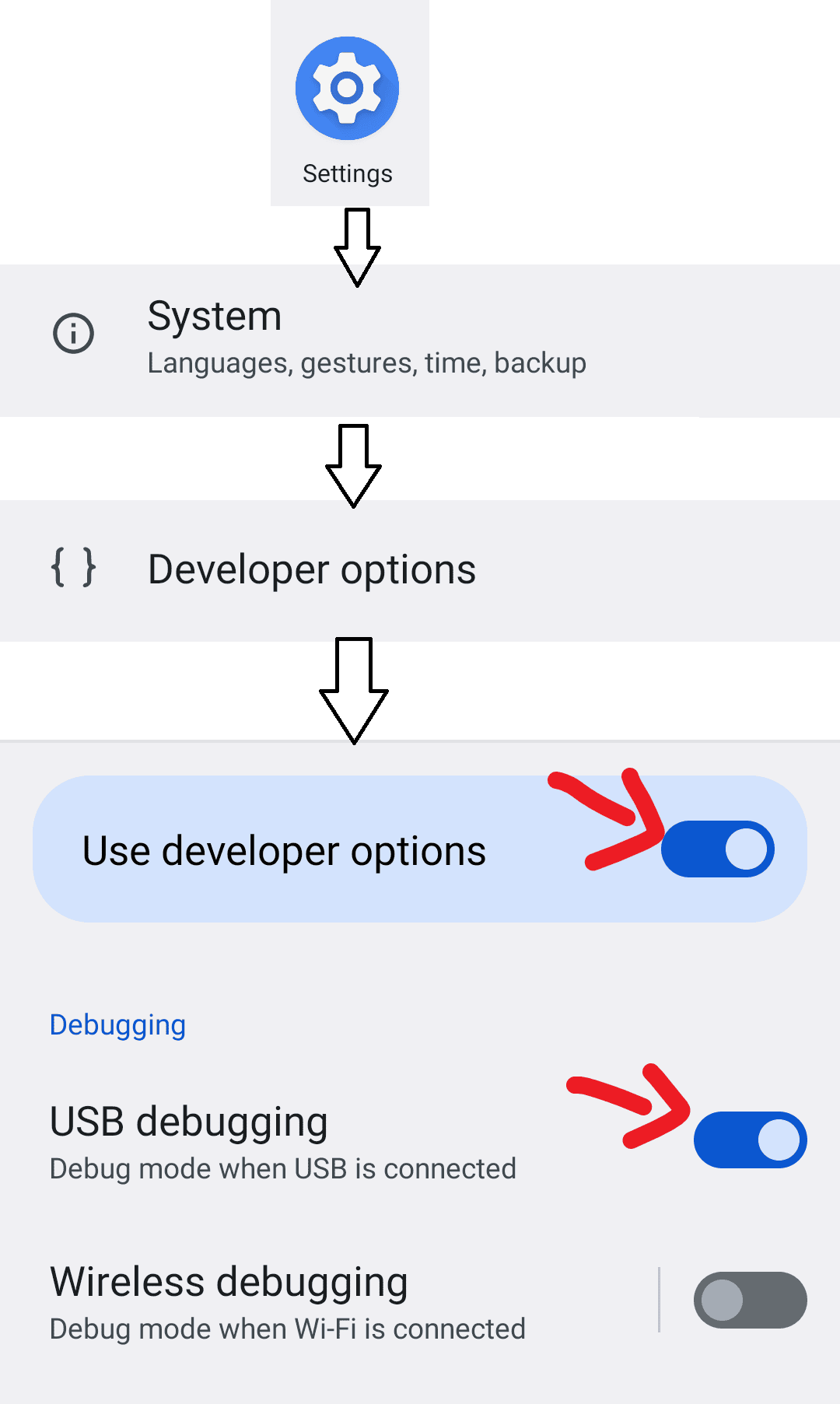
Open Settings and go to About Phone, then tap Build Number seven times. Enter your PIN if the phone asks for it and Developer Options appears in the system settings.
Step 2 – How to Install Shizuku on Android
Install Shizuku from the Play Store, or grab the APK from the GitHub project’s release page.
Step 3 – Turn On Wireless Debugging
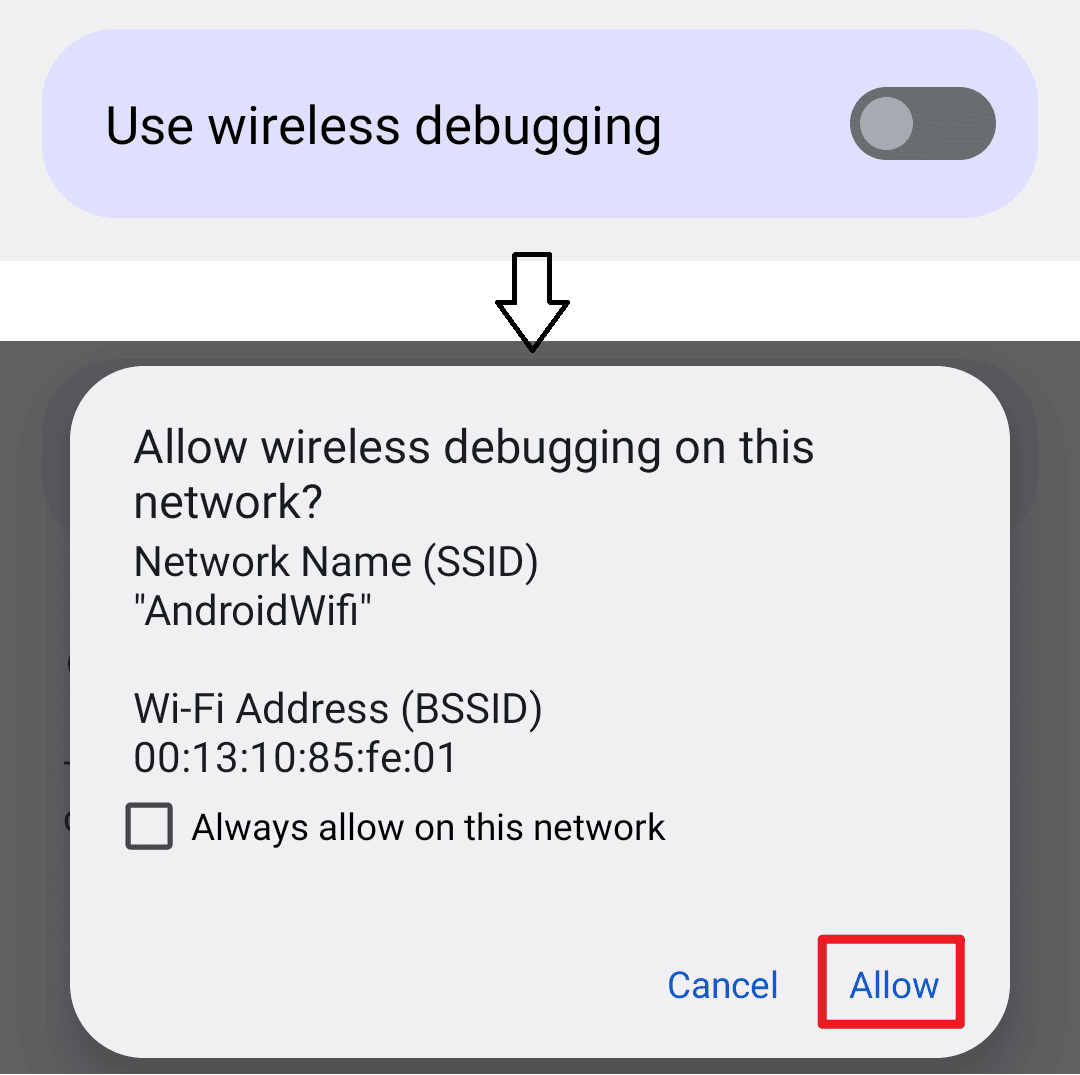
Go to Settings → System → Developer Options and enable Wireless Debugging. Keep the phone on the same Wi-Fi network the whole time, otherwise the pairing service will not be reachable.
Step 4 – Allow Notifications and Background Running
Shizuku shows the pairing prompt and the running notice through notifications, and the service dies early when the system puts it to sleep. Open Shizuku, tap the notification option and allow all Shizuku notifications, then set the battery setting for the app to unrestricted.
Step 5 – Start Pairing from Shizuku
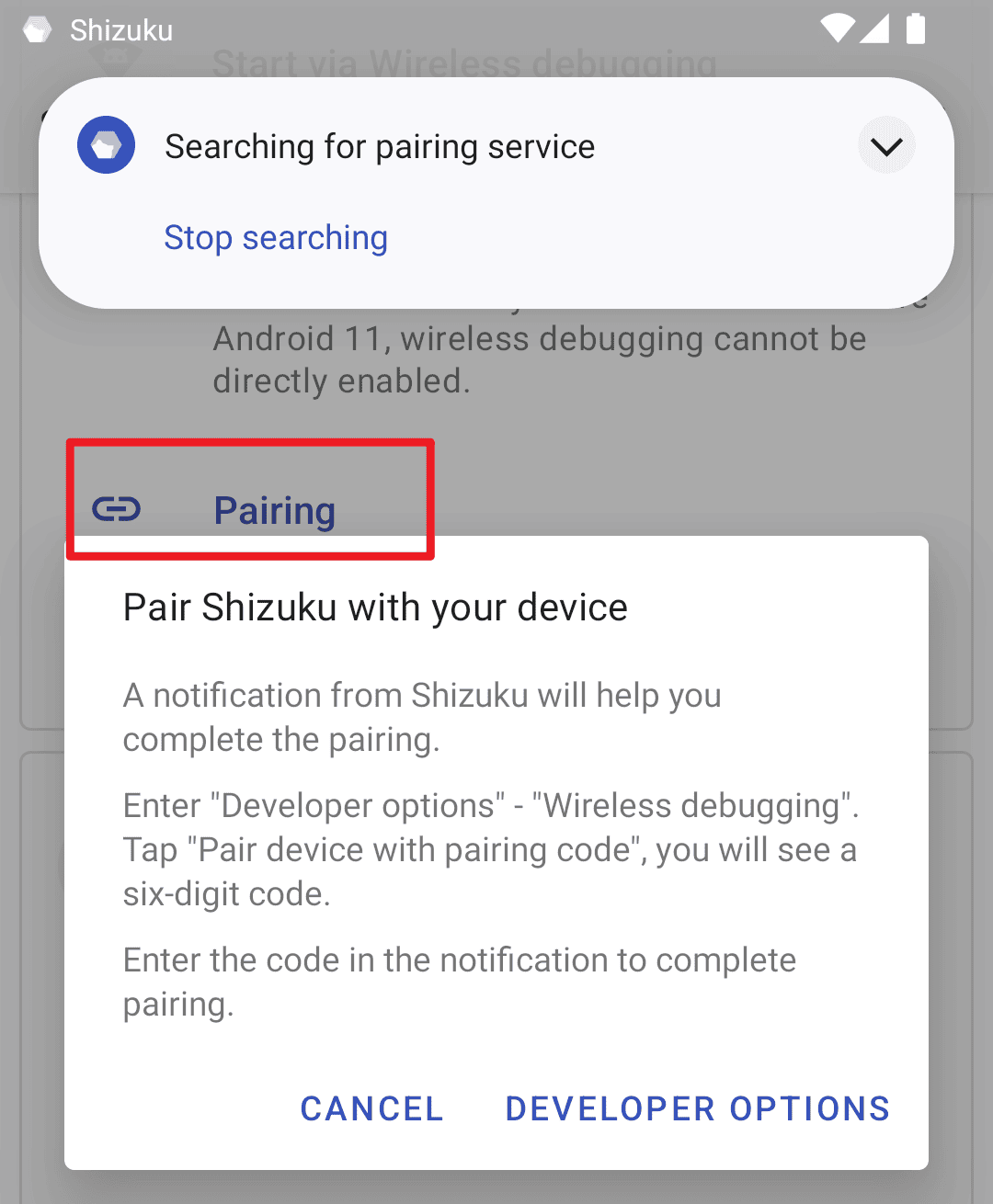
On the Shizuku home screen, tap Pairing under the wireless debugging section. A prompt opens asking for the pairing code.
Step 6 – Get the Six-Digit Code from the System
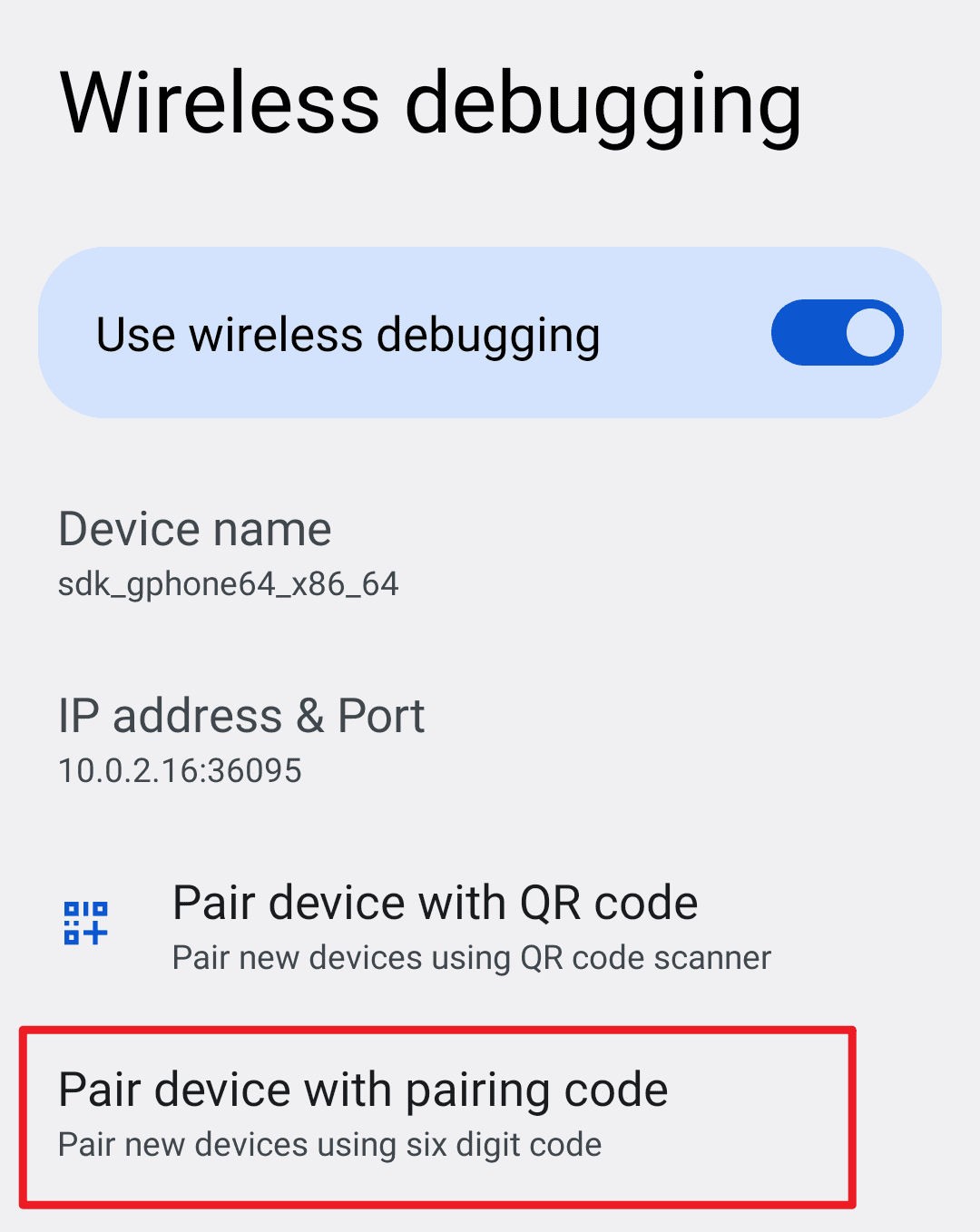
Switch back to Developer Options → Wireless Debugging and tap Pair device with pairing code. The phone shows a six-digit code along with an IP address and port. The code expires quickly, so copy the code along with the IP address and port quickly.
Step 7 – Enter the Code in Shizuku
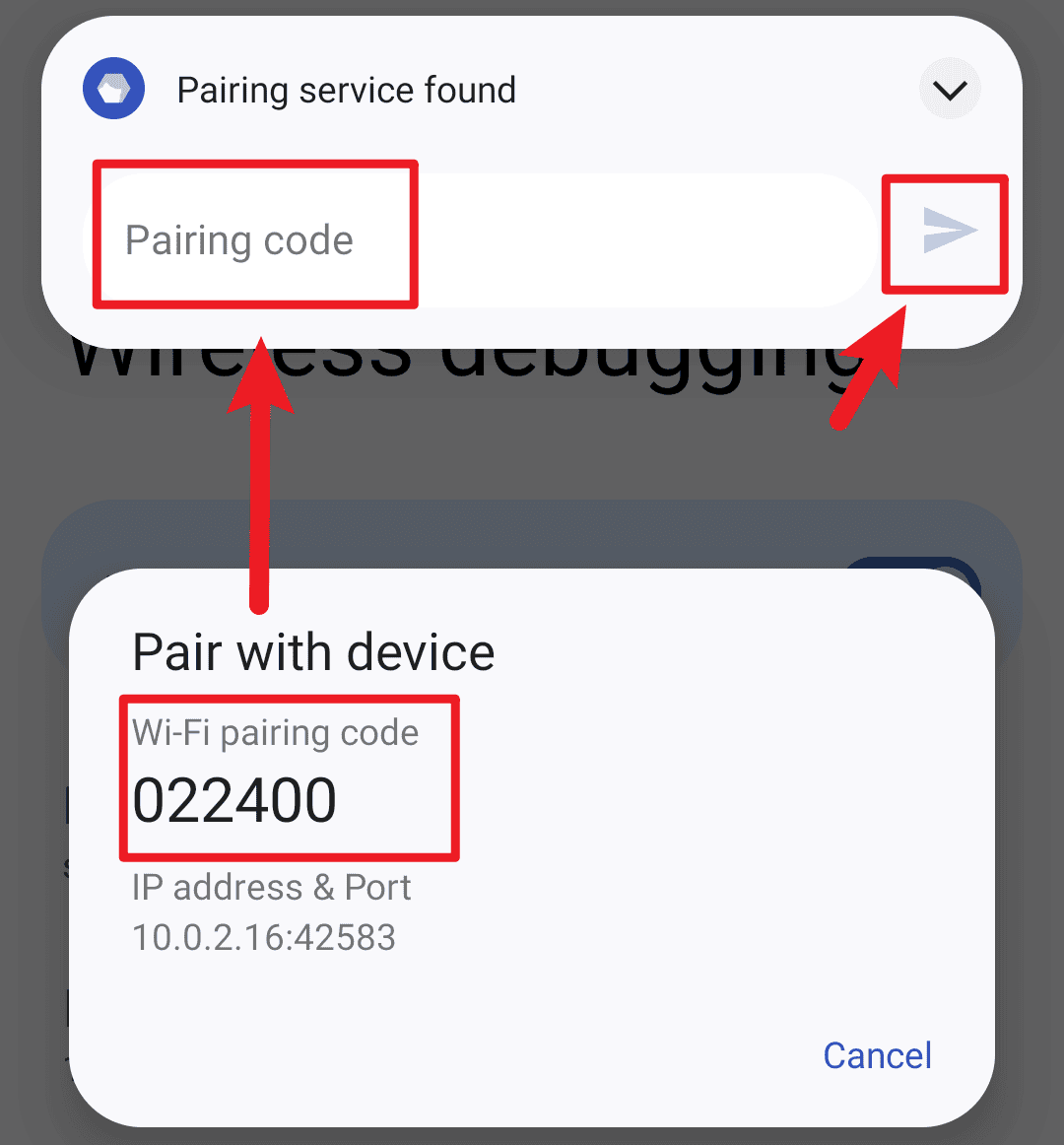
Return to the Shizuku prompt and type the six-digit code exactly as shown. The notification bar confirms the pairing, and this step never has to be repeated on the same phone.
Step 8 – Tap Start and Check the Status
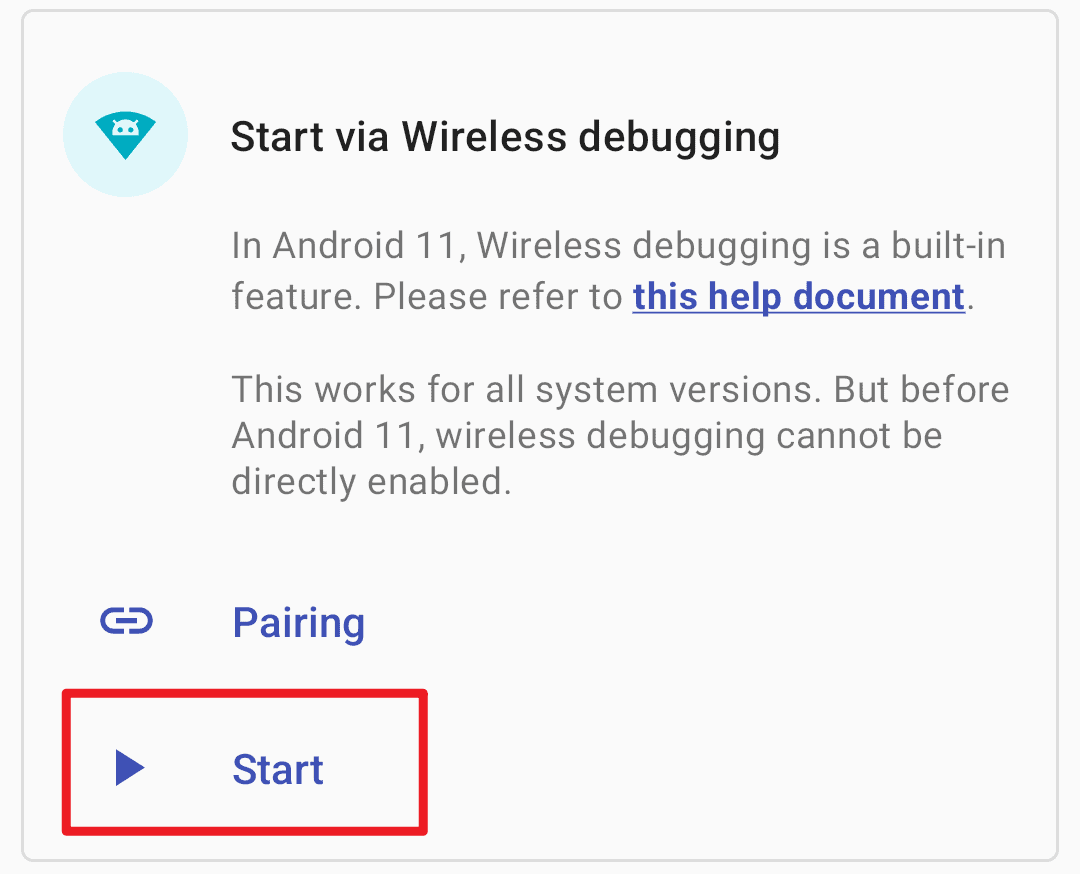
Go back to the Shizuku home screen and tap Start. A small command window flashes and closes, and the status changes to Shizuku is running. That is the whole setup done. After every reboot, turn wireless debugging back on and tap Start once.
Method 2: Install Shizuku on Rooted Android [Magisk]
On a phone rooted with Magisk or KernelSU, Shizuku gets much simpler and becomes the only route that survives every restart on its own. There is nothing to pair with wireless debugging.
- Install Shizuku from the Play Store or GitHub and open it.
- On the home screen tap Start in the section for rooted devices.
- Approve the Magisk request when the superuser prompt appears.
- Wait for the command window to close and confirm that the status reads Shizuku is running.
The service now starts on its own at every boot, and you never pair anything. This is also the only configuration where the Shizuku notification can be hidden without losing the service.
Method 3: Install Shizuku on Android Using a PC [ADB]
Phones running Android 9 or older have no wireless debugging option at all, and some firmware locks this route down completely no matter what you try. In those cases a PC and a USB cable are the fallback, and the command itself is short.
- Install Shizuku on the phone and enable USB Debugging in Developer Options.
- Download Android SDK Platform Tools on the PC and extract the folder.
- Connect the phone with a USB cable and accept the debugging prompt on the screen.
- Open a command prompt inside the platform-tools folder.
- Paste the command below in the command window.
adb shell sh /sdcard/Android/data/moe.shizuku.privileged.api/start.shIf the command returns Shizuku starter exit with 0, the service is live and the app shows that Shizuku is running. Note that this route also stops at reboot, and with Android 11 or newer, there is no reason to prefer it over wireless debugging.
How to Keep Shizuku Running After a Reboot Without Root
Without root the service stops when the phone restarts, because it lives inside the debugging session. Recent Shizuku releases bring wireless debugging back by themselves, so a single tap on Start after boot is all it takes. You grant the permission that makes this possible once over ADB, and after that Shizuku starts cleanly whenever the phone is on Wi-Fi.
adb shell pm grant moe.shizuku.privileged.api android.permission.WRITE_SECURE_SETTINGSRun that command in the adb platform-tools command window once from a PC with the phone connected. Shizuku can then switch wireless debugging back on by itself, which turns the post-reboot routine into a single tap on Start whenever the phone is on Wi-Fi.
Shizuku Not Working? Common Problems
- Stuck on “searching for the pairing service” – allow Shizuku to run in the background, then toggle wireless debugging off and on again before tapping Start.
- Pairing fails the moment you enter the code – the six-digit code expired. Generate a fresh one and type it immediately; keep the two screens close together.
- The permission of adb is limited – on ColorOS, OxygenOS and MIUI builds you have to switch off permission monitoring or enable the security-settings debugging option in Developer Options.
- Shizuku stops on its own – battery optimisation is killing it. Set the app’s battery usage to unrestricted and lock it in the recent-apps view.
- More than one device/emulator – you have paired another phone or watch for debugging. Disconnect it, or target the active port directly with the device flag.
- libshizuku.so inaccessible – usually a stale wireless debugging port. Re-enable wireless debugging, then start Shizuku again from the app.
Which Method Should You Use to Install Shizuku on Android?
| Method | Root | PC | Survives Reboot |
| Wireless debugging | No | No | No, one tap needed |
| Root (Magisk) | Yes | No | Yes, automatic |
| ADB from a PC | No | Yes | No |
Things to Know Before You Install Shizuku on Android
- Shizuku is not root – system partitions stay read-only, so nothing that needs a modified framework will work through it.
- Pairing survives, running does not – Shizuku remembers the pairing code, but you still have to start the service again after each restart on a non-rooted phone.
- Keep the app updated – newer releases add auto-start behaviour and fixes for the pairing errors listed above.
- Wireless debugging stays on – the service needs it enabled to run, so revoke it when you are done with the tweaks.
- Uninstall cleanly – stop Shizuku and revoke access in the app before removing it, so the apps that depend on it do not hang on launch.
Choosing whichever way you like to go, you only need to install Shizuku once on Android; pairing through Wireless or USB debugging works after a restart, and tapping Start takes just a second. Apps that ask for higher permissions just work too with the three methods.