Dolby Vision is a leading technology that is now built-in into every premium entertainment device, including TVs, Projectors, Windows PCs, and Smartphones. If you are using a Windows PC that supports HDR Dolby Vision by hardware, but you are still able to play the HDR or Dolby Vision videos on your PC, then this guide will help you. In this article, we will guide you through the process of installing Dolby Vision on your PC and playing HDR Videos on it.
If you downloaded an HDR TV series or Movie from torrent or other Movie download websites, then you may face weird colors, lots of green, and shades of purple while playing the video. This Purple and green colour issue generally appears when you try to play an HDR video on an SDR device or monitor, but there is a solution to fix the issue. You can fix the issue by simply installing the Dolby Vision Windows extension on your pc, then you can play HDR videos on the POT player or the VLC player.

About Dolby Vision
Dolby Vision is an enhanced high-dynamic-range (HDR) image technology developed by Dolby, which provides more vivid highlights and a greater variety of colors than either standard SDR or basic HDR formats. Since it utilizes dynamic metadata and supports up to 12-bit color space, Dolby Vision dynamically adjusts and enhances each scene, as well as each frame, for compatible TVs, displays, and Windows PCs. This enables more precise contrast and authentic detail for users viewing supported movie titles, television programs, and HDR video content.
How To FIX the Purple and green colour issue while playing HDR Videos
To resolve the issue, when playing HDR Video or Dolby Vision content on Pot Player, VLC Player, or other HDR players, you need to install certain extensions on your PC. HDR 10 movies or TV series are generally created using the Dolby Vision technology. To play this content, you need the Dolby Vision Windows extension and HEVC extensions. With these, you can play the videos normally on your PC.
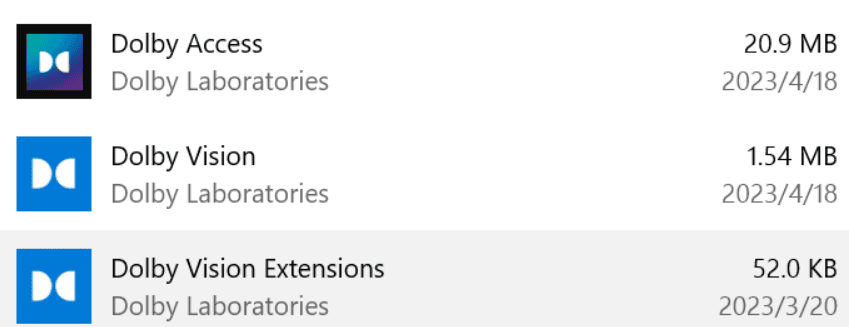
Download the Dolby Vision extensions MsixBundle File
We have already shared the Dolby Access App on our blog, and this time we will share Dolby Vision with Dolby Vision Extend Extension and HEVC extensions to install the Dolby Vision App on Windows and improve HDR video playback. You can download and install it from the Microsoft Store. If the official link is dead, then you can install it manually by the MsixBundle package.
Dolby Vision Windows App –


Dolby Vision Windows Extensions-
HEVC Video Extensions from Device Manufacturer

Download Dolby Vision extensions MsixBundle packages
In this zip file, you can find DolbyVisionAccess.MsixBundle, DolbyVisionHDR.MsixBundle, HEVCVideoExtension.AppxBundle and other runtime .NET Framework and Visual C++ runtime.
How To Install Dolby Vision On Windows PC and Fix HDR Video Playback
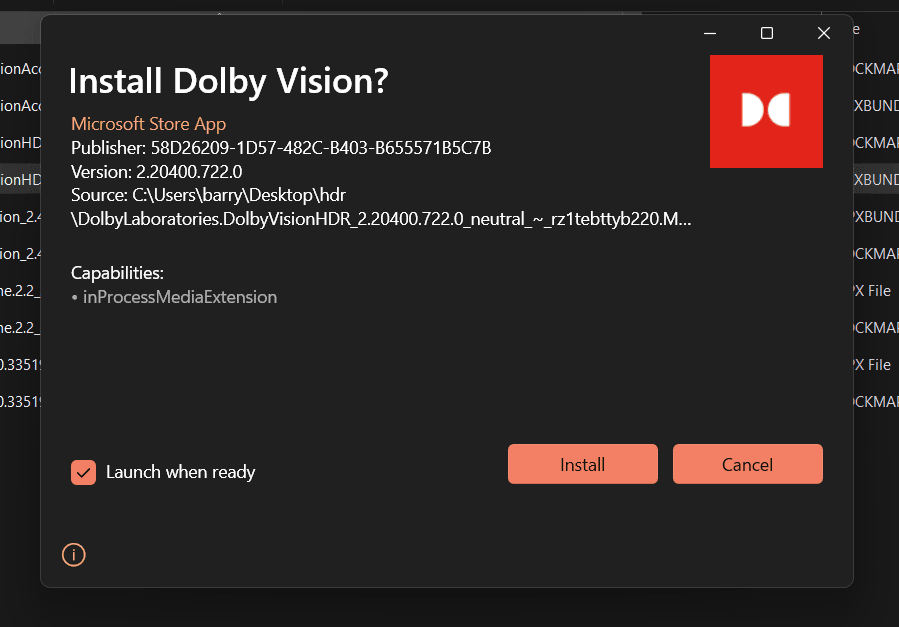
1. First, install 3 apps from the Microsoft Store. If the store link is not working, then download the MSIX bundle packages and unzip them on your PC.
2. To install the packages manually, you have to install the runtime first, so install Microsoft.VCLibs and Microsoft.NET.Native.Runtime (.Appx) packages.
3. Then install Dolby Vision by installing HDR.MsixBundle, HEVCVideoExtension.AppxBundle, DolbyVisionAccess.MsixBundle packages one by one.
4. No open Dolby Vision App from the Start Menu and select the picture Mode to vivid or bright.
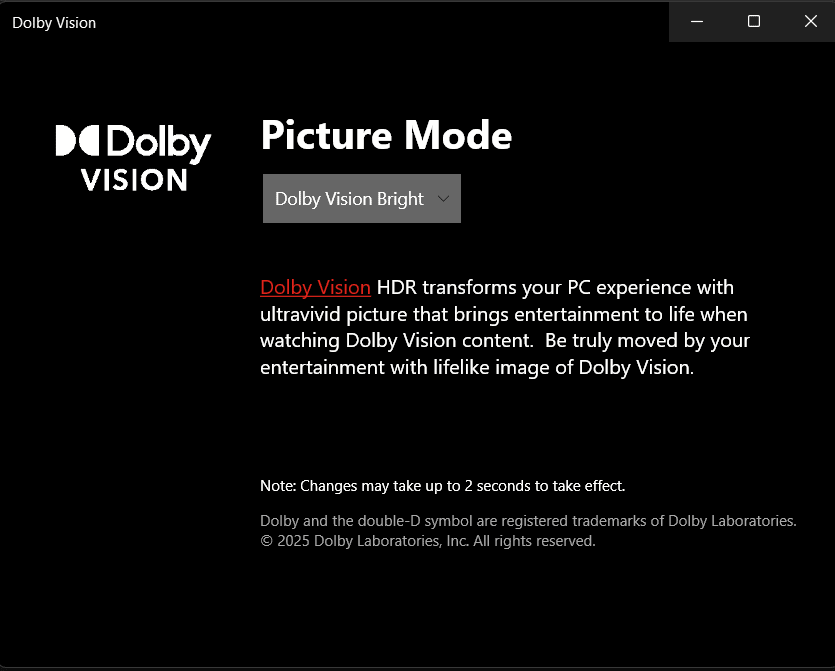
5. Now you can play HDR or HDR 10 videos or movies on your pc using any video player that supports HDR Video playback.
Final Thought
The simplest solution for many users is to install the Dolby Vision app/add-on, along with the necessary HEVC decoder package and runtime package to resolve the purple or green color issue that many experience when trying to play back HDR content using their windows machine.
To ensure the best possible viewing experience you should enable HDR in your operating system, utilize a media player capable of supporting HDR (such as VLC Media Player, PotPlayer), and set the Dolby Vision picture mode to one that will enhance the colors of your HDR movie (for example Vivid, Bright).