
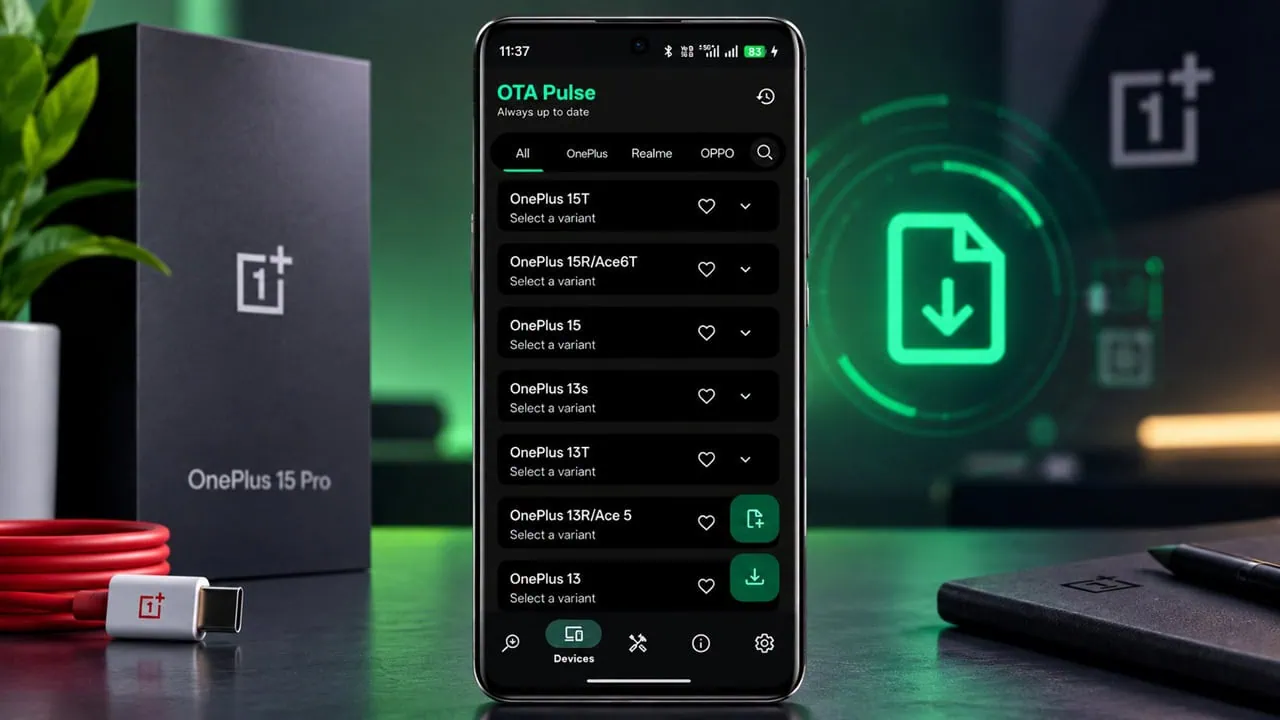
If you are a modder you will eventually need to download a boot image from firmwares of OnePlus. Most guides tell you to use a PC running Python scripts or payload extracters to get just one file from an update. But OTA Pulse changes everything. This free open source app by Android developer Abhinav Verma downloads official firmwares of OnePlus, Oppo and Realme. It lets you directly extract partition files from payload on your phone.
OTA Pulse App is a Material Design app that connects straight to OTA servers of BBK. This app gets latest OTA data for all supported devices, over 144 models for OnePlus, Oppo and Realme. If your phone is not listed, you can add it and it works offline. You can load ZIP of local firmware and extract without an internet connection.
Features of OTA Pulse
- Get metadata updates for any phone model, not just your own.
- You can also download older firmware builds too – handy if you are going back or looking for a specific release.
- Need a single partition file like boot.img directly from payload extraction? No need to download whole thing.
- If your device has an update ZIP you can pull partitions right from there too.
- Includes an ARB check built in. So you know before flashing if rollback protection will be tripped.
- Downloads run in background and you can pause and resume them. CDN glitches will retry automatically 3 times.
- Code is open source and regularly updated too.
Download OTA Pulse App
Download the Apk from two sources, The latest version of OTA Pulse app is OTA-Pulse-V4.0.1
Download APK – Devdrive | Github
How to Extract OnePlus Firmware Without PC using OTA Pulse App
Step 1: Install OTA Pulse
Go to the download area and grab the newest OTA Pulse APK. Install it on your phone and you need Android 10 or newer. The app will ask for storage access; you will have to give that access. If you do not, the app cannot read or write firmware files.
Remember OTA Pulse is not officially associated with OnePlus, Oppo or Realme. Firmware comes directly from their servers but the app is a separate project of one developer.
Step 2: Download the Latest or Older Firmware
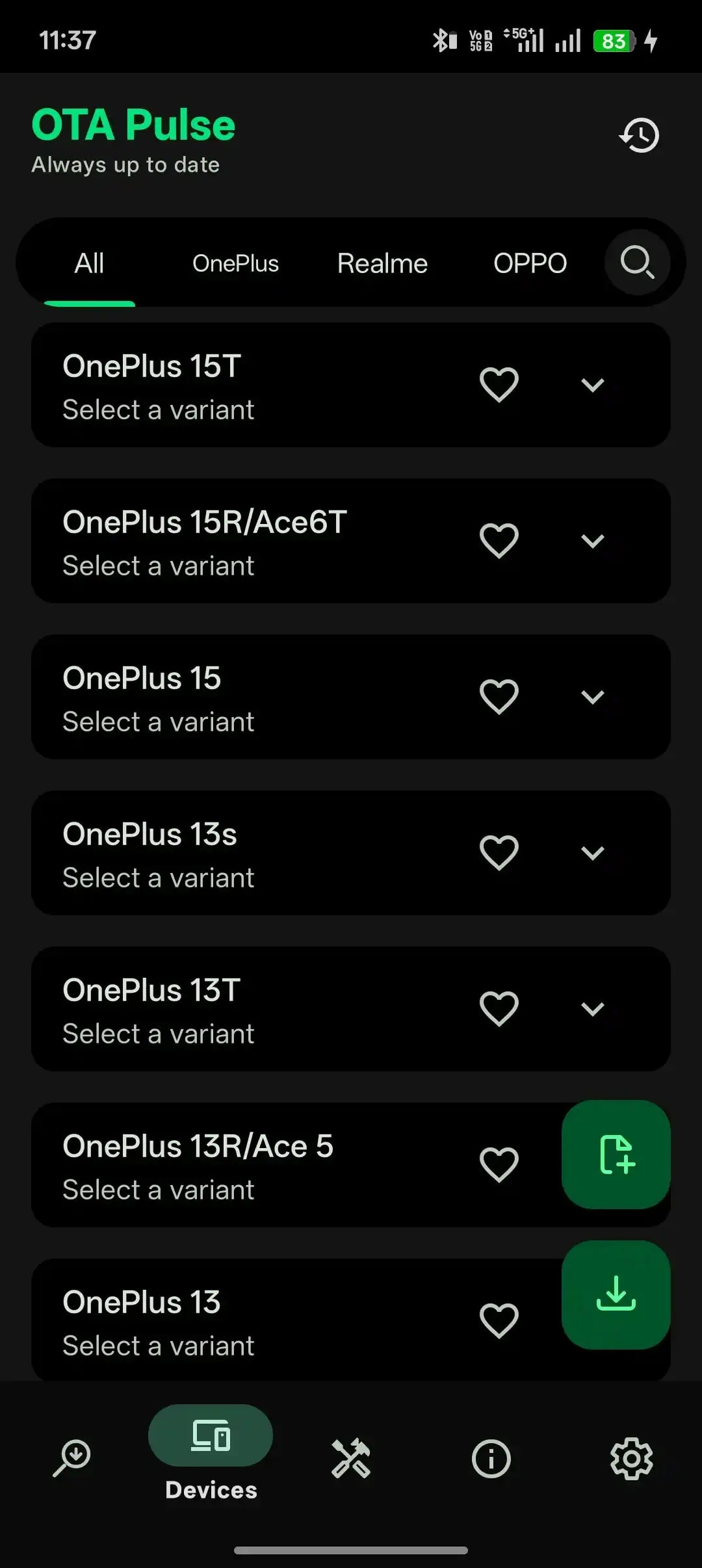
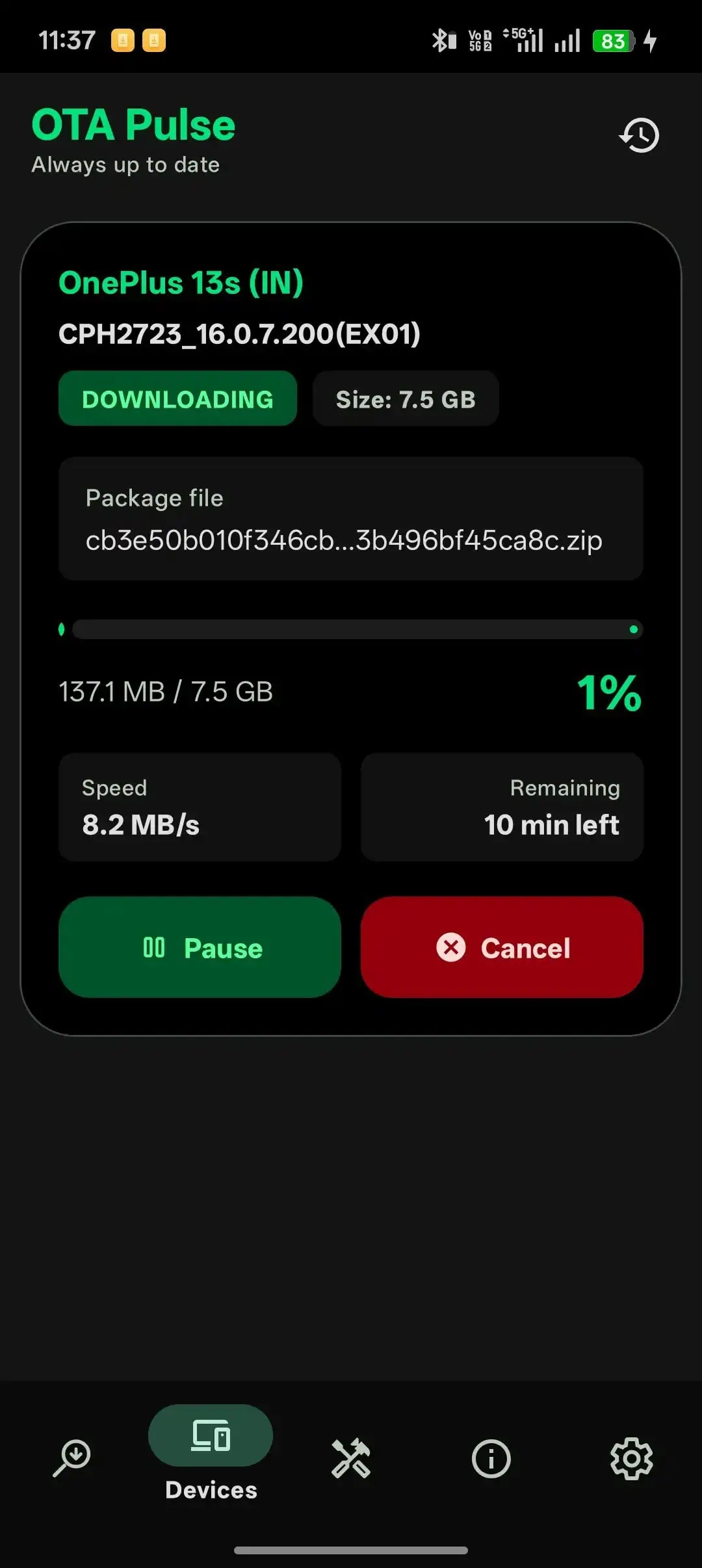
Open the app and go to the Devices tab. Find your phone there. Then select your region and the Android build you want. Tap on download button. OTA Pulse creates a folder OTAPulseDownloader in Internal Storage and downloads the firmware right there; it also pauses and resumes downloads and therefore doesn’t use too much data if your connection breaks.
Step 3: Extract a Partition from the Downloaded Firmware
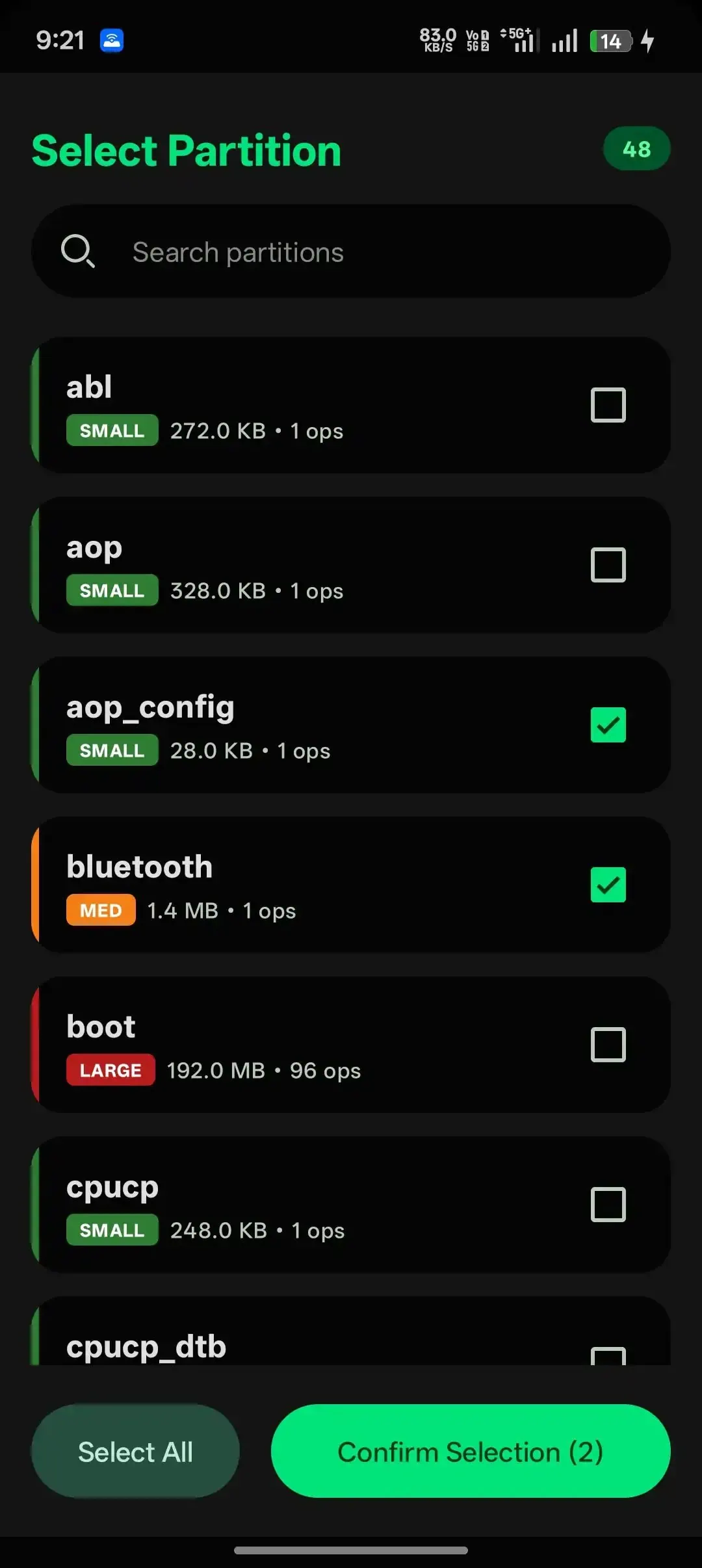
From Devices tab go back and pick the firmware you’ve just downloaded; then tap Select Partition. You will see a list of every partition in the payload: boot, init boot, recovery, system and others. Select the one you need and hit Extract. The file is put in Internal Storage and then into OTAPulseDownloader and extracted into a folder that matches your firmware name. Finally this is quick and ready for flashing or patching. This is probably one of the fastest ways to get a stock boot image when rooting.
Step 4: Extract from a Local Firmware ZIP
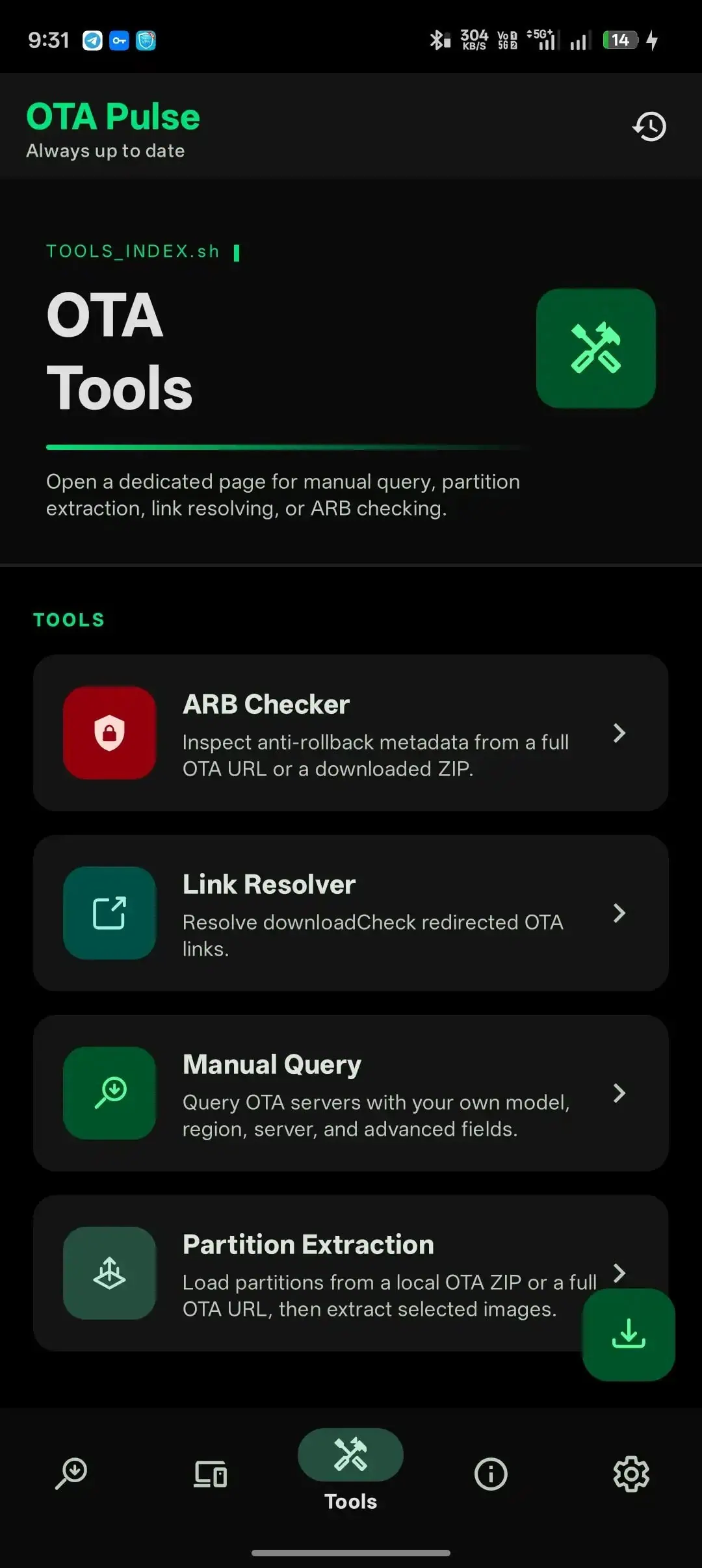
Do you already have an update ZIP file stored on your phone? Good, so there’s no need to download anything else. Just open the Tools tab, tap “Partition Extraction” and pick your ZIP file. Then app reads payload.bin within and shows you all partitions it contains. Find the one you need and tap “Extract,” and it will extract right into the OTAPulseDownloader folder in the Extracted folder.
Step 5: Check the ARB Status Before Flashing
Oneplus has a rollback prevention system. If you flash a newer build with a higher rollback index then what you currently have it can prevent you from flashing again. OTA Pulse has a system to check firmware payloads and lets you know if firmware is “safe” or “protected”. Protection means rollback prevention is active. So be careful before flashing firmware from older releases or from different regions. Check this system before you downgrade always.
What to do with the Extracted Files
Got your boot.img or init_boot.img? Most people usually patch them with Magisk or KernelSU to root their phone. Or you can just keep the untouched image as stock backup as smart for recovery. Save that extracted partition in a safe place. If something goes wrong you will restore original boot. If a custom kernel or module has messed up system a clean stock image of boot is quickest way to fix again.