
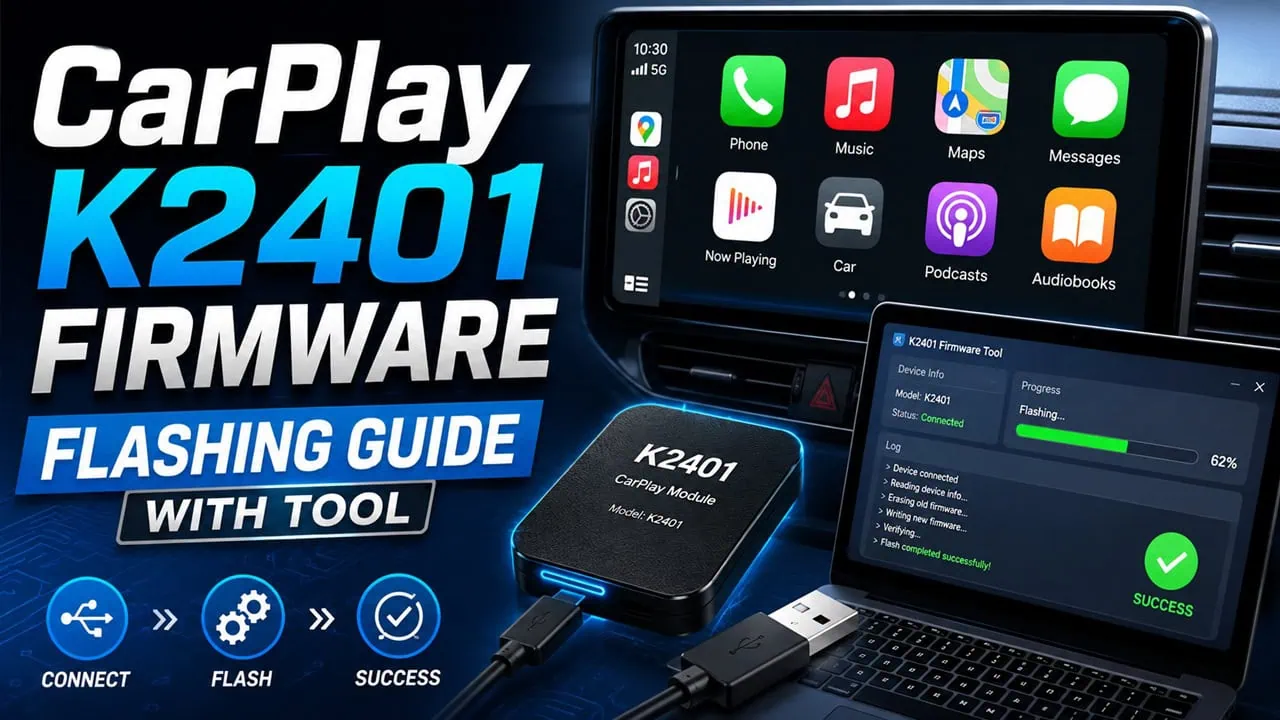
The K2401 is a very popular head unit for BMW E46 and keeps getting better with each firmware update. Vendors release updates almost monthly. Builds being tracked here range from mid 2025 to May 2026; there were even two releases in that last month. Knowing your current K2401 firmware and how to flash a new one is surprisingly important for such units.
This guide approaches K2401 from two different perspectives. First, usual way: checking current version, downloading latest NWD build and installing through USB. Second, rescue method: restoring a brick unit with a fresh factory image using Phoenix Suit, a flashing tool for Allwinner. We also include hidden factory passwords; you will definitely need them at some point.
Why Update the K2401 Firmware?
Each release of NWD contains bug fixes for pairing Bluetooth, locking GPS, behavior of radio and launcher itself. Owners have reported changes in launcher layout and this seems unimportant until you spend a week driving with a UI you despise. Monthly cadence means that your unit will quietly fall behind if you leave it on factory build of the box.
Vendor keeps server for OTA updated with latest chain and older builds will eventually no longer match backend behavior. Fresh builds fix small annoyances that make Chinese infotainment systems feel cheap like laggy Z Link or settings that won’t stick after reboot. If your device is stable and you never use CarPlay you can avoid updates but if you use it regularly the latest build is worth ten minutes of downtime.
Download CarPlay K2401 Firmware
In this download section, you can find the K2401 USB drive Firmware and the K2401 unbrick Firmware. We have also shared PhoenixSuit (Allwinner) tool so you can unbrick and flash the device with your PC ot Laptop.
| Item | Detail |
|---|---|
| OTA firmware | K2401_NWD_S212802-20260526.zip |
| Unbrick USB firmware | K2401_img_2024.08.27.7z |
| Flashing tool | PhoenixSuit_2.0.0.zip |
| USB Driver | PhoneixUSBPro_V4.0.0.zip |
Old Version PhoenixSuit (Allwinner) – PhoenixSuit_V1.10.rar | UsbDriver.zip
How to Update K2401 Firmware (USB Method)
The normal update path runs through the unit itself, no PC needed. Grab the latest update.zip from the download section, drop it on a USB stick formatted as FAT32, and let the head unit do the rest. The whole process takes around five minutes and keeps your installed apps intact.
- Check your current version first. Open Settings, go to About, and note the APPVER string.
- Download the latest K2401 update.zip and copy it to the root of a FAT32 USB drive.
- Plug the USB drive into the head unit’s USB port.
- Open Settings, then System Update, and pick Local Update or Update from USB.
- Select the update.zip file and confirm. The unit reboots into the updater on its own.
- Leave the car power on until the install finishes and the unit boots back up.
- Go back to About and confirm the APPVER changed to the new build.
Do not yank power mid-install. A half-written firmware is the fastest way to turn a working unit into a brick.
How to Unbrick K2401 with PhoenixSuit
If the unit stops booting or the update dies halfway, the USB method is no longer an option. That is what the factory image is for. K2401_img_2024.08.27 is a fresh unbrick image straight from the factory. It wipes everything and restores the unit to stock Android 10.
- Install PhoenixSuit on a Windows PC and open it.
- Click Firmware, then Image, and select the K2401_img_2024.08.27 file.
- Locate the reset or upgrade button on the unit. It is usually recessed inside a small hole.
- Press and hold that button, then connect the unit to the PC with a USB-A to USB-A cable.
- PhoenixSuit detects the device and asks to format and upgrade. Confirm it.
- Wait for the progress bar to finish. You will see an Upgrade Firmware Succeed message.
- Close the tool, unplug the unit, and power it on. It boots straight back to stock.
The image wipes user data, so do not expect your apps or settings to survive. That is the point. A clean factory state is exactly what a bricked unit needs.
How to Flash K2401 via Test Point (PhoenixSuit)
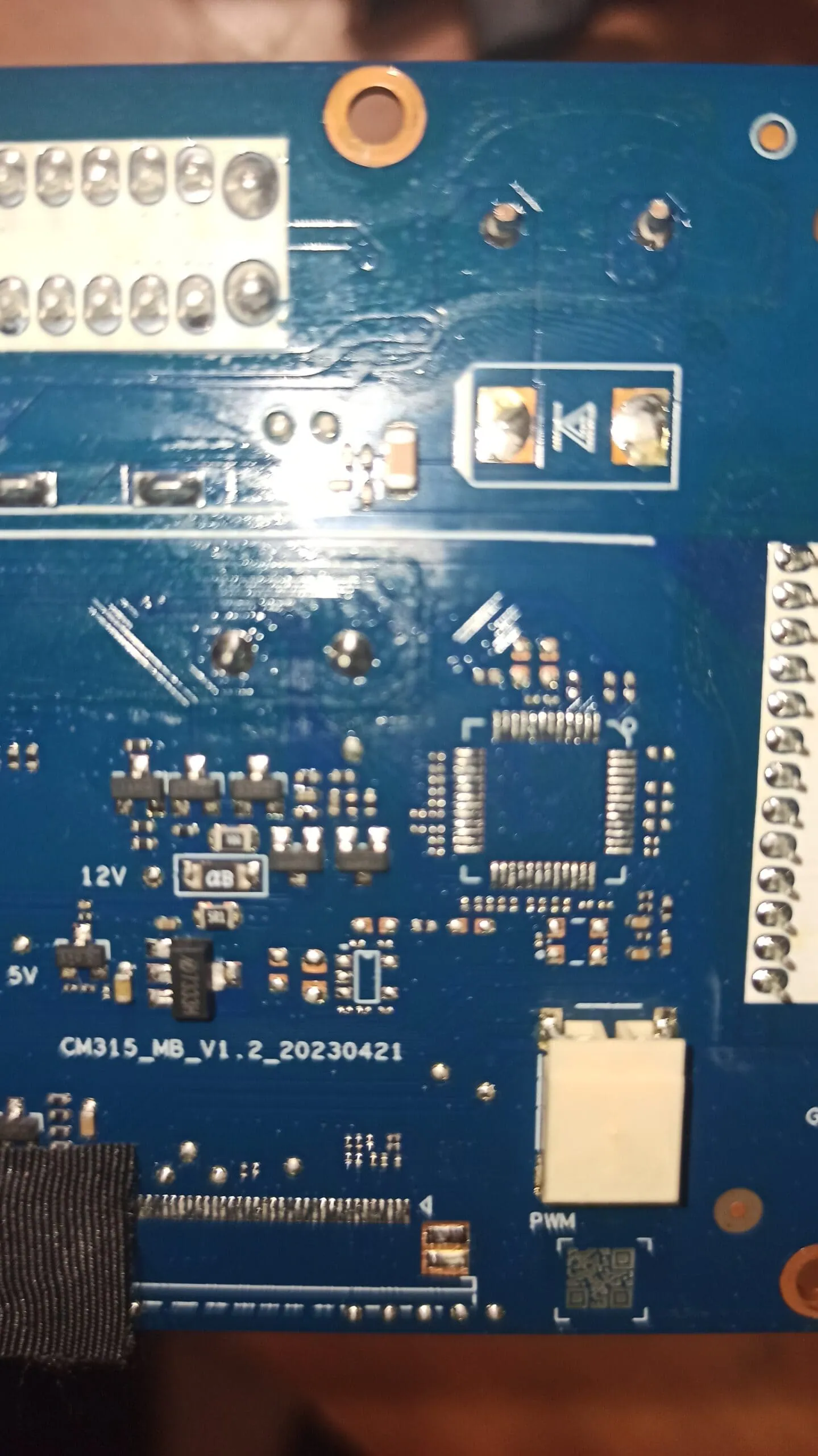
To fix this issue you need to short a test point on main board. This forces the Allwinner A133 chip into download mode and lets Phoenix Suit flash factory image directly. This is the most reliable way to unbrick your unit, which uses CM315_MB_V1. 2 board. You will need Windows PC and Phoenix Suit with USB drivers as well as image file and cable that matches USB A male to male.
- Confirm the unit is bricked. A working bootloop looks like a frozen boot logo or a black screen that ignores the power button.
- Download PhoenixSuit (installer plus drivers) and the K2401_img_2024.08.27 factory image from the sections above.
- Extract PhoenixSuit, the driver folder, and the firmware file on your PC. Copying everything to the root of drive C avoids path problems.
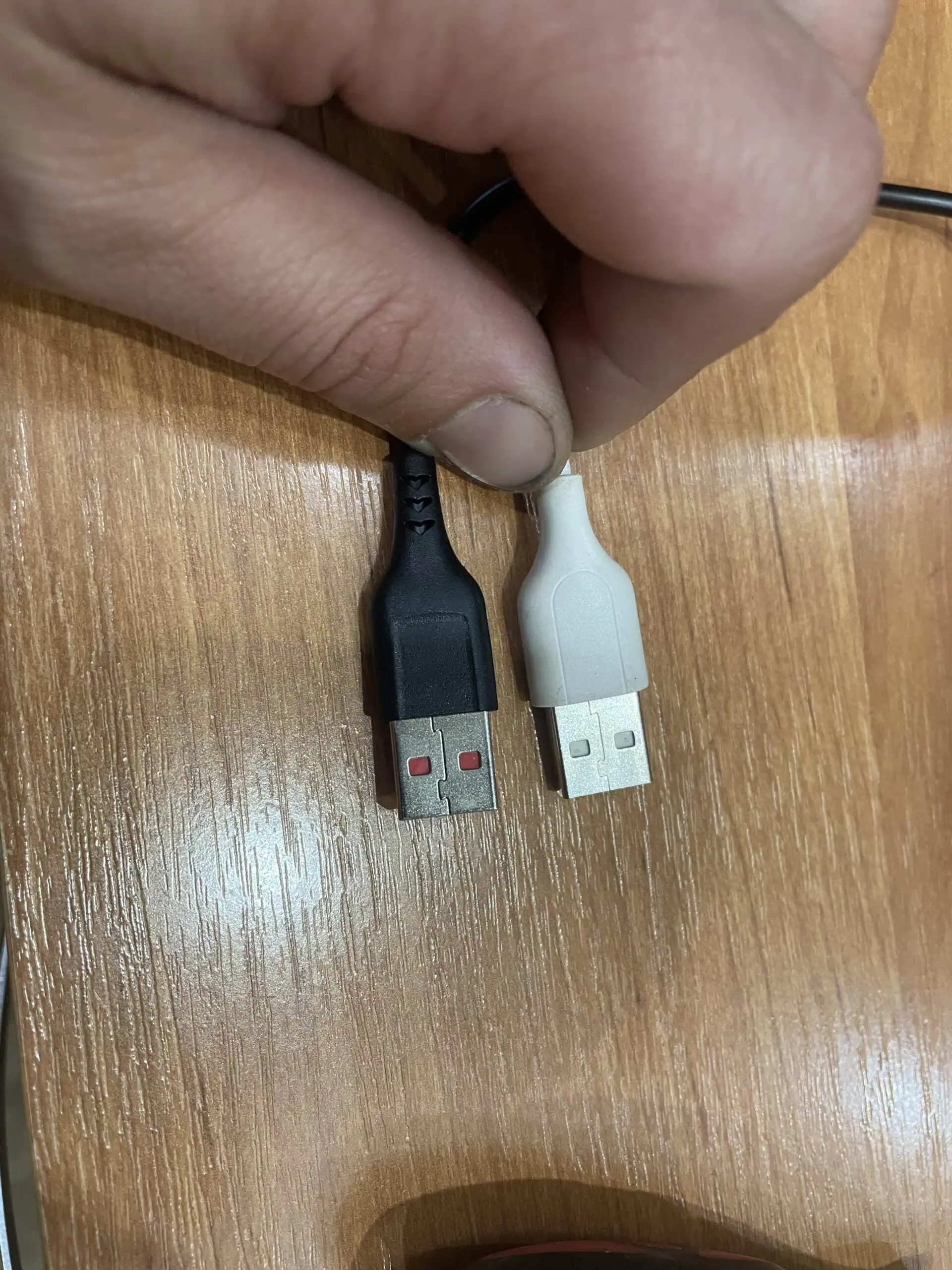
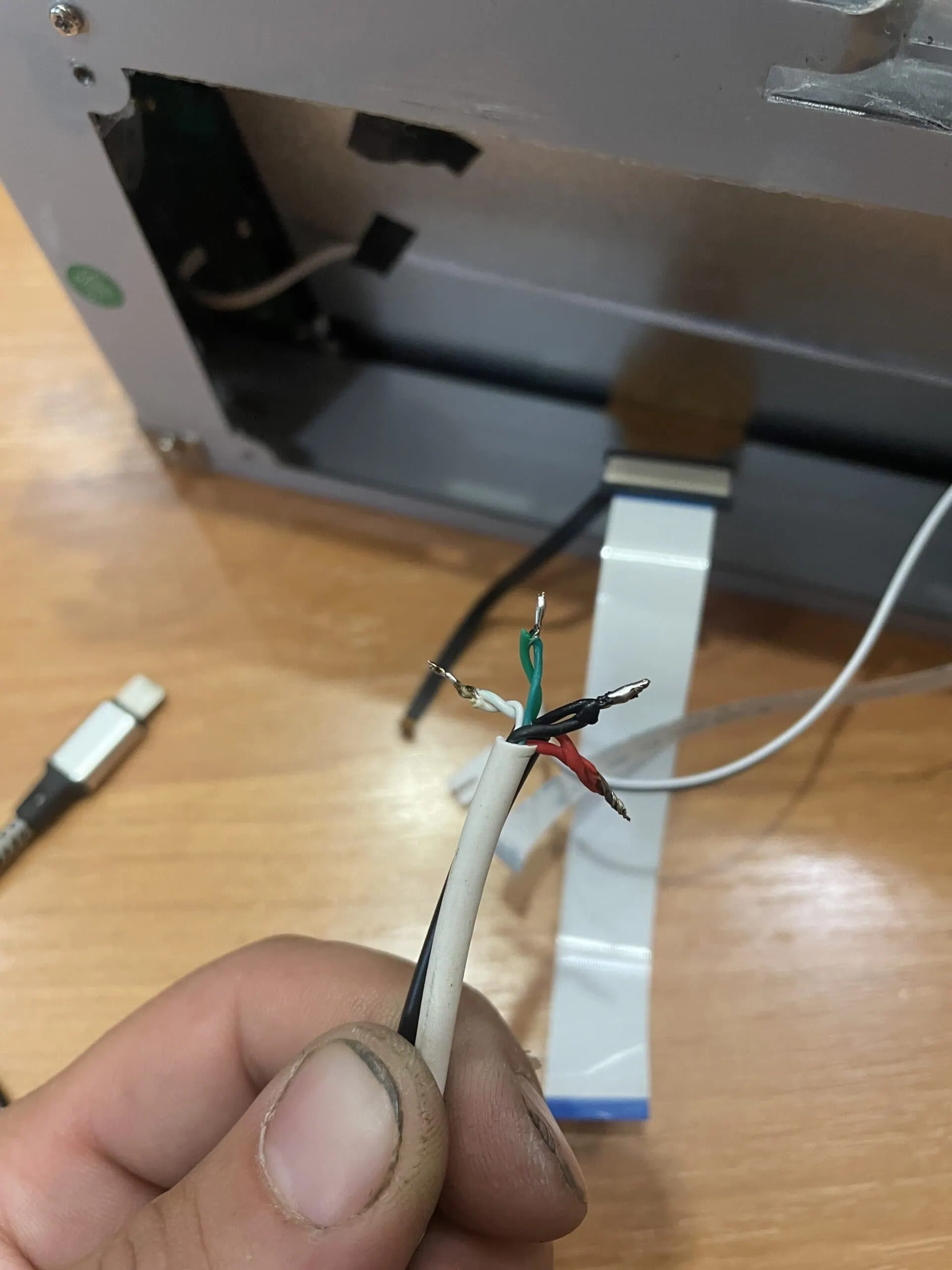
- Get a USB-A male-to-male cable. No store nearby? Solder one from two old charger cables exactly like the photo below.
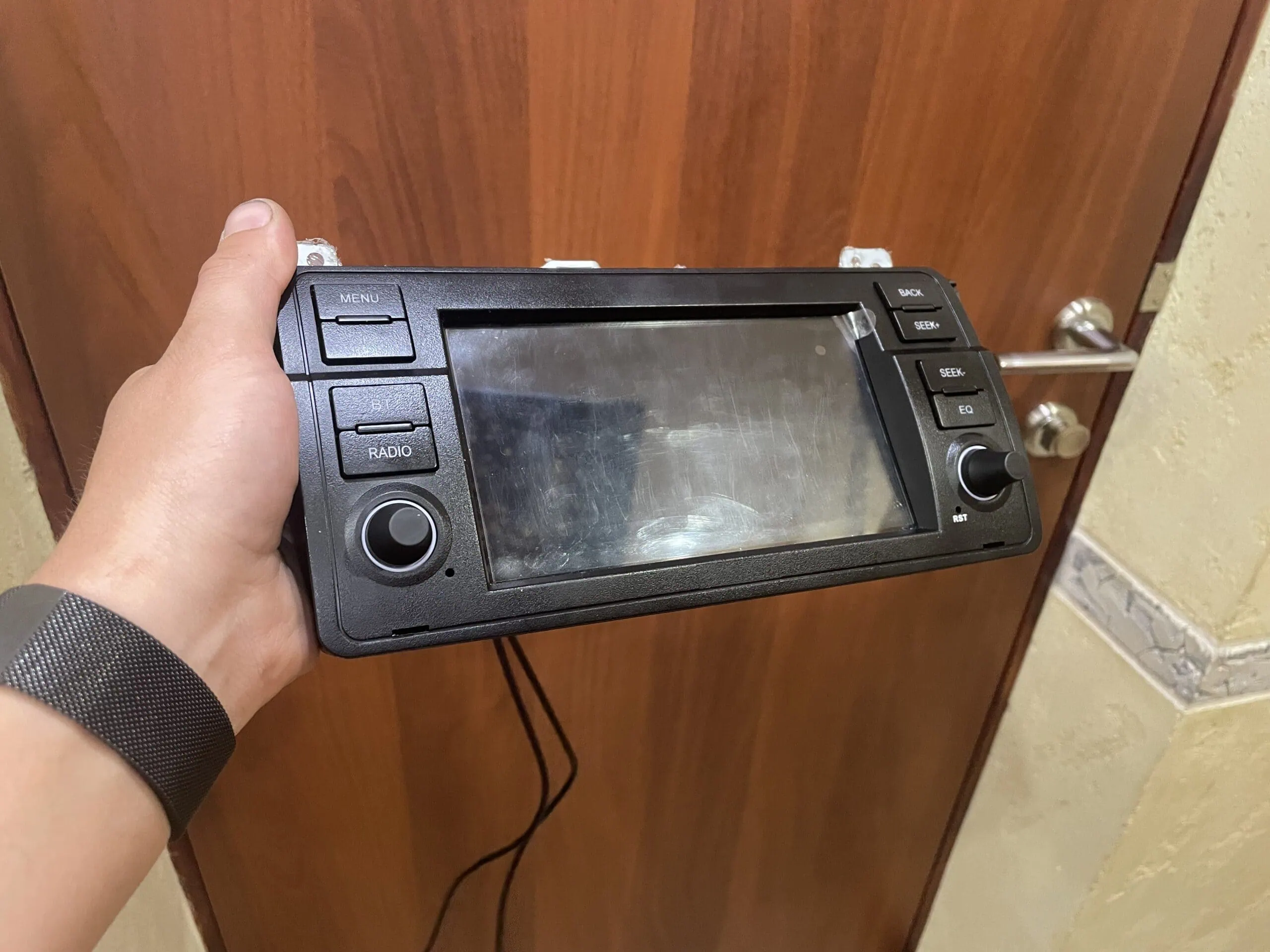
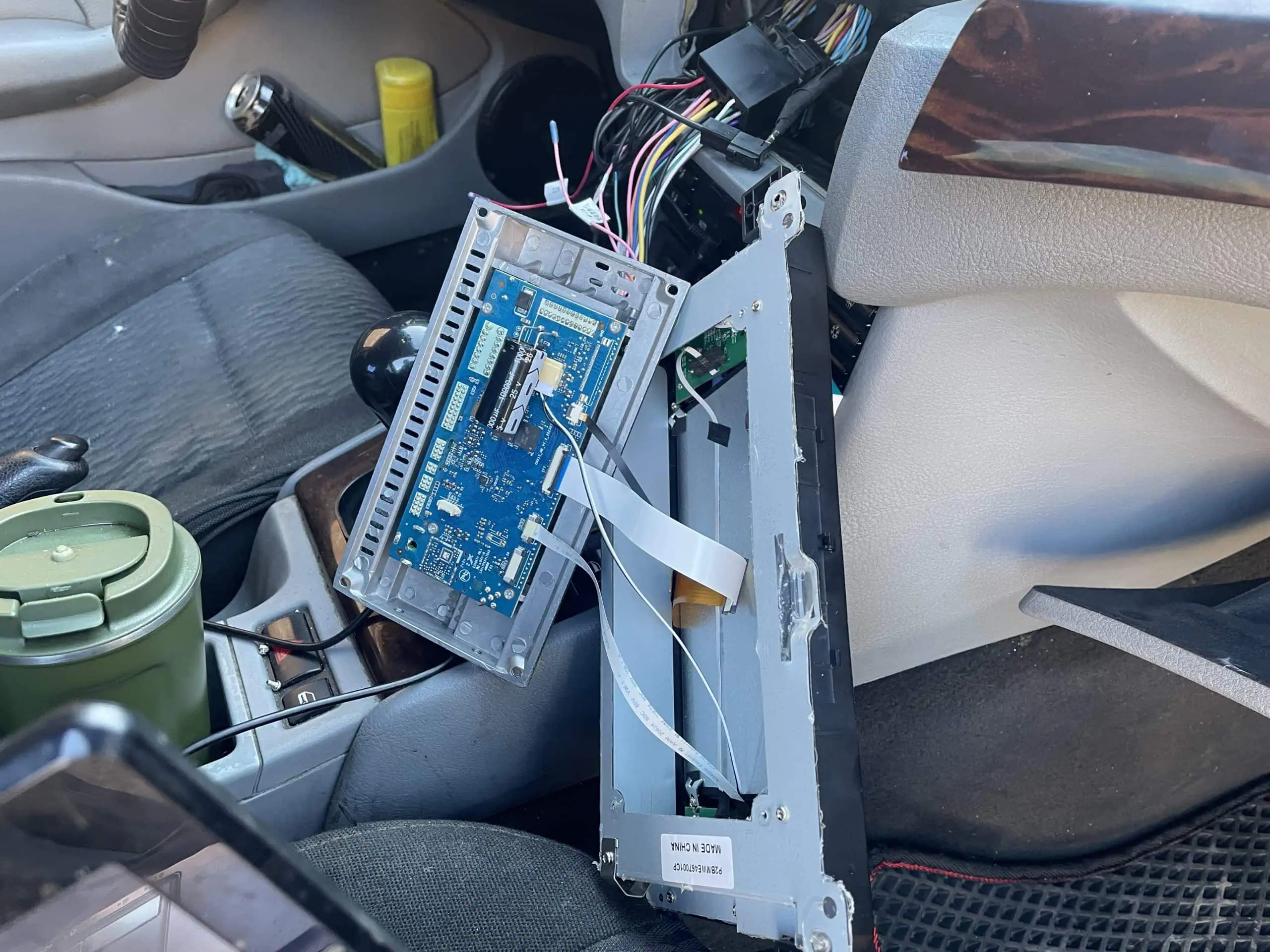
- Disassemble the head unit until the main board is reachable. The test point sits on the PCB, so the case has to come off.
- Connect the head unit wiring normally in the car, but leave the ignition off for now.
- Open PhoenixSuit, go to the Firmware tab, and select the K2401 factory image. Do not click anything else yet.
- Plug the USB-A-to-A cable into the PC and into the unit’s USB header, the 4-pin connector on the board.
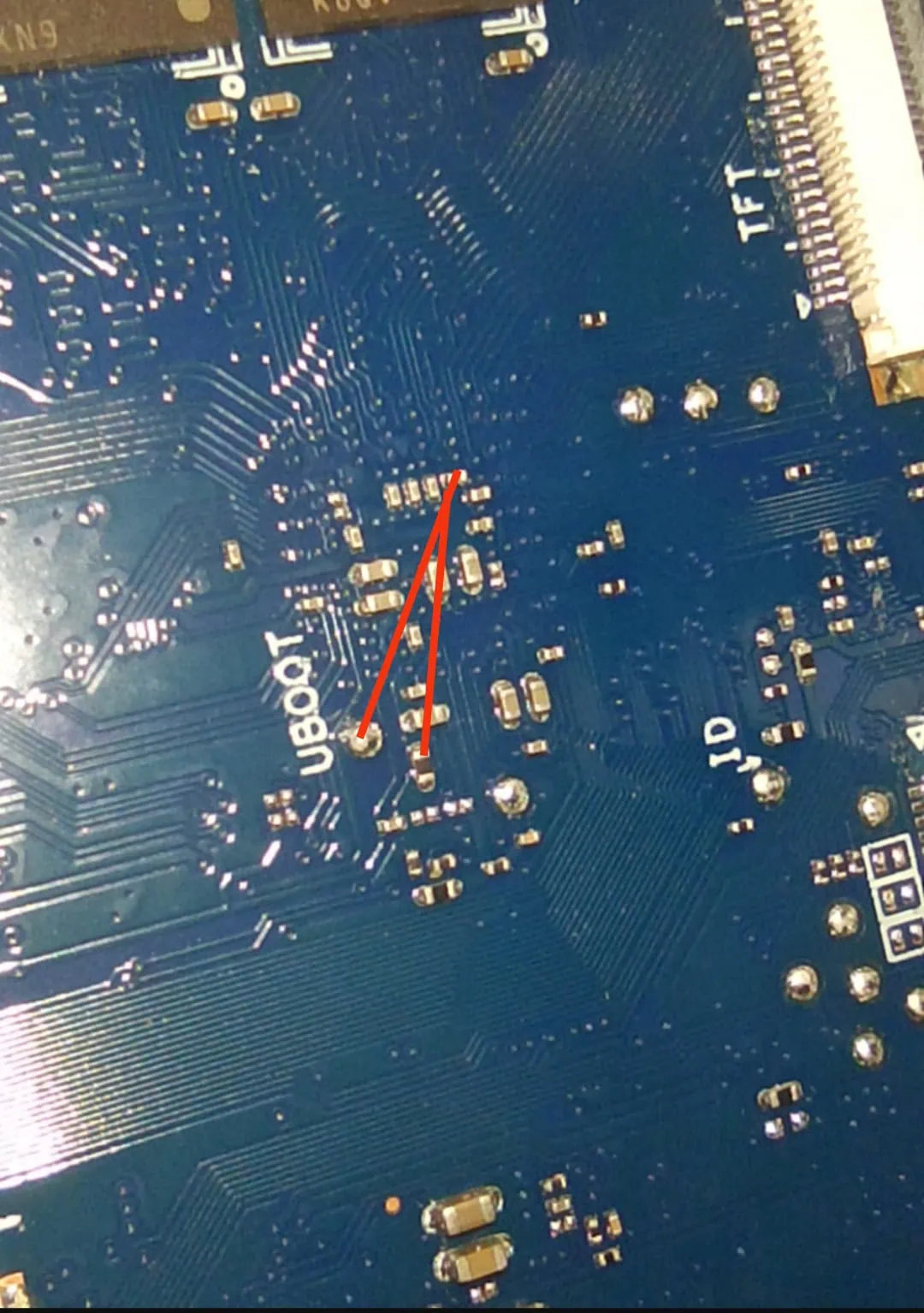
- Locate the test point on the PCB and short its two contacts. On CM315_MB_V1.2 the pads to short are marked in red on the board photo below.
- Keep the short applied and turn the ignition key to position 2 so the dash lights come on and power the unit.
- Windows will detect an unknown device. Open Device Manager, right-click it, choose Update driver, then Browse my computer and point it at the driver folder.
- Windows will warn that the driver is unsigned. Select Install anyway, that warning is expected for Allwinner drivers.
- Once the driver is in, PhoenixSuit picks up the unit automatically and the flash starts on its own. Just watch the progress bar and keep the power on.
- On success you get an Upgrade Firmware Succeed message and the unit powers on by itself.
- Unplug the cable, reassemble the head unit, and the K2401 boots straight back to stock Android.
The factory image wipes everything, apps, settings, the lot. That is intentional, a bricked unit needs a clean slate, not a partial restore. And do not remove the USB cable or kill the power while the progress bar is running, a mid-flash cut is how units end up needing this exact procedure a second time.
K2401 Hidden Passwords
The K2401 keeps a few menus locked behind passwords. These are the ones owners actually use, and they match across the NWD builds.
| Menu | Password |
|---|---|
| Developer options | 345543 |
| Factory settings | 1617 or 16176699 |
| Style UI | 111333 |