

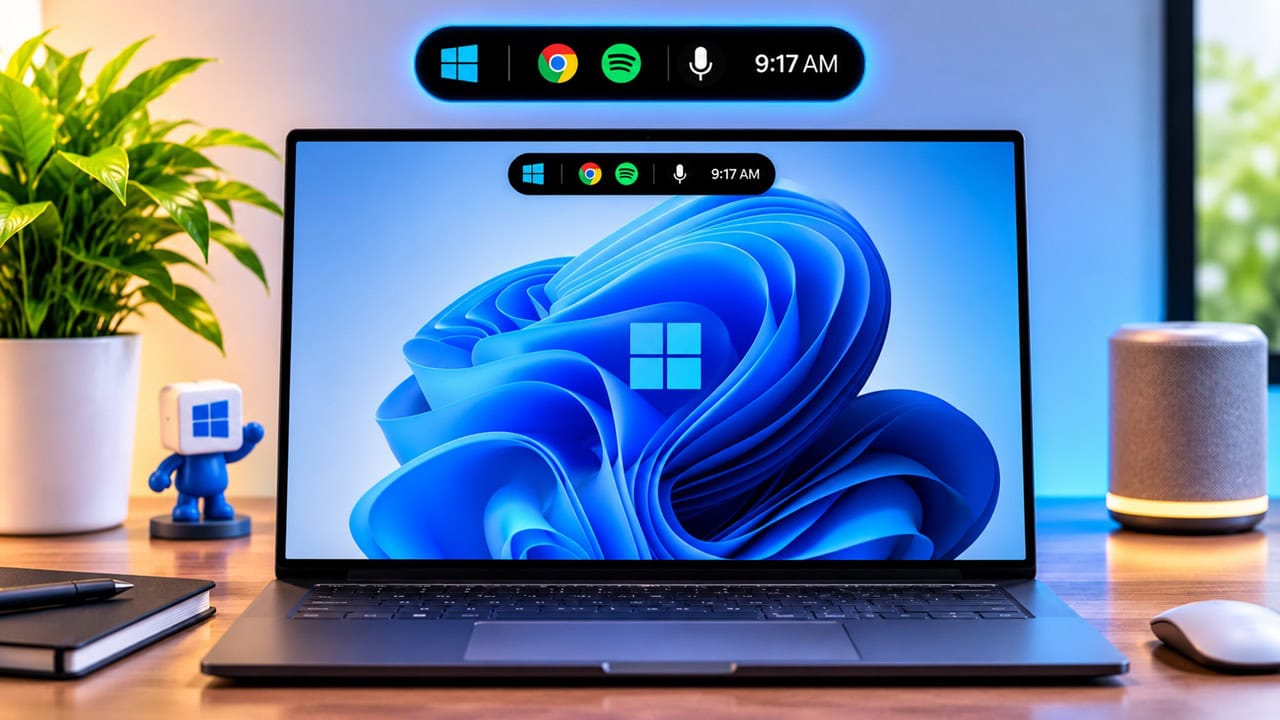
Apple has a feature called Dynamic Island that quietly gives the iPhone a more lively feel and now Windows users are asking for something similar. Good news is that no custom ROMs or hacks are needed. Free apps put a pill like Dynamic Island at top edge of Windows 11 with controls for music and timers as well as system stats. This guide rounds up the top Dynamic Island app options for Windows 11 and how to set up each one.
All apps below work on Windows 10 and Windows 11 and are free to start with. Some make pills very small and others transform them into full boards of widgets; one app integrates into Windhawk as a system mod. Pick the style that matches your desktop and follow the setup steps.
Why Use a Dynamic Island App for Windows 11?
A Dynamic Island app sounds gimmicky until you actually use it. The pills stays hidden until a song ends or a download finishes or a timer goes off, thus saving you from constantly switching windows. Essentially this brings back the old idea of desktop gadgets from Vista and 7 but with faster speed and more attractive and really useful today in 2026.
The Top Dynamic Island Apps for Windows 11
Here are the Dynamic Island apps for Windows 11 that were developed by many freelance and GitHub developers. Every Dynamic Island app for Windows 11 below is free to start, and each one has its own personality and setup process.
1. Nusa – Lightest Dynamic Island for Windows
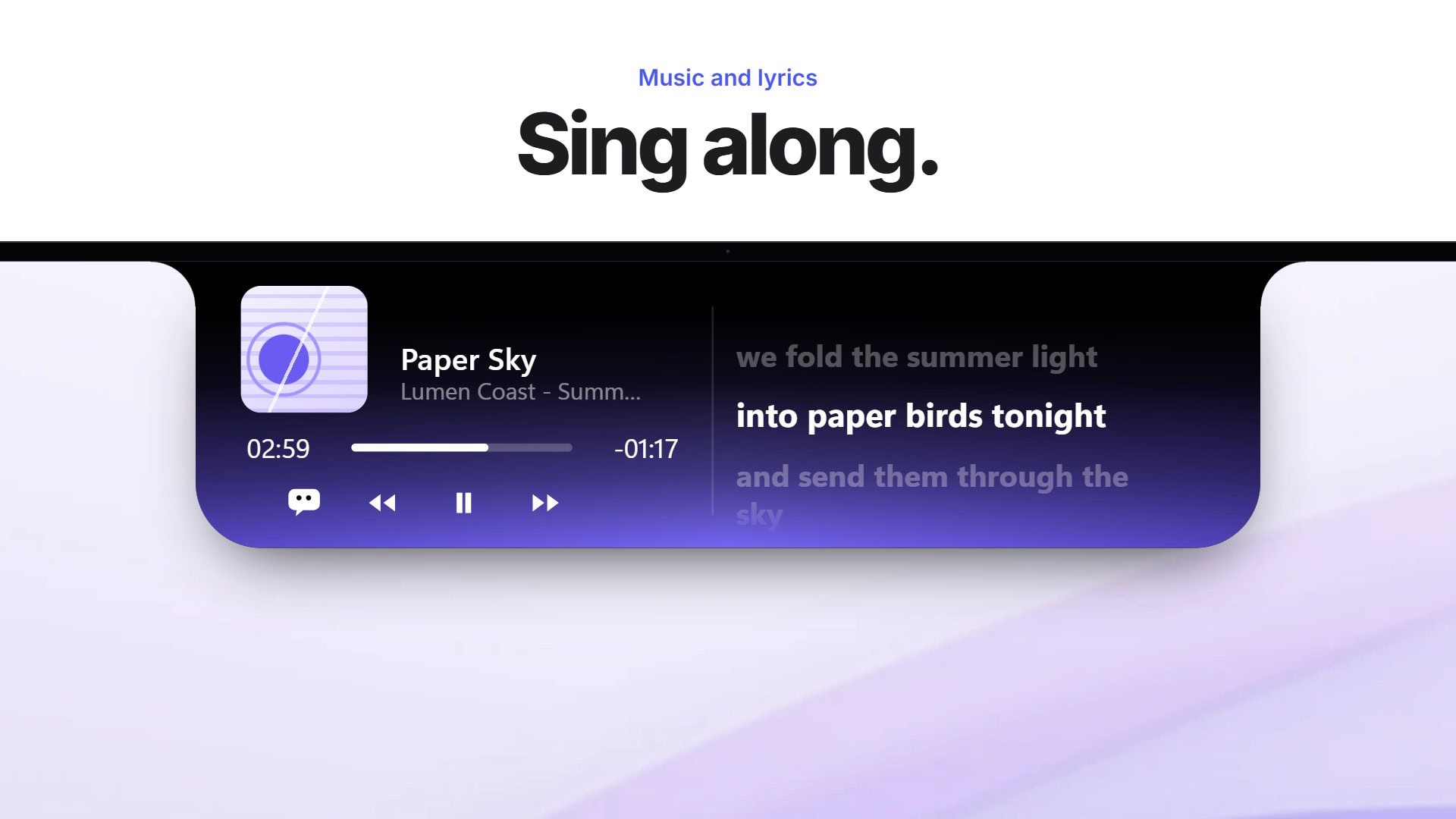
Among them Nusa is lightest and best overall. App size is less than 3 MB and runs natively using Rust directly rather than through a hidden browser. Uses about 30 MB of RAM and consumes no CPU when idle. That makes it the lightest dynamic island app for Windows 11 in this list. Included features are synced lyrics for music, a Pomodoro timer for concentration, alerts for water intake, file shelf, to do list and battery level alerts along with alerts for headphones as well. Setup: download installer from the official site and run NusaSetup.exe. Choose to start automatically and notch appears right away. Hover the pill to expand and use tray icon near clock to switch between mascot or minimal notch mode or to exit.
Setup Guide:
- Open the official Nusa website and press the Download for Windows button.
- Extract the downloaded folder and run NusaSetup.exe.
- During setup, choose whether Nusa should start up with Windows.
- Hover the pill to expand it, and use the tray icon next to the clock to switch the mascot, enable minimal notch mode or exit the app.


2. Dynamic Edge – Best Microsoft Store Pick
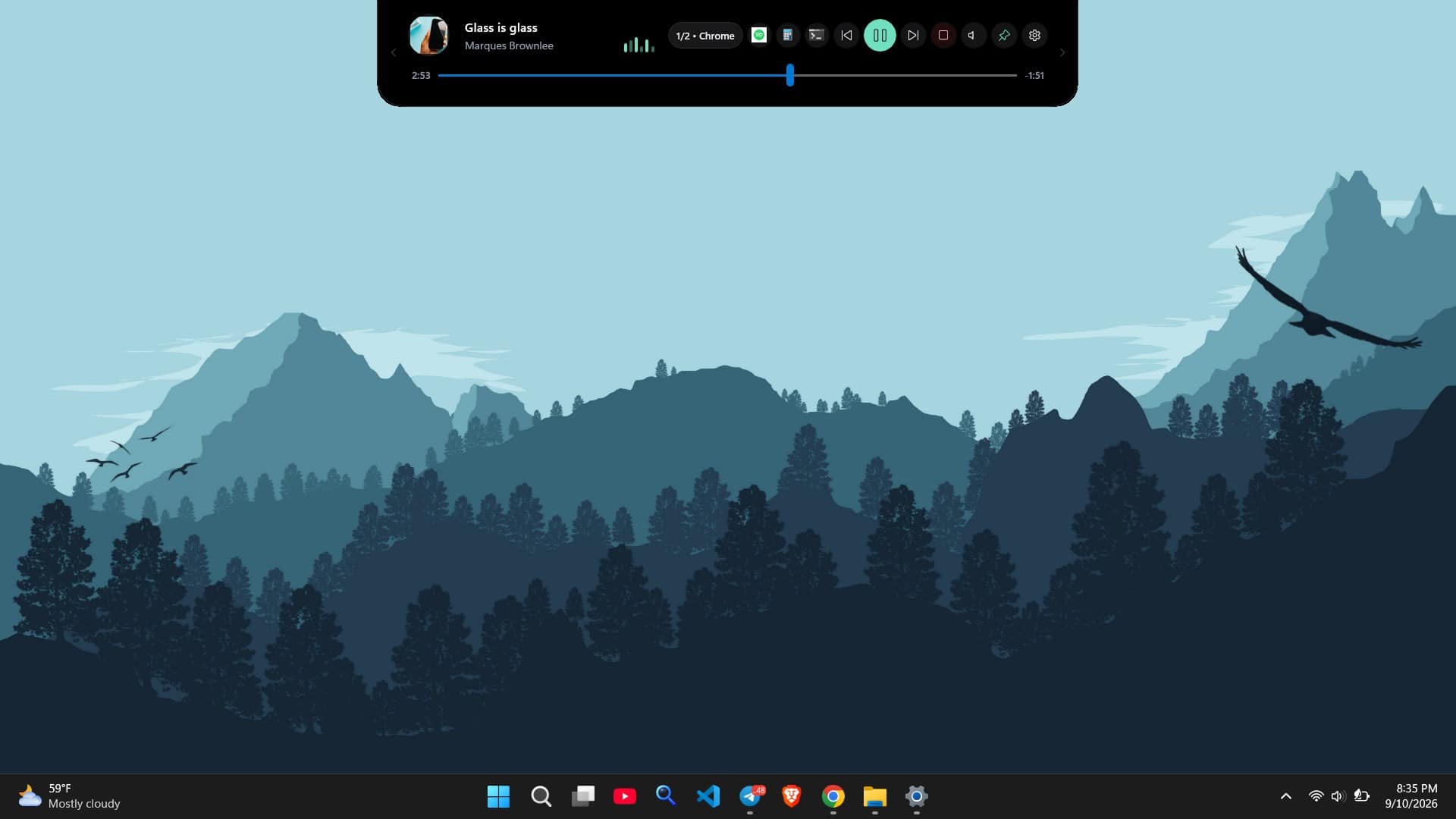
Dynamic Edge can be installed directly from the Microsoft Store and is therefore the safest of the lot. Click on Get and start the app; select language and you see a strip on top with battery status, time and date along with app shortcuts. Extra sections for stopwatch and clipboard as well as quick launch strip are included. Settings go deep into positioning and docking, themes, font size and animation physics too. A Pro upgrade adds Music Radar, a virtual Island Companion and Google Lens if you want more later. If you want the safest install, this is the dynamic island app for Windows 11 to pick.
Setup Guide:
- Open the Microsoft Store, search for Dynamic Edge and click Get.
- Launch the app and select your preferred language.
- Move the mouse to the top edge of the screen to expand the island.
- Open Settings to tune position and docking, themes, font size, animations and physics.

3. Smart Notch – Best for System Stats and Lyrics
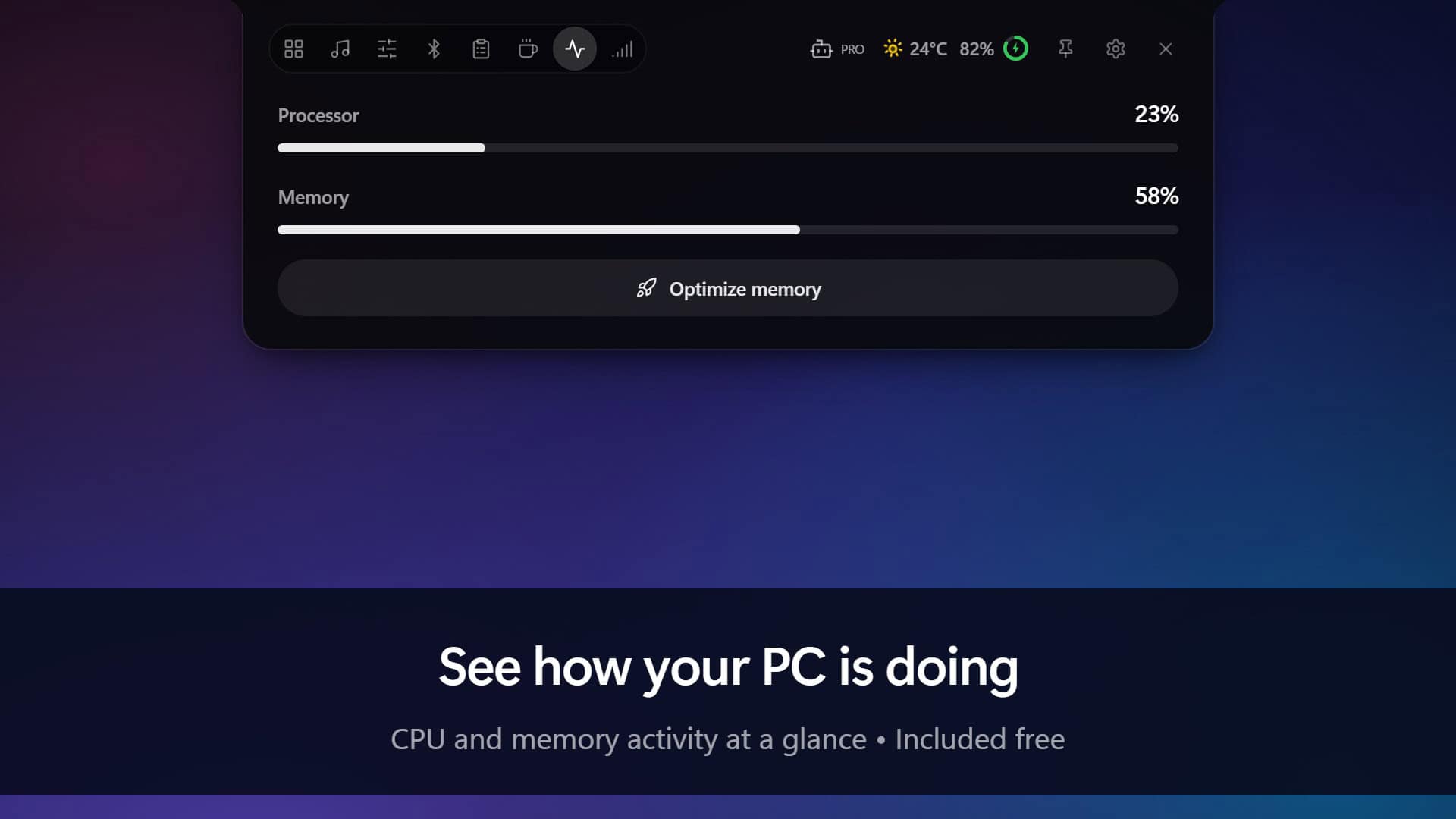
Smart Notch is the clear choice if you need quick access to system statistics. The island always stays visible and expands to include a player for music, brightness and volume controls, quick toggles, clipboard and a stopwatch and also shows CPU and memory along with a real-time internet speed meter. When playing Spotify or Apple Music, lyrics sync automatically if available. Download from Microsoft Store and the pill appears right away when you launch it. Settings let you switch between pill and bar style, add backgrounds and choose which widgets you want on the island. Free version is fine but a one-time purchase unlocks more widgets and AI agent notifications. Pick it as the dynamic island app for Windows 11 when stats and lyrics matter more than customisation.
Setup Guide:
- Install Smart Notch from the Microsoft Store.
- Launch it and the pill appears on the top edge of your screen.
- Hover over the pill to open the music player, brightness and volume controls, quick toggles and the stats panels.
- Open the settings page to switch between a pill and a MacBook-style bar, add a background and choose your widgets.

4. Quick Pill – Most Customizable Fun Pill
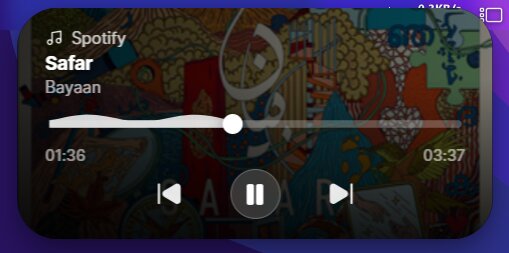
Quick Pill is the most fun of the four. In the middle top of your screen it shows the weather and time and you use the mouse wheel to scroll through eleven screens: battery info, audio status, quick notes, calendar, messages, clipboard, reminders and timer and Google search. Download from the official site. Settings are right there to adjust position and appearance, tabs and shortcuts and you can choose Still, Quick or Large mode and scrolling is smoothest here. This is the dynamic island app for Windows 11 to try when you want something playful.
Setup Guide:
- Download the installer from the official Quick Pill website and install it.
- Launch Quick Pill; the pill appears at the top center showing the weather and time.
- Scroll the mouse wheel over the pill to flip through the eleven screens, from battery to weather details.
- Hover the pill to open settings, then adjust the position, tabs and shortcuts and pick Still, Quick or Large mode.
5. Windhawk Dynamic Island Mod – For Tinkerers
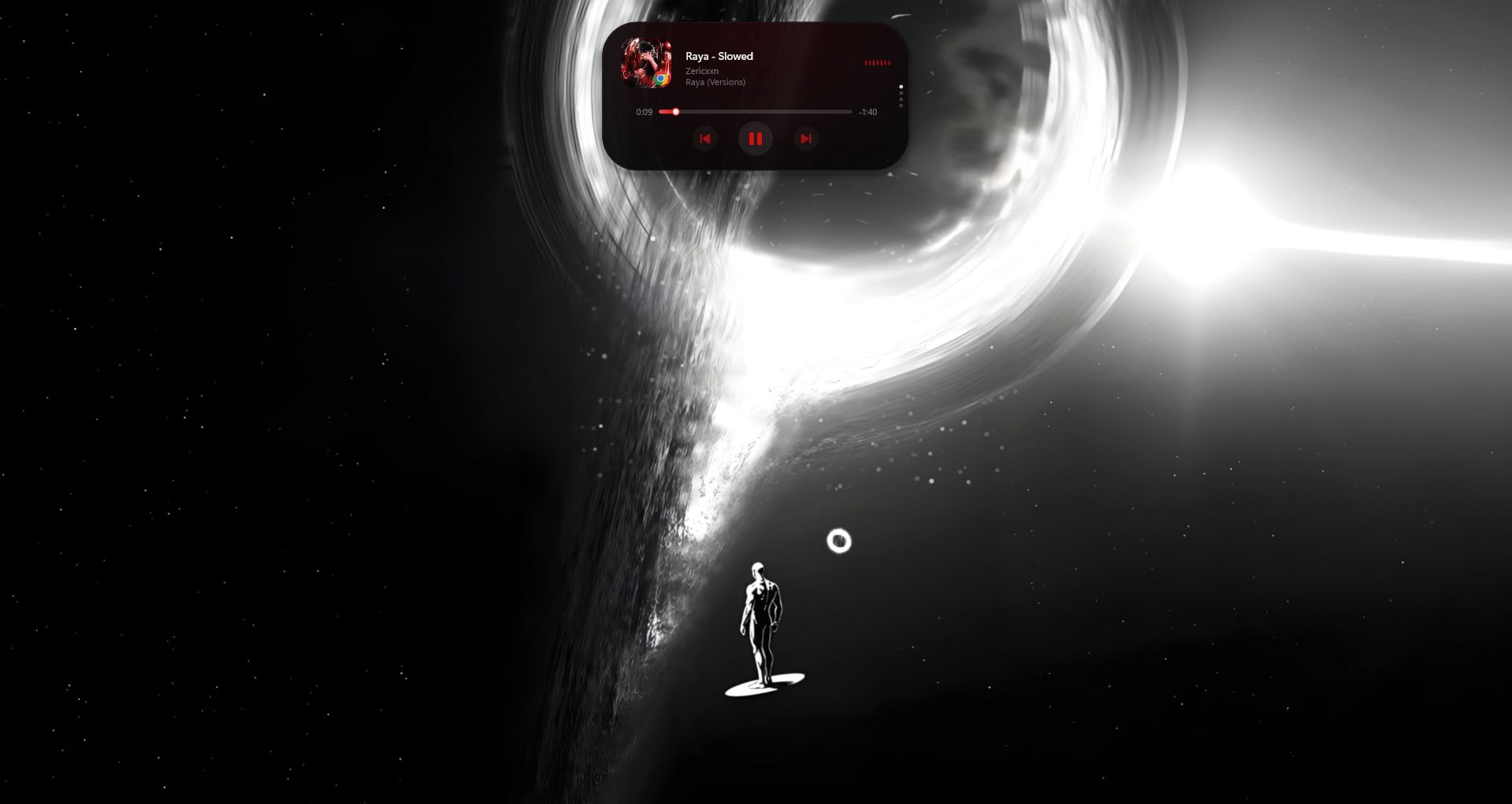
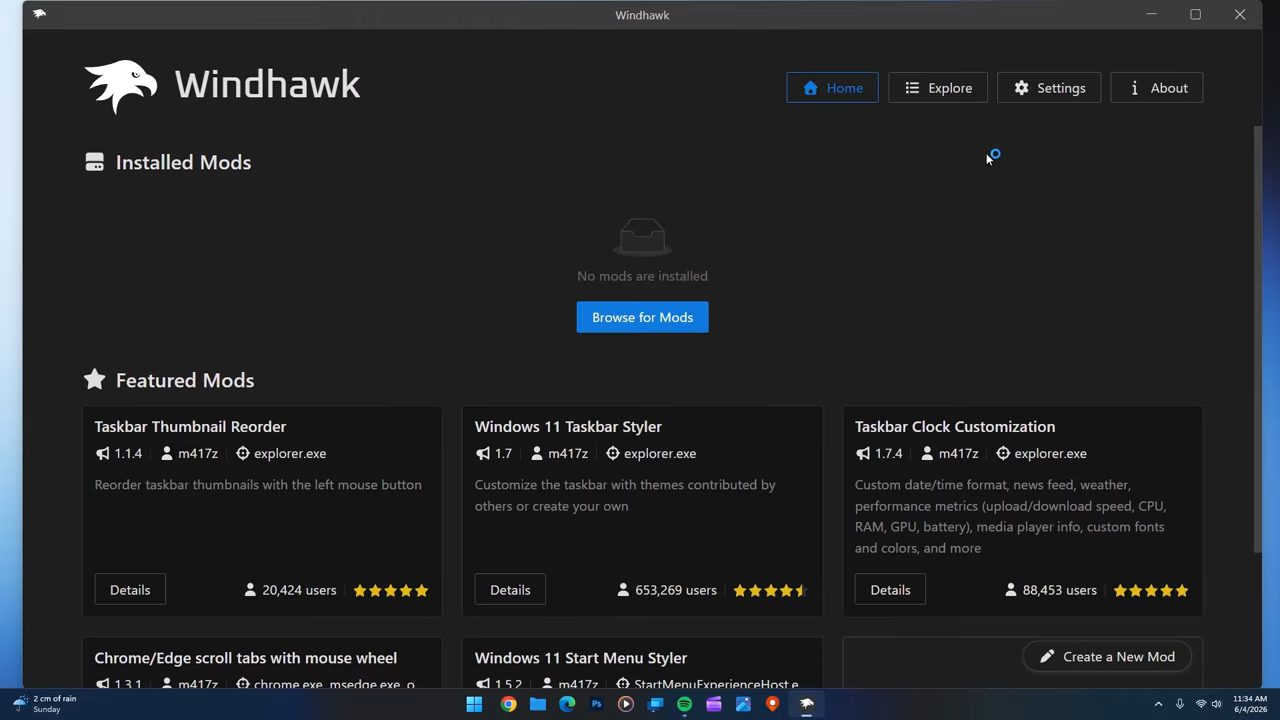
If you enjoy fiddling with software, you can also find a mod for Windhawk, a customization platform for Windows. Install Windhawk and then search for Dynamic Island for Windows mod and install it. The mod renders at high refresh rates with blur and effects of acrylic and adds hardware monitor and overlay with FPS along with privacy dot for camera and tray for files. You can hide the island with Ctrl+Alt+D and bring it back the same way. This is a very deep mod but makes most sense if you already run mods with Windhawk, and it is not a standalone dynamic island app for Windows 11.
Setup Guide:
- Install Windhawk and open the Explore tab.
- Search for Dynamic Island for Windows and click Install.
- Open the mod settings to change position, size scale, target FPS and animation style.
- Right-click the island when you want to hide it, and bring it back with Ctrl+Alt+D.
Which Dynamic Island App Should You Install?
That is the full selection now for picking a dynamic island app for Windows 11. I would keep Nusa installed for everyday use; Quick Pill and Smart Notch are the best picks from the Store. Windhawk mod is fun to tinker with and Quick Pill is best for fun alone. Try two or three and keep one that matches your process flow since the goal is to see what is important and not to disturb your work.