

There are two ways to root your phone with KernelSU. One is to flash a custom kernel that has KSU included, the other is to pull the boot image from firmware and patch it using fastboot. Usually phones have no custom kernels, so people tend to use second method which takes time, needs a PC. But now there is easier way: with KSU Patcher APP you get it done in seconds.
This guide will show you the whole process step by step: we will explain what KSU Patcher APP does, what you need to start, how to patch a boot image and how to flash result with fastboot. We tested patching on GKI device and it finished in less than a minute when files were ready. If you’re new to fastboot just follow commands exactly do not forget to unlock bootloader.
What is KSU Patcher?
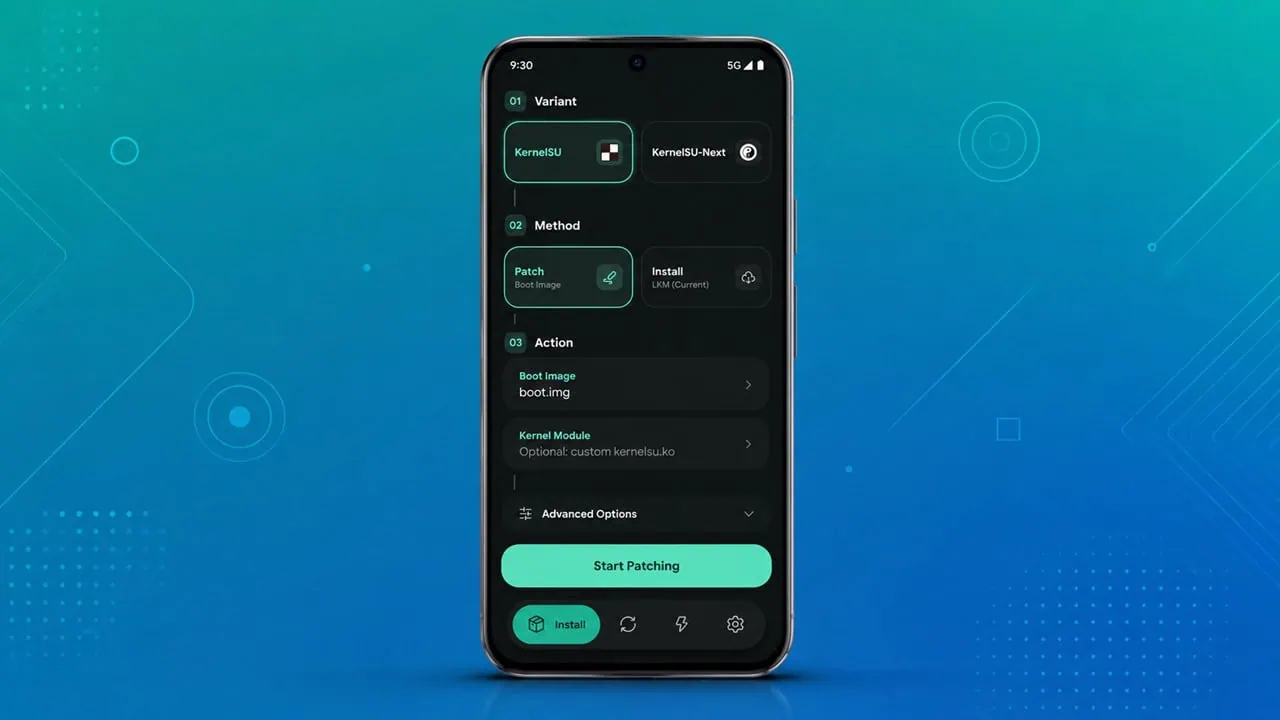
KSU Patcher is a very small app that applies patches to boot images directly on your phone for KernelSU and KernelSU Next. All necessary tools to patch are included in the APK. You do not need a PC or to enter shell commands yourself. Just give it a firmware file or an image; it will extract and patch it. Usually for one boot image the whole process takes just a few seconds.
The app handles tricky parts of rooting as well. For instance, you can flash patched images to the spare slot of A B devices to keep root working through OTA updates. It downloads and installs KMI matching LKM kernel modules automatically. The app also provides logs while patching that allow you to check what is going on if you need to look into something closely.
Features:-
- Local Patching: Patch boot images for KernelSU or KernelSU-Next directly on the phone, no PC required.
- OTA Survival: Flash the patched image to the inactive slot on A-B devices so root survives system updates.
- LKM Support: Download and install kernel modules that match your device KMI.
- Live Logs: Real-time terminal output from the patching tools while the job runs.
- Theming: Material 3 interface with dynamic color support.
- Updates: Check for and install new app versions from the releases page.
Download KSU Patcher APP
KSU Patcher APP is a free open source tool. You can find newest build on the Releases page of the project. Download page. The developer includes SHA-256 checksum files with each release so you can check your download before installing. APK file is quite small at less than 11 MB and downloads quickly regardless of your speed. Older versions are also listed on that same page if you want to go back.
| File | Download Link |
|---|---|
| KSU Patcher APK (latest release) | ksupatcher-fae74fb.apk |
| Release page with older builds | KSU Patcher Releases |
How to Patch boot.img with KSU Patcher
Requirements Before You Start
- An unlocked bootloader. Do not proceed if your bootloader is locked, or you will risk bricking the device.
- Android 9.0 or newer with a GKI-compatible kernel (kernel versions 5.10 to 6.1).
- Your stock boot.img from the same firmware version you are running.
- USB Debugging enabled on the phone and a working USB connection to a PC.
- Android SDK Platform Tools (adb and fastboot) installed on your PC.
One important detail: the boot image you patch must come from the same firmware version you want to run. Grab it from your stock firmware or a custom ROM zip. If your ROM zip contains a payload.bin, use our payload extractor guide to pull the boot image out of it first, then feed that file into KSU Patcher.
Step 1: Patch the Boot Image on Your Phone
- Download and install the KSU Patcher APK from the download section.
- Transfer your ROM zip file or extract and copy boot.img to the phone storage.
- Open KSU Patcher and ignore the root prompt that appears. The patching step does not need root.
- Under Variant, choose KernelSU or KernelSU-Next. Under Method, choose Patch.
- Tap Boot Image and select your ROM zip or boot.img file, then tap Start Patching.
- If you want to install a Kernel Module, like the SUSFS Module, then choose the Kernel Module and select the .ko file.
- The app extracts the boot image from the firmware and patches it.
- Once done, the patched boot image is saved in your phone Downloads folder.


Step 2: Flash the Patched Boot Image with Fastboot
- Download Android SDK Platform Tools, extract the zip, and copy the patched boot image into the platform-tools folder.
- Rename the patched boot image to kernelsu_patched.img and open cmd to Android SDK Platform folder.
- Enable USB Debugging on your phone and make sure the bootloader is unlocked.
- Connect the phone to your PC and boot it into fastboot mode with this command:
adb reboot bootloader- Flash the patched boot image using the exact file name from your Downloads folder:
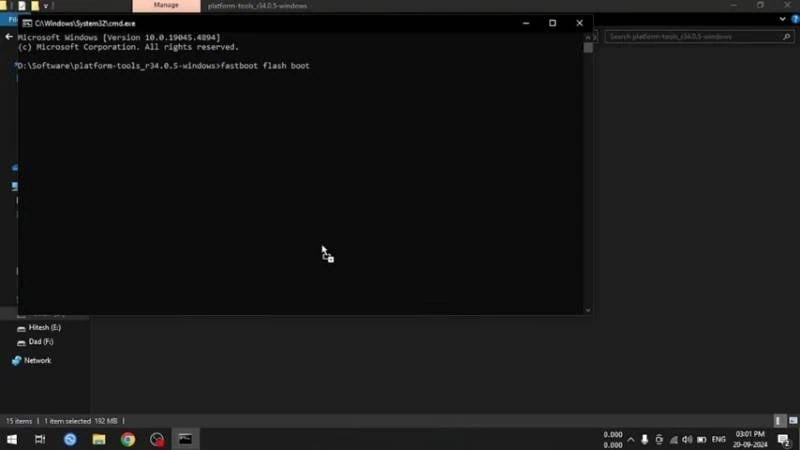
fastboot flash boot kernelsu_patched.img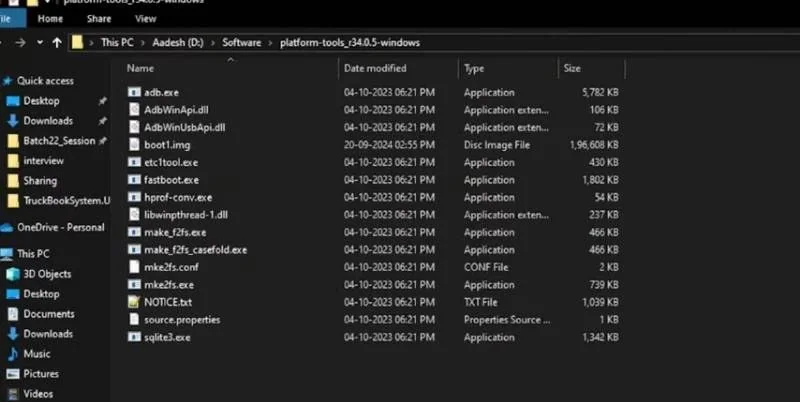
- Reboot the phone into the system:
fastboot rebootAfter the phone boots up, install the KernelSU or KernelSU-Next app and open it. The app should show your device as rooted with the kernel version listed on the home screen. If it does not, the patched image was not flashed to the correct partition, so redo Step 2.
Troubleshooting
- The patch job fails right away. The firmware file is not a valid boot source, or it does not match your Android version. Re-download the firmware and make sure the version matches what is currently on your phone.
- Fastboot does not detect the phone. Check the cable and the USB port, and install the USB drivers on Windows. Run the fastboot devices command to confirm the PC sees the phone in bootloader mode.
- Your phone is looping after flashing? Don’t worry. Get it into fastboot mode again. Flash original, unpatched boot image with command
fastboot flash boot. A quick reboot should fix things. - Root is gone now after an OTA update? If you have A B device go to OTA tab in KSU Patcher and flash patched image to the inactive slot then reboot. You get root back without repatching.
- The app asks for root access and you can deny the prompt during patching step – it’s fine. Root is only needed for installing LKM or if flashing OTA slot.
- Your fastboot command keeps failing with ‘file not found’? Double check you’re using exactly the right file name from Downloads folder. Usually this error is because a file has been renamed or cut short.