

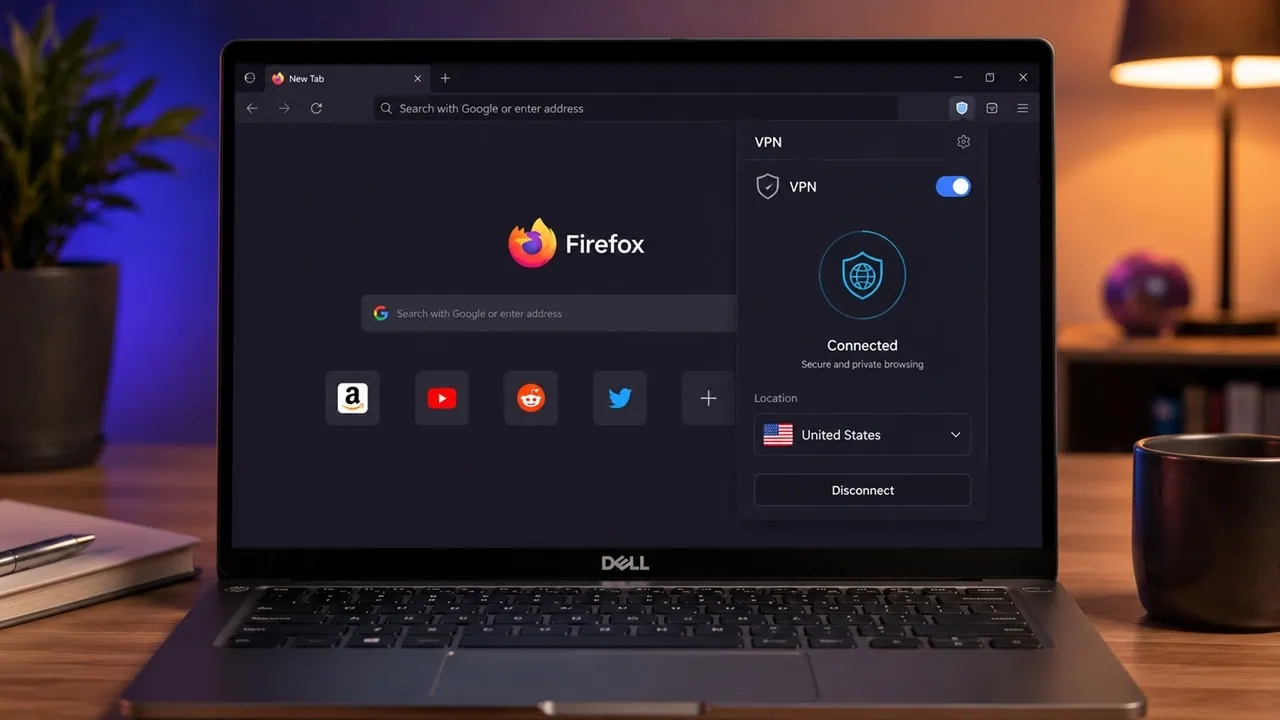
Firefox 149 just came out and now includes a free built-in VPN and it’s one of Mozilla’s most useful things in a long time: you get 50 GB of browsing each month, no downloads of apps, no subscriptions, it’s just there integrated into the browser. The only snag is that it is only working right now in the US, UK, Germany and France. But in this guide, we will show you how to enable Firefox VPN in an Unsupported Country.
Currently, Firefox VPN is still in beta and rolling out to desktop users. Everyone else is told it will come soon over several future releases with no real time frame. But good news: there is a hidden flag in Firefox that lets you unlock this VPN anywhere and here is how you do it.
What is Firefox Built-in VPN?
Firefox’s built-in VPN is a way for Mozilla to protect your IP address. Turn it on and Firefox sends your browsing traffic through a proxy network. This network substitutes your real IP with that of a proxy server before your request even reaches a website. So sites see only the proxy IP, never yours. Do note it is just for Firefox though, it covers what you do in that browser but not other apps on your device.
You get free browsing through VPN of 50 GB per month which is enough for common tasks like shopping and banking or reading. You need a Mozilla account to use it. Once you hit that limit each month, browsing without protection pauses until the next month. Firefox also asks you to confirm before you continue without this protection.
Why is Firefox VPN Restricted by Country?
Mozilla is rolling out a VPN slowly starting with Firefox 149 and currently it is available free within the browser to desktop users in the US, UK, Germany and France. Mozilla says that support for more regions will be coming soon in following releases but no definite time has been given. Routing server is based in the US chosen for both location and performance. If you are not in one of those supported countries then the feature simply will not show up. That is when using the secret flag in about:config turns out to be handy and lets you turn the feature on and sidestep waiting.
How to Enable Firefox VPN in an Unsupported Country
This unlocks the VPN no matter where you are located and it takes about a minute.
- Launch Firefox and type
about:configin the address bar, then press Enter. - Click “Accept the Risk and Continue” if the warning appears.
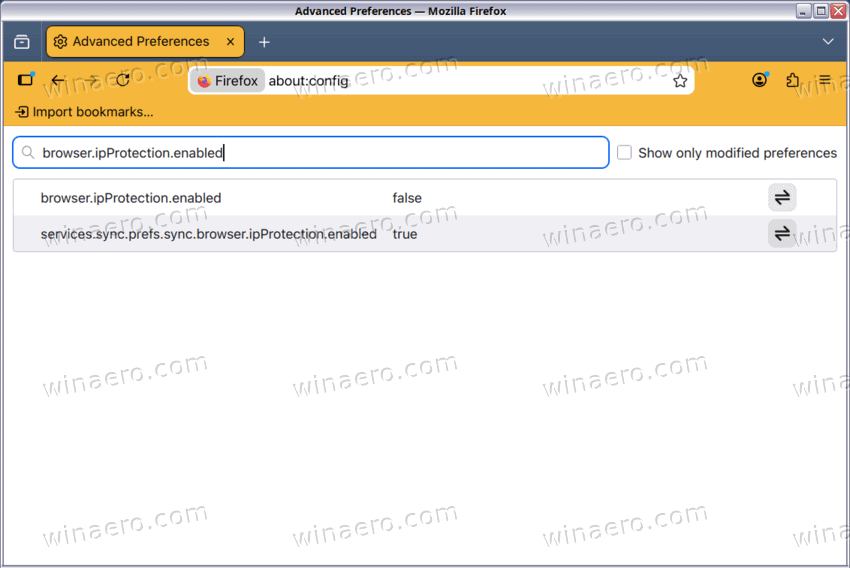
- Type
browser.ipProtection.enabledin the search box. - Click the toggle icon next to the preference to change its value from false to true.
That’s all. Your VPN is now unlocked. You should see a new button in your toolbar right away. If it doesn’t appear right away just restart Firefox and it will be there.
How to Turn On Firefox VPN
Even after you set the flag you have to log in and activate the VPN though.
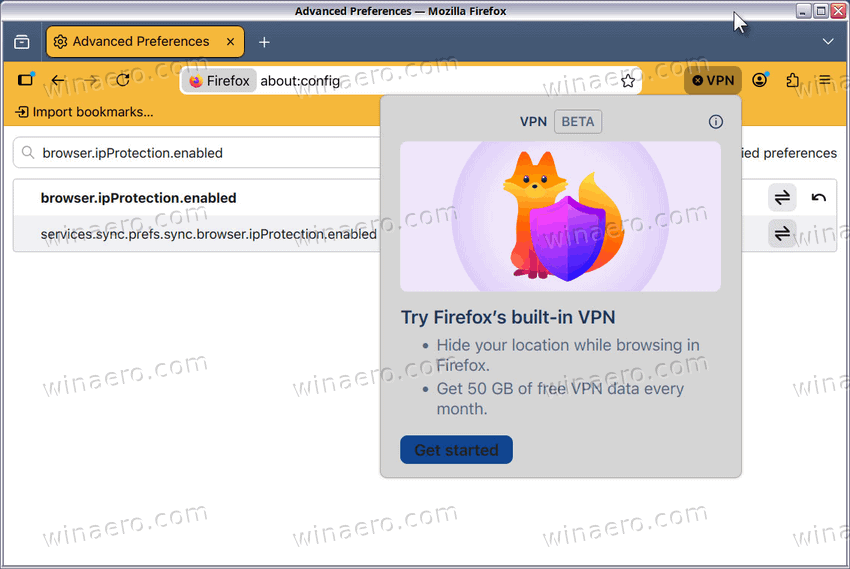
- Click the VPN icon in the top-right corner of the toolbar.
- Click “Get Started” in the flyout.
- Sign in with your Mozilla account, or create one if you do not have it.
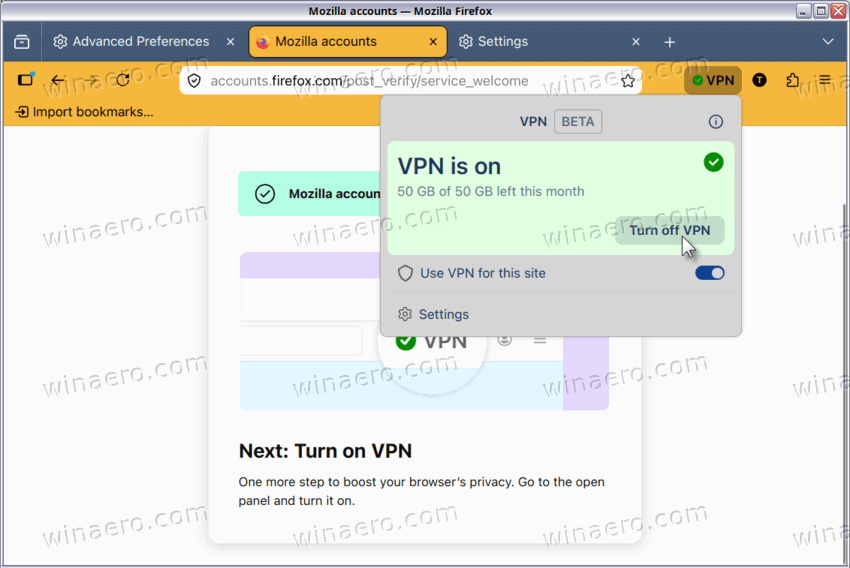
- Click “Turn on VPN.”
Traffic currently goes through the proxy. The VPN stays active until you turn it off or you hit your 50 gigabytes monthly limit.
How to Add Sites to the VPN Bypass List
Some websites, like banking sites or streaming services, do not work well with proxies. Fortunately, Firefox lets you add these sites to a bypass list. This way, your VPN just ignores them directly.
- Open Firefox and go to
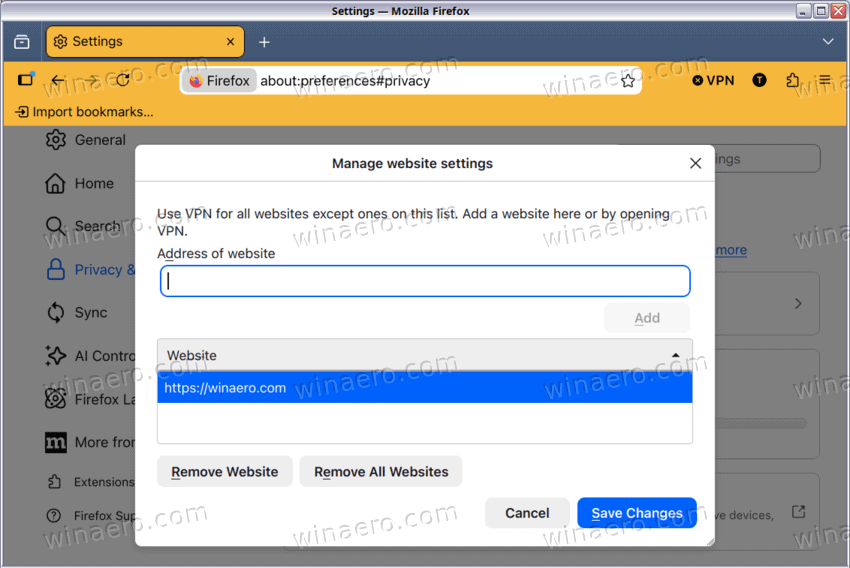
about:preferences#privacy. - Scroll to the VPN section and click “Manage Website Settings.”
- Type the URL of the site you want to exclude and click “Add.”
- The site is added to the list, and the VPN is automatically disabled when you visit it.
- To remove a site, select it, click “Remove Website,” then “Save Changes.“
What Firefox VPN Protects (and What It Doesn’t)
Firefox’s built in VPN hides your IP when you browse; it keeps sites you visit private especially when using open Wi-Fi networks and reduces tracking. Just remember that it works only within Firefox; it does not protect traffic from other apps or system traffic as well. For full security for your whole device, Mozilla now offers a separate paid service which protects all your devices, different from most free VPNs which sell browsing data and show ads.






Thanks for your guide, it does not work for me in Asia. I did the setting, I logged in but when I click on the VPN buttons it shows me “first steps” every time then it brings me to login and first steps again, so I am caught in a kind of loop.
try to login with usa eu vpn first