

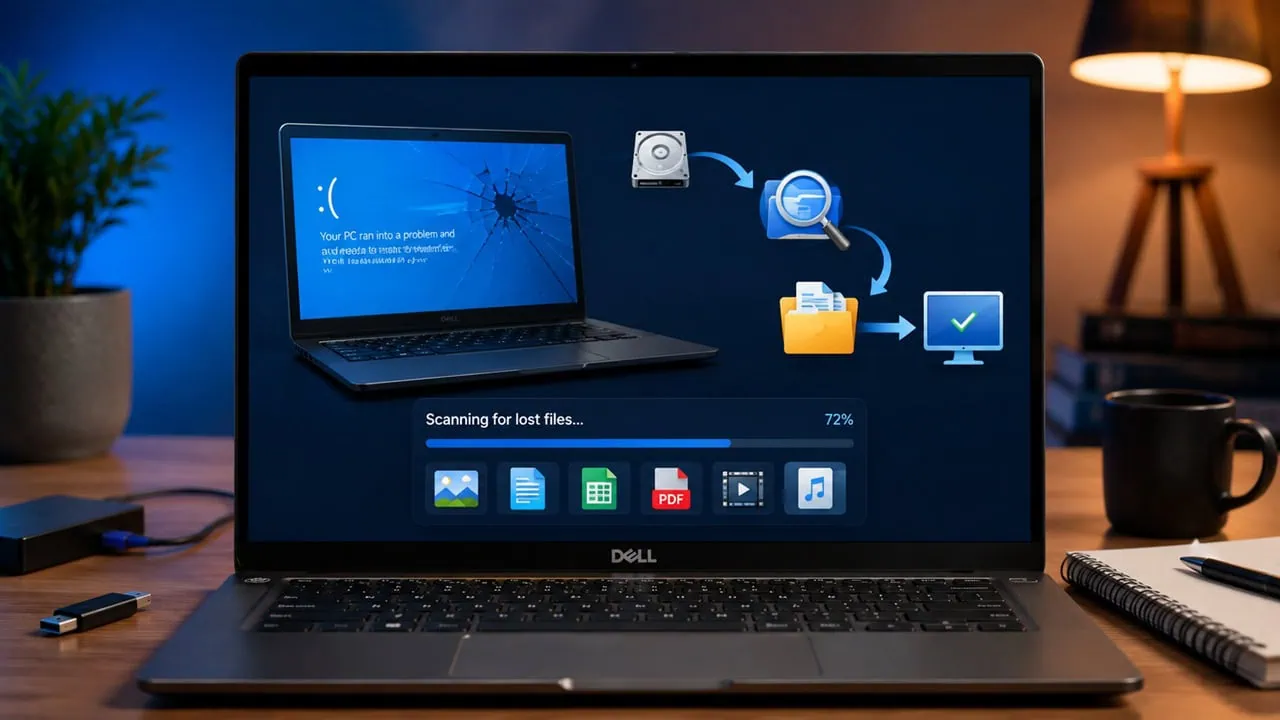
Laptop crashes happen at the worst possible time. A system may stop booting right before a deadline, important coursework may disappear after an update, or a work project may seem gone after a sudden shutdown. For students, remote workers, and small business owners, file loss is often stressful because the device is not just a machine — it is where documents, photos, presentations, and client work live.
The good news is that a crash does not always mean your files are gone forever. In many cases, the data is still on the drive and can be recovered if you act carefully and avoid making the situation worse. This guide walks through the most common causes of file loss, what not to do after a crash, and when a reliable data recovery software solution can become useful.
Common Reasons Files Go Missing
When a laptop crashes, files can disappear for several different reasons. Sometimes the operating system fails, but the storage drive is still readable. In other cases, the problem is more complex and involves a damaged file system or a failing disk.
One common cause is a sudden system crash during a save or sync operation. If the laptop powers off unexpectedly, recently edited files may not be written correctly. Another frequent reason is accidental deletion. A file may be removed and then forgotten until it is needed again.
Hardware issues are also a major factor. Bad sectors, SSD errors, or a failing hard drive can make folders unreadable. Malware or a virus may damage files or hide them from view. Partition problems can also make a disk appear empty even when the data still exists. Finally, sudden power loss can interrupt file writing and leave documents corrupted or missing.
What Not to Do Immediately After Data Loss
After a crash, the first instinct is often to troubleshoot aggressively. That is understandable, but it can reduce the chance of recovery if it causes new data to overwrite the old files.
Do not keep saving new files to the same drive if you suspect data loss. Every new download, installation, or copied file can replace recoverable data. Do not repeatedly format the drive in hopes that it will start working again. Formatting may make recovery harder and can remove useful file system information.
You should also avoid installing unknown recovery tools directly onto the drive where the lost files were stored. If possible, use another computer or another storage device to prepare your recovery steps. The goal is to protect the original data until you know what can still be restored.
First Checks Before Using Data Recovery Software
Before you scan the disk, check the simple options first. Many files are not truly lost; they are just misplaced, synced elsewhere, or temporarily hidden by the system.
Start with the Recycle Bin or Trash. Deleted files are often still there and can be restored in seconds. Next, check any cloud services you use, such as OneDrive, Google Drive, Dropbox, or iCloud. A recent version of the file may already be backed up automatically.
If you used an external drive, make sure it is connected properly and that the cable or port is not damaged. On Windows, check whether File History or another backup tool is enabled. On Mac, Time Machine may already have a copy of the missing file. These checks take only a few minutes and can save you from unnecessary recovery attempts.
When Data Recovery Software Becomes Useful
If the file is not in the Recycle Bin, your backup is unavailable, and the drive is still recognized by the computer, then recovery software may be the next practical step. At this point, you are not trying to guess where the file went. You are scanning the drive for data that still exists but is no longer visible to the operating system.
This is where a tool like Recoverit can help. Instead of replacing the original data, it scans the storage device for recoverable files and lets you preview what can be restored. That is especially useful when the crash involved deleted documents, damaged folders, or media files that are no longer opening correctly.
In many cases, users want to recover lost files quickly after a crash because the missing content is tied to school work, client deadlines, or personal records. A good recovery workflow should be simple: detect the drive, scan it, review the results, and restore the files to a safe location.
For people dealing with large media libraries, a dedicated video recovery feature can also be important. Video files are often larger, more fragile, and more likely to be affected by interruption during save, transfer, or export. Preview support can help users confirm whether the recovered file is usable before they move on.
Recover Lost Files in 3 Simple Steps
When a drive is still detected but the files are missing, Recoverit keeps the process simple. In most cases, you only need three steps to scan for lost data, preview what can be restored, and save it to a safe location.
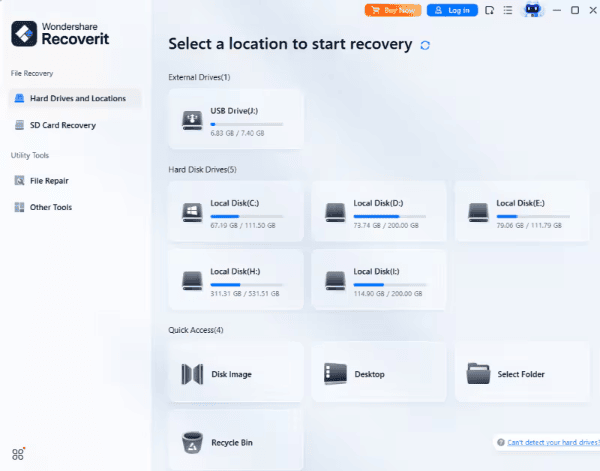
Step 1. Select the location where the files were lost
Open Recoverit and choose the disk, folder, or external device where the missing files were originally stored. If the crash affected your laptop drive, start there first.
Step 2. Scan for lost files
Run a quick scan first, then switch to a deeper scan if needed. Recoverit searches the selected location for deleted, hidden, or lost files and organizes the results so they are easier to review.
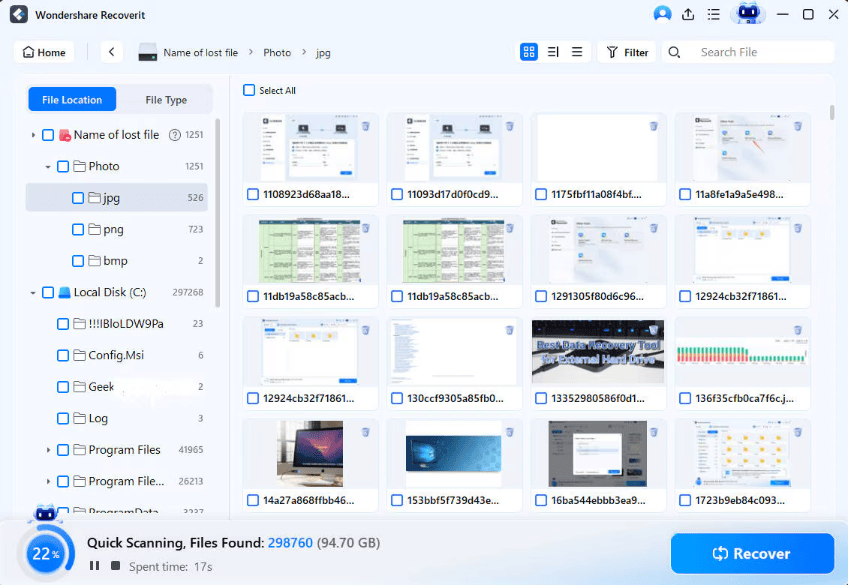
Step 3. Preview and recover your files
Before restoring anything, preview the file to confirm it is intact. This is especially useful for photos and videos, since it helps you verify quality before recovery. Save the recovered files to a different drive to avoid overwriting other data.

How to Choose a Reliable Data Recovery Tool
Not every recovery tool is equally useful after a laptop crash. Some are designed for basic undelete tasks, while others can handle more complex problems. If you are choosing a tool, focus on practical features rather than marketing claims.
First, make sure the software supports both Windows and Mac if you work across devices. Second, look for support for multiple file types, including documents, photos, archives, and videos. Third, preview functionality matters because it helps you confirm whether the file is actually recoverable before you save it.
It is also helpful if the tool supports external drives, SD cards, and USB devices. Many laptop crashes involve not just internal storage, but also files that were being moved between devices. A clear recovery process is another good sign. If the interface is confusing or if the scan results are hard to understand, users may waste time or restore the wrong version of a file.
In short, a reliable tool should help you identify files quickly, review them safely, and save them without adding more risk to the original drive.
Recovery Tips for Better Success
The sooner you act, the better your chances usually are. If a file is valuable, do not wait days before checking the drive. The longer you use the laptop normally, the more likely the original file space may be overwritten.
Always save recovered files to a different drive. Restoring data back to the same disk can overwrite other files that have not yet been recovered. If possible, use an external drive or a separate internal disk as the destination.
Once your files are back, set up a backup habit that is easier to maintain. The 3-2-1 backup rule is a practical approach: keep three copies of important data, store them on two different types of media, and keep one copy offsite or in the cloud. That way, a laptop crash becomes an inconvenience, not a disaster.
It is also smart to back up especially important items first: work documents, school assignments, family photos, project folders, and any active media files. If you regularly edit large videos or move files between devices, make backups part of your workflow instead of an emergency step.
Conclusion
A laptop crash does not automatically mean permanent data loss. In many situations, the files are still there and can be recovered if you avoid overwriting the drive, check the simple backup options first, and use a trusted recovery process when needed.
For users who need a structured way to scan a drive and restore important files, Recoverit can be a practical option. The key is to act early, recover to a safe location, and build a better backup habit once the immediate problem is solved. With the right steps, you can often turn a stressful crash into a manageable recovery.