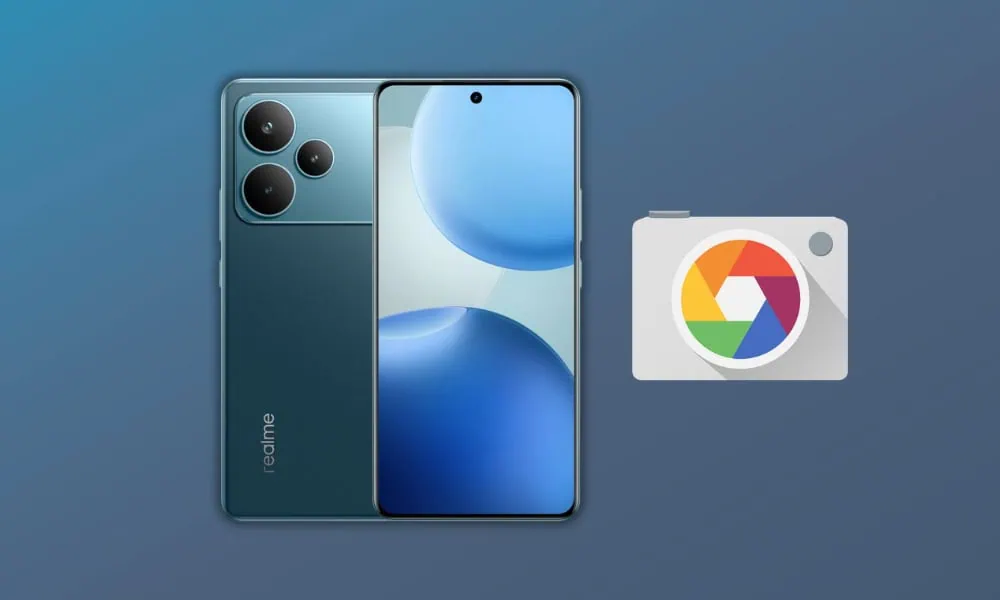
The Realme P4 Pro features a 50MP primary camera sensor and an 8MP ultra-wide dual setup camera. Realme P4 is a mid-range Android device, so the camera performance may be poor compared to flagship Android devices. Though you can improve the camera quality by using camera mods, which brings us to the modified Google Camera. In this article, we will provide all the modded Google Camera for Realme P4 and Realme P4 Pro (GCam 9.4), along with the corresponding XML files.
It’s good news for Realme P4 users, the latest Google Camera for Realme P4 is now available to install. The new Realme P4 is a flagship phone from Realme, featuring a Snapdragon 7 Gen 4 processor and a dual camera setup. In this post, we will share Gcam for Realme P4 with an XML file.
Google Camera app is natively developed for Google Pixel devices, but most of the developers like BSG, Shamim, LMC and MWP mod the Google Camera app for Other Android Devices. The modded Google Camera app offers improved HDR quality, Night Sight, and enhanced Portrait shots compared to the official camera app. Therefore, if you are an Android user, you can immediately search for the Google Camera app as soon as you purchase a new Android phone. We had already posted the news updates and stock wallpapers for the Realme P4. Here we will be posting the Google Camera for the Realme P4 phone.
GCAM Features
- HDR+ with Exposure and White Balance Controls – Take pictures using HDR+ to capture fantastic photos, especially in low-light or backlit scenes.
- Top Shot – Pick the best moment with Top Shot. It automatically recommends the best pics, where no one is blinking and everything looks just right.
- Night Sight – You’ll never want to use your flash again. Night Sight highlights all the details and colours that get lost in the dark.
- Super Res Zoom – Super Res Zoom makes your pictures sharper when you zoom in.
- Motion Mode – Capture life in motion. Take professional-quality Long Exposure and Action Pan photos.
- Portrait mode – (with Focus Slider) It helps blur out the background so that the subject of the photo stands out more
- Long Shot – Take casual, quick videos by simply long-pressing the shutter key in the default camera mode.
- And many more like Playground (AR Stickers), RAW support, Panorama, Lens Blur, Google Lens, etc.
Google Camera Screenshots
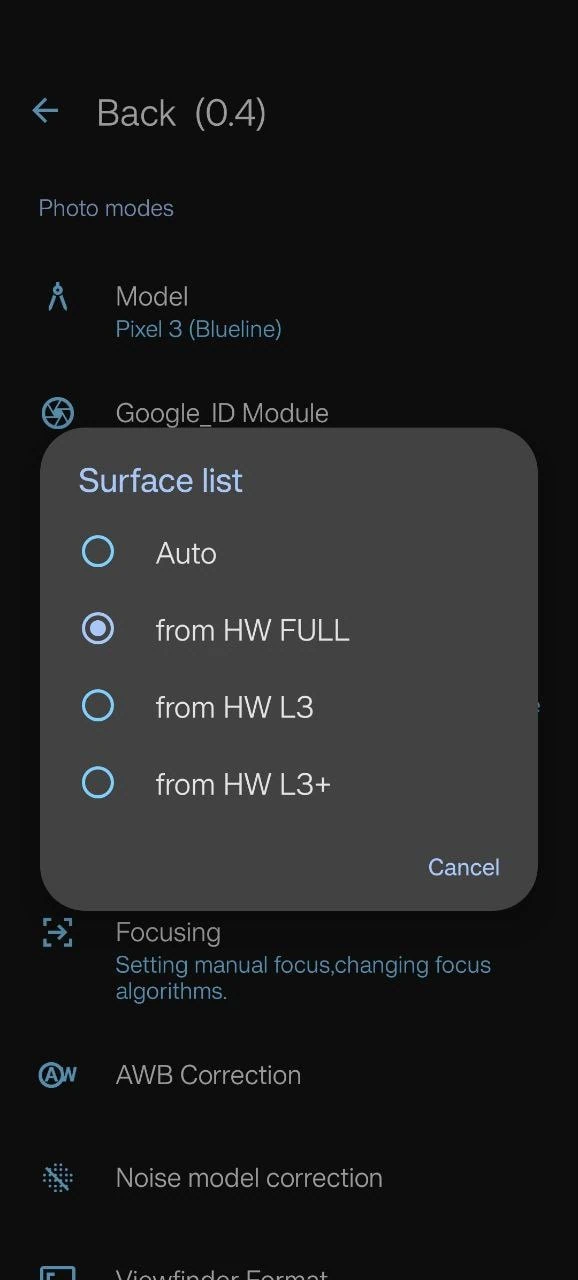
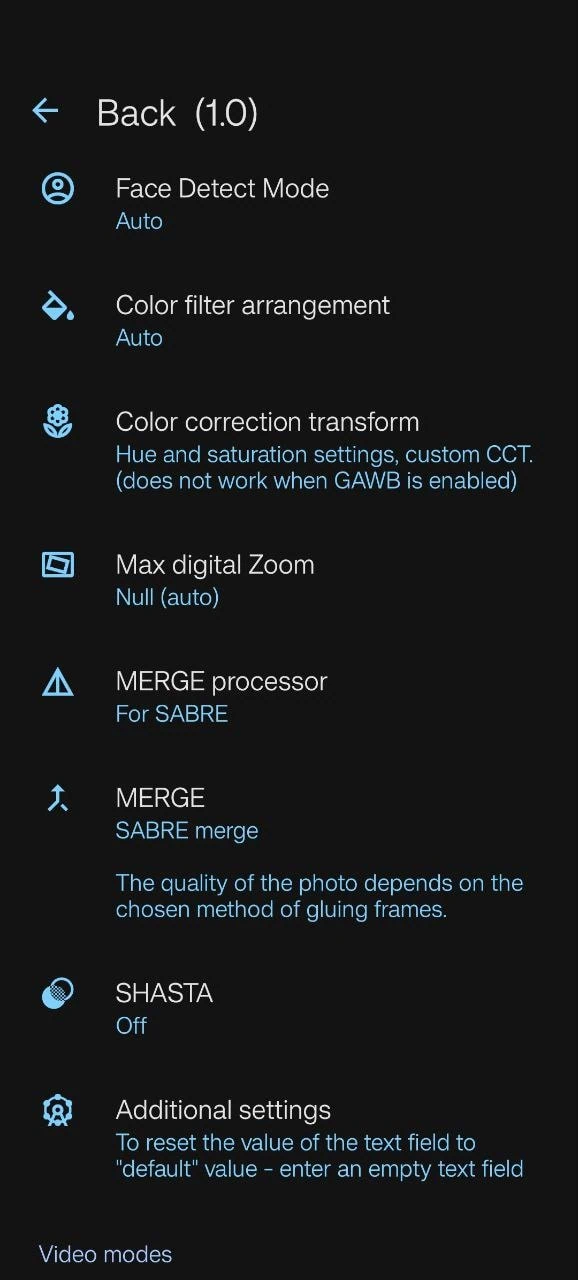
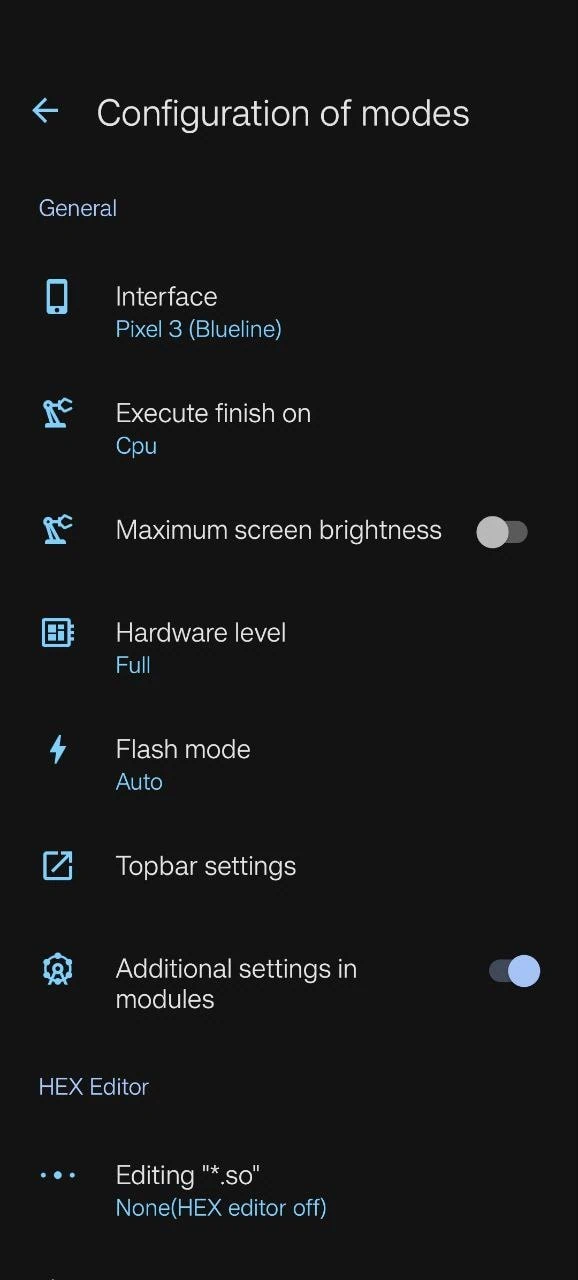
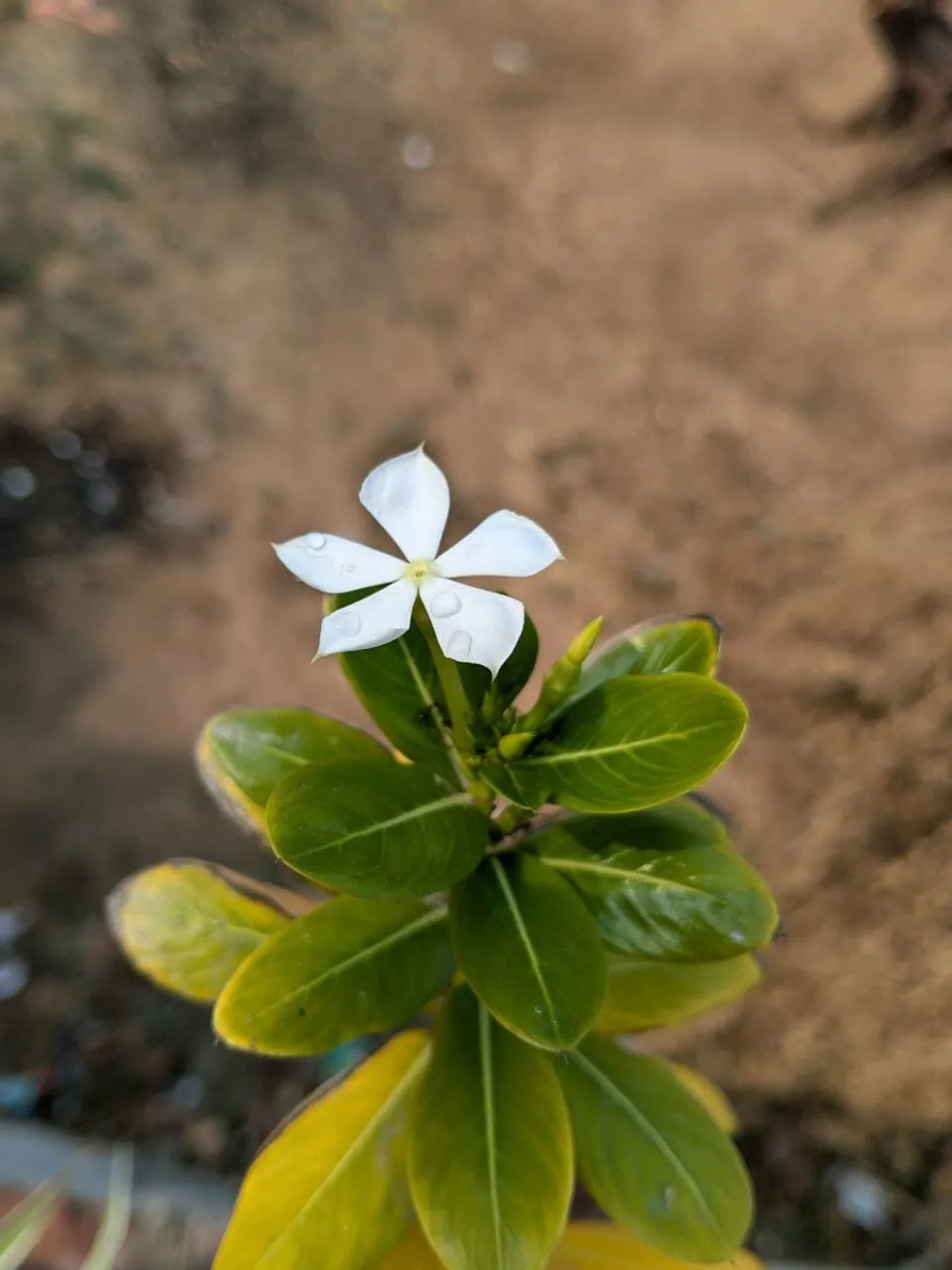
Download Google Camera For Realme P4
We have collected all the Google Camera apps available for the Realme P4 device from the Realme communities. You can get the working modded GCAM 9.4 for the Realme P4 device in the download section. Not just that, we have also shared the GCAM for Realme P4 XML file for the Realme device, so you don’t have to configure the GCAM app manually.
TESTED Cameras ⇓
Tested Realme P4 MGC 9.4 ⇒ MGC_9.4.103_V29_aweme.apk | v4_.xml
LMC FOR Realme P4 Pro ⇒ LMC8.8_Release_2 | P4_(OV50D40)_V2.xml
AGC FOR Realme P4 Pro ⇒ AGC8.7.250_V10.0_aweme.apk | P4_Sensor(OV50D40).xml
Others Camera
BSG Google Camera 9.6 APK ⇒ Google Camera APK MOD for All Android
LMC GCAM ⇒ LMC GCAM APK FOR Android
SGCAM All Version ⇒ Shamim SGCAM APK
LUT FILES ⇒ Cinematic_film.png | Fujifilm.png | More LUTs
How to Install Google Camera on Realme P4
1. Download all of the above Google Camera for Realme P4 APK and XML config files.
2. Install the GCAM app, allow all the permissions, and try any of the Google Camera apps on your phone.
3. After installing the GCAM APK, place the XML file for GCAM. Navigate to Internal Storage –> GCam –> Configs folder. (If the folder is not present, create it).
4. Put the .so Lib file to GCam –> /libs Folder.
5. After that, paste any of the Config XML files in this location and check which config is best for your device.
6. But for AGC paste the config file in the AGC –> Config folder.
7. Now open the GCAM, double-tap on the black spaces between the shutter and the camera switch buttons, and import the config.

Finally, all the GCAM functions should work. Here are some settings you can check if the XML files don’t work for your device.
- Set Camera Photo Resolution To Max from – More Settings -> Camera Photo Resolution -> Max Resolution
- Go to settings – Advanced, choose the Device Interface – pixel 7 Pro, hardware level – To Fix Everything works
- Fix GREEN PHOTOS – Turn on AWB (auto white balance) or Enable auto CT Colour correction from Settings -> Processing Function -> Colour Correction -> Auto CT colour correction. Enable all the functions for all the Sensors one by one.
FAQ
Google Camera is a camera application developed by Google. It is capable of taking images using advanced post-processing. It also includes functionalities such as Night Sight and HDR+. If you install GCAM on your Realme P4 or P4 pro this will help improve clarity, dynamic range and low light photo quality compared to the stock camera app.
Yes, GCAM is compatible with both Realme P4 and P4 Pro. Download the correct GCAM APK and install on your device to get better camera and more camera features.
You can obtain the GCAM APK here. After that, go to settings in your phone and enable Install from unknown sources. Finally, follow the on-screen instructions to install.
You can take night shots thanks to Night Sight.