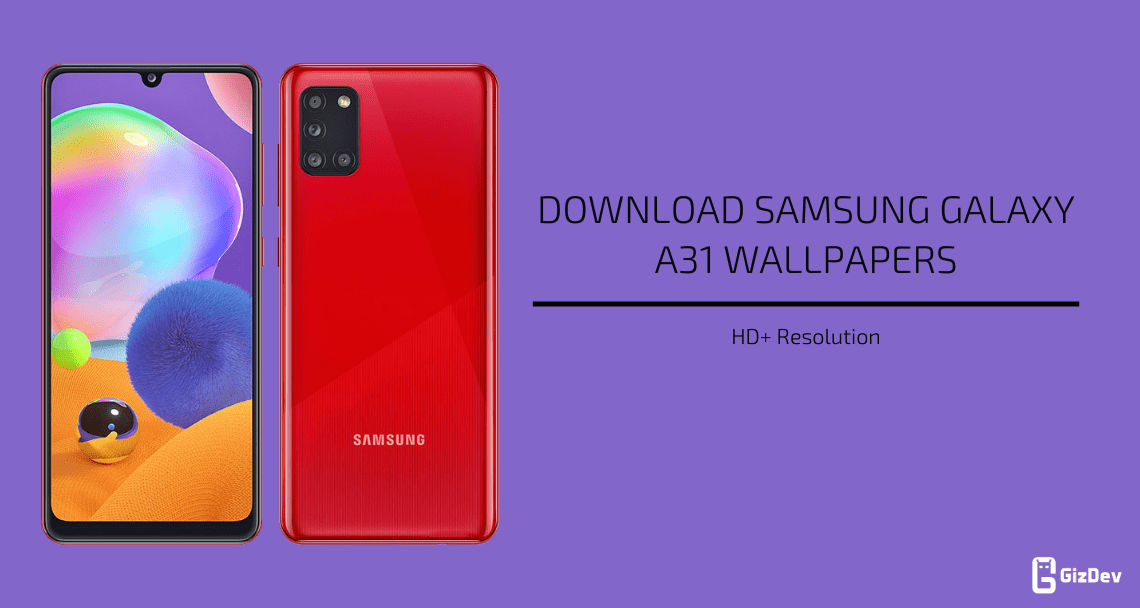
The Samsung Galaxy A31 offers a Super AMOLED display with a Quad camera setup. Compared with other cheap mobile phones, this device has amazing performance, and it comes with the Mediatek Helio P65 Processor. Are you looking for a way to root Galaxy A31? Then you are the right place. To maximize its performance and get control of system files, you can root your device. Magisk is the perfect way to root your Android device, and here we share a secure method to install the official Magisk on Samsung Galaxy A31. This article will help you to root Samsung Galaxy A31 with Magisk Patched Boot Image by following these steps below.
Some days ago Samsung launched its latest A-series smartphone and the Samsung Galaxy A31 is one of the good mid-range phones. After rooting Galaxy A31 you can get some extra benefits. Also, you can install many Magisk modules like Mod, font, theme to increase your device performance. But before starting to process backup of your device data, it wipes full storage and one thing warranty will void after rooting the device.
It comes with a 6.4-inch SUPER AMOLED display which has a screen resolution of 1080 x 2400 pixels. Exynos 9611 (10nm) processor added power to this mid-range device. The good thing about this device is it offers you 4/6GB of RAM and 64/128GB of internal storage and looks and design. Galaxy A31 has a quad camera on its back just like most of the new budget devices nowadays. The front camera is of 20MP with f/2.2 available.
Root Samsung Galaxy A31
Here we share a complete guide to “Root Galaxy A31” without TWRP recovery. Before starting the process makes sure your device bootloader must be unlocked. First, we will create a patched boot.img using Magisk canary then flash this boot.img.tar using ODIN Tool to root. If you have Samsung Galaxy A31 and you want to install root your smartphone. Then read the full guide to make it easier.
Pre-requisites
- Before starting the rooting process, do a complete backup, or use By using Samsung Smart Switch your device includes Apps, Contacts, Messages, Gallery file, Internal Storage Files.
- Charge the device for interrupt installing.
- Install Samsung Driver.
- Enable Developer Options, USB Debugging, OEM Unlock on Samsung Device to connect your device in ADB, fastboot mode.
- Enable OEM Unlock.
Go to your settings ⇒ Developer options ⇒ tick the“ OEM Unlock ” checkbox
- Download Required Files and Read Guide.
Download Required Root Files
Guide to Root Samsung Galaxy A31
- Download stock firmware for your device. (Version should be similar on which your phone is running)
- Then extract it and copy the AP tar file to your device.
- Now install the ‘Canary Patched Magisk‘ apk on your device and open it.
- In Magisk Manager, Open Settings ⇒ Patched Boot Output Format and select “.img.tar“.
- After that back to Magisk home and select “Install ⇒ Install ⇒ select and patch file” option.
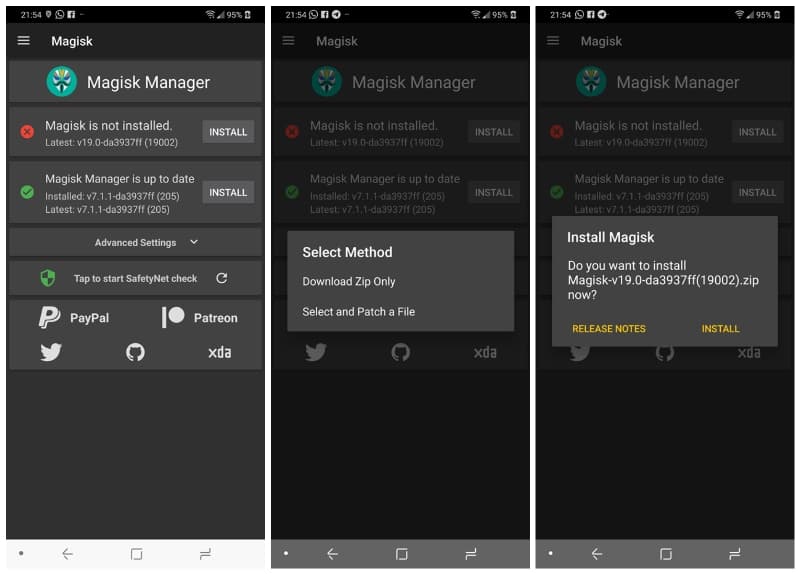
- Now select the AP tar file. Magisk Manager will patch the whole firmware file and store the output to [Internal Storage]/Download/magisk_patched.tar.
- Connect your device to the computer and copy the “magisk_patched.tar” on your desktop.
- After that download Odin and extract Odin-v3.*.* and run Odin3 vx.xx.exe.
- Then Switch Off your device.
- Turn your device into Download Mode By (Power + Bixby + Volume Up).
Keep Pressing Volume Up to acknowledge the warning Then Phone Will Turn Download Mode
- Again Connect your phone with PC via USB.
- ODIN will detect your device.
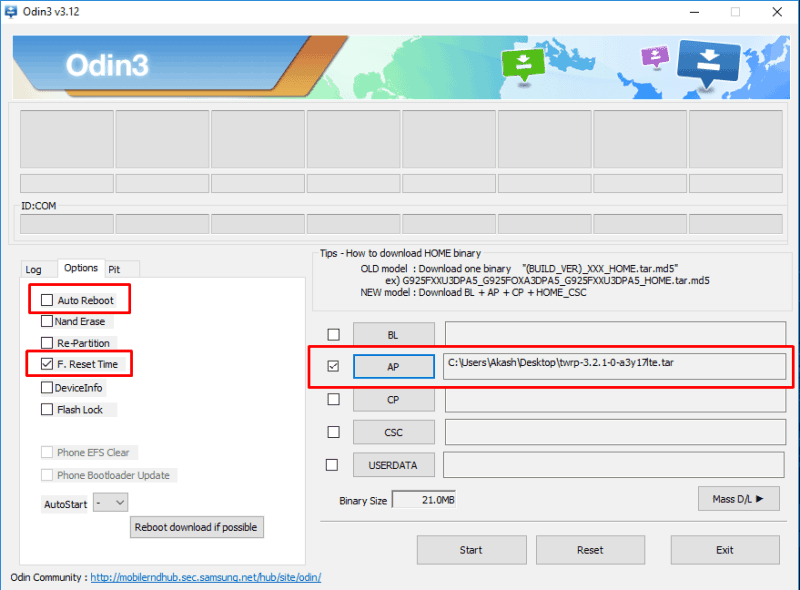
- Uncheck Auto Reboot from Option.
- That is, check the AP Box, select the ‘magisk_patched.tar‘ file.
- Like the Screenshot:
- Now click Start Button on ODIN to begin the installation process.
- Read here for a full guide on Flash TWRP using Odin on Samsung Galaxy devices
- Once done you’ll see PASS! Message on ODIN after that Press Power + Volume Down to exit download mode. As soon as the screen turns off, immediately press Power + Volume Up and hold Volume Up button until you see the stock recovery screen.
- When you are in Stock Recovery mode, select wipe data/factory reset to wipe the data of the device.
- Now select “Reboot system now” and immediately press Volume Up ⇒ Bootloader warning ⇒ Release all buttons.
- Install Magisk Manager APK again and open it. It will ask to install zip file, so install it and reboot the device.
- That’s it now you can enjoy all the root features on your device.
Keep mind those things before boot your device:
- System with no Magisk ⇒ Powering up normally.
- System with Magisk ⇒ Power + Volume Up ⇒ Bootloader warning ⇒ Release all buttons.
- Stock recovery ⇒ Power + Volume Up ⇒ Bootloader warning ⇒ Keep holding volume up.
If you have any problems, comment below, also, for more updates on stuff like Mods, wallpapers, themes etc. like our Facebook page.