
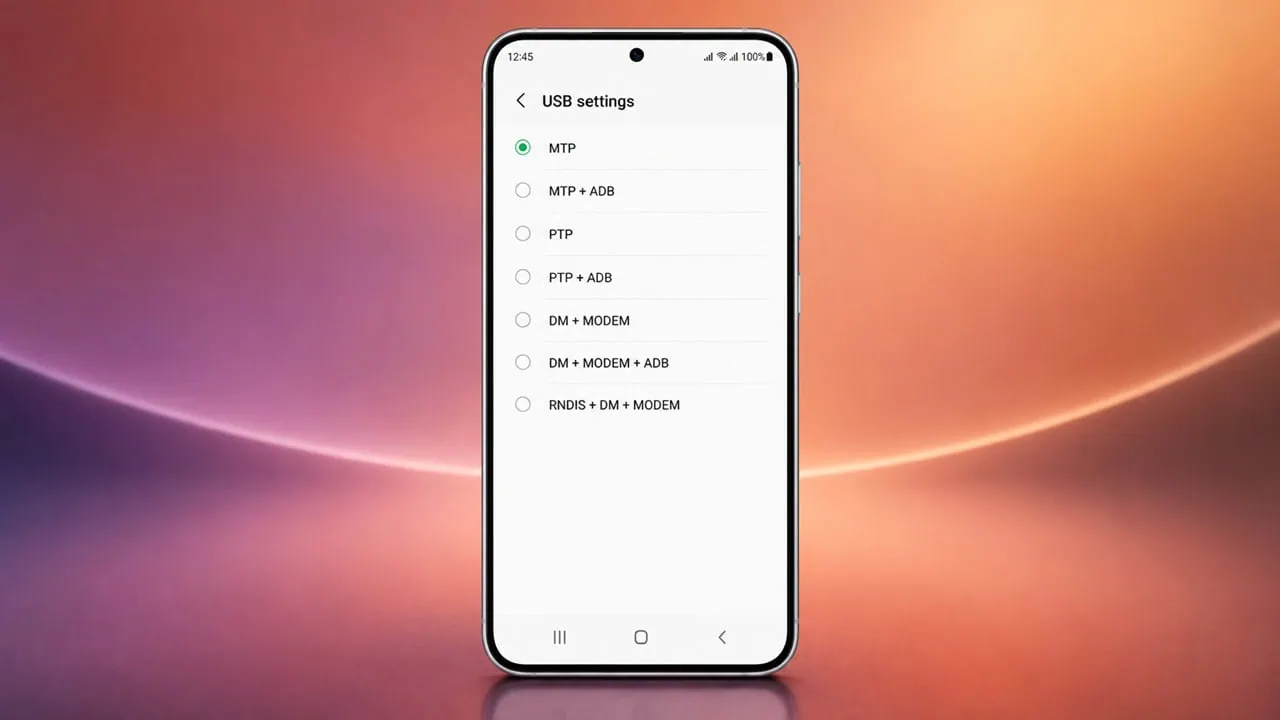
When you plug your Samsung Galaxy into a PC, Android picks a USB mode automatically. Usually, it is “Only Charging,” and you have to manually switch it to file transfer from a notification. But there is a faster way. A hidden dialer code that pops up complete Samsung Hidden USB Menu settings screen unlocks other modes not visible in the usual menu. This guide will explain the Samsung Secret Code and what each mode does and how to select the right one.
This code usually works for most phones that use Qualcomm or Exynos chips and have a recent One UI version. Dialing it brings up a screen with all modes supported by your device. Besides standard file transfer and photo options you will find diagnostic modes for ADB commands, flashing root and modem servicing. In this article you will find Samsung Secret Code that will Get Access to Hidden USB Menu.
Samsung USB Menu Secret Code
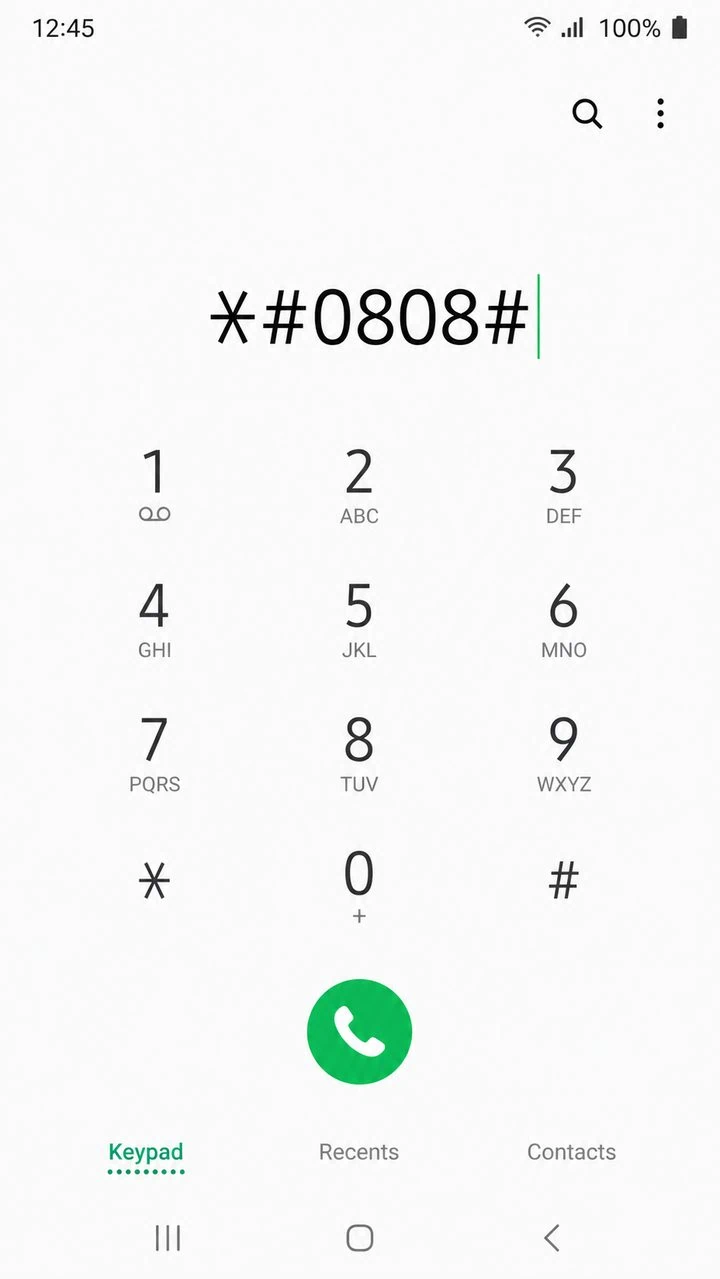
The shortcut is the dialer code *#0808#. There is no app to install and no root required. Just open the phone app and type the code on the keypad, and Samsung switches to the hidden USB settings screen on its own.
- Open the Phone app (the dialer).
- Type *#0808# on the keypad. You do not need to press call.
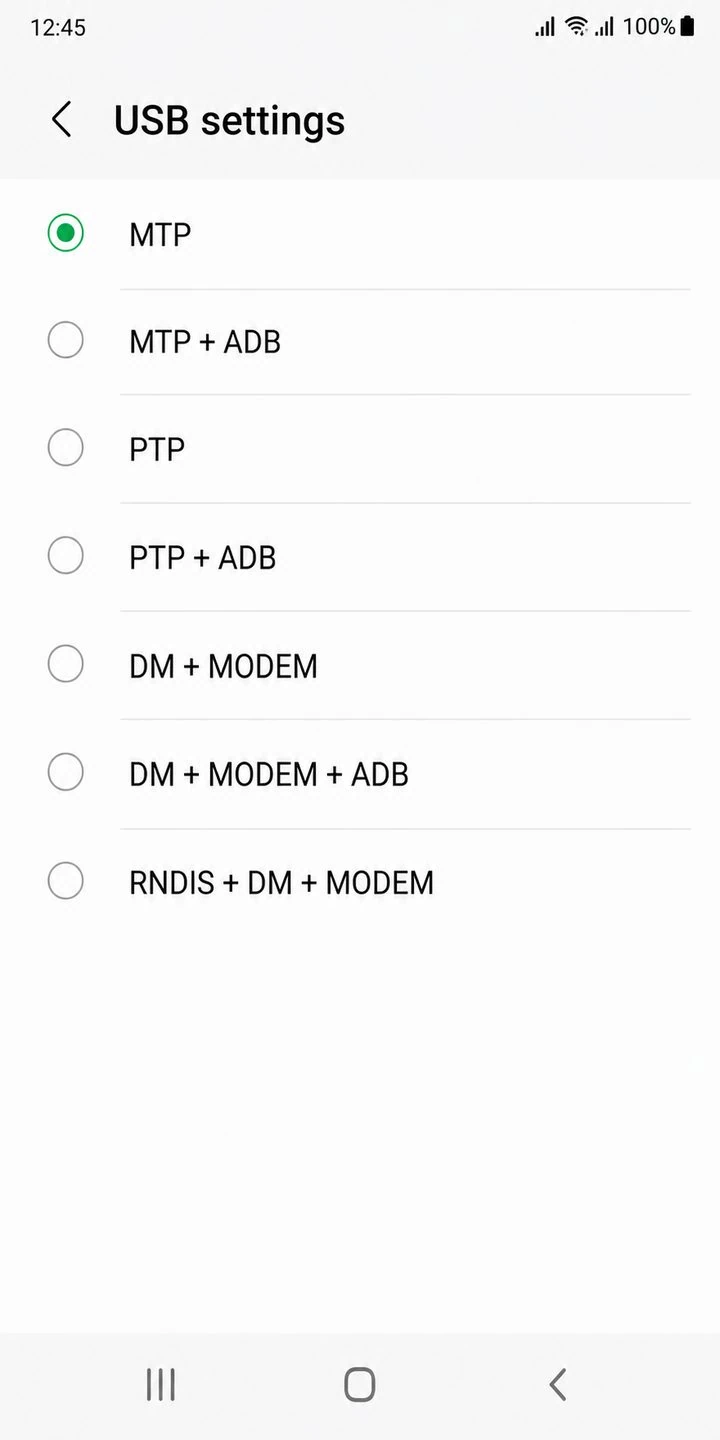
- The USB settings screen opens right away with a list of modes.
- Pick the mode you want, tap OK, and the change applies immediately.
- If the list looks short, connect the phone to a PC with a USB cable first.
With the code typed in, the dialer looks like the image below. The screen that opens next is the USB settings menu shown after it.
Samsung USB Settings Modes Explained
The menu carries a long list of modes, and the names look intimidating at first. Most of them are just combinations of a few building blocks. MTP moves media and files, PTP handles photos, ADB opens up debugging, and a set of Qualcomm diagnostic ports serves flashing and service tools. Here is what the common options actually do.
| Mode | What It Does | File Transfer | ADB |
|---|---|---|---|
| MTP | Moves media and files between phone and PC | Yes | No |
| MTP + ADB | File transfer with debugging enabled | Yes | Yes |
| PTP | Imports photos and some files | Photos only | No |
| PTP + ADB | Photo transfer with debugging | Photos only | Yes |
| DM + MODEM | Qualcomm diagnostic and modem ports for service tools | No | No |
| DM + MODEM + ADB | Diagnostic mode with debugging access | No | Yes |
| RNDIS + DM + MODEM | USB tethering plus diagnostic ports | No | No |
| RNDIS + DM + MODEM + ADB | Tethering and diagnostics with ADB | No | Yes |
Newer phones with Snapdragon chips have a longer list of features including RMNET, ADPL and QDSS. These are for engineers and specifically for carrier testing and chipset debugging. Don’t play around with them unless you really know what you’re doing.
Which USB Mode Should You Pick?
Most people just use MTP; if you’re using ADB commands or flashing firmware, use MTP along with ADB. Qualcomm service tools like QPST or QXDM expect DM and MODEM and also ADB if your phone supports it; you can also use DM and MODEM and ADB directly if your phone supports that. Use RMNET and QDSS only if a flashing guide tells you to use them for your specific device directly.
Samsung USB Code Not Working? Fix It
Auto Blocker is on. This is the most common reason the code does nothing. Go to Settings, then Security and privacy, and turn off Auto Blocker. On One UI 8.5 and later it re-enables itself after about 30 minutes, so you do not have to remember to switch it back on.
The phone is carrier locked. Some carrier phones throw a connection problem error even with Auto Blocker off. That limit comes from the carrier, not Samsung, and there is little you can do about it.
The phone needs a reboot. After changing a mode, restart the phone. Some modes, especially around PTP and MTP, only apply cleanly after a reboot.
The PC does not see the port. In DM + MODEM modes the computer may not show the device until you install the matching Qualcomm USB driver. Without the driver the port stays hidden.
Other Useful Samsung Secret Codes
- *#9090# opens the advanced debugging menu used with some Samsung service tools.
- *#0*# launches the hardware test menu where you can check the screen, speaker, and sensors.
- *#9900# opens the SysDump menu and lets you clear old system logs.
- *#06# shows the IMEI number of the device.
That is the whole story of the hidden USB menu on Samsung phones. Dialing *#0808# takes you past the basic file transfer options and into the diagnostic modes that rooting, flashing, and service tools lean on. Keep MTP or MTP + ADB for daily use, and switch to a diagnostic mode only when a tool requests it. If the code does nothing, the Auto Blocker fix above clears up most cases.