
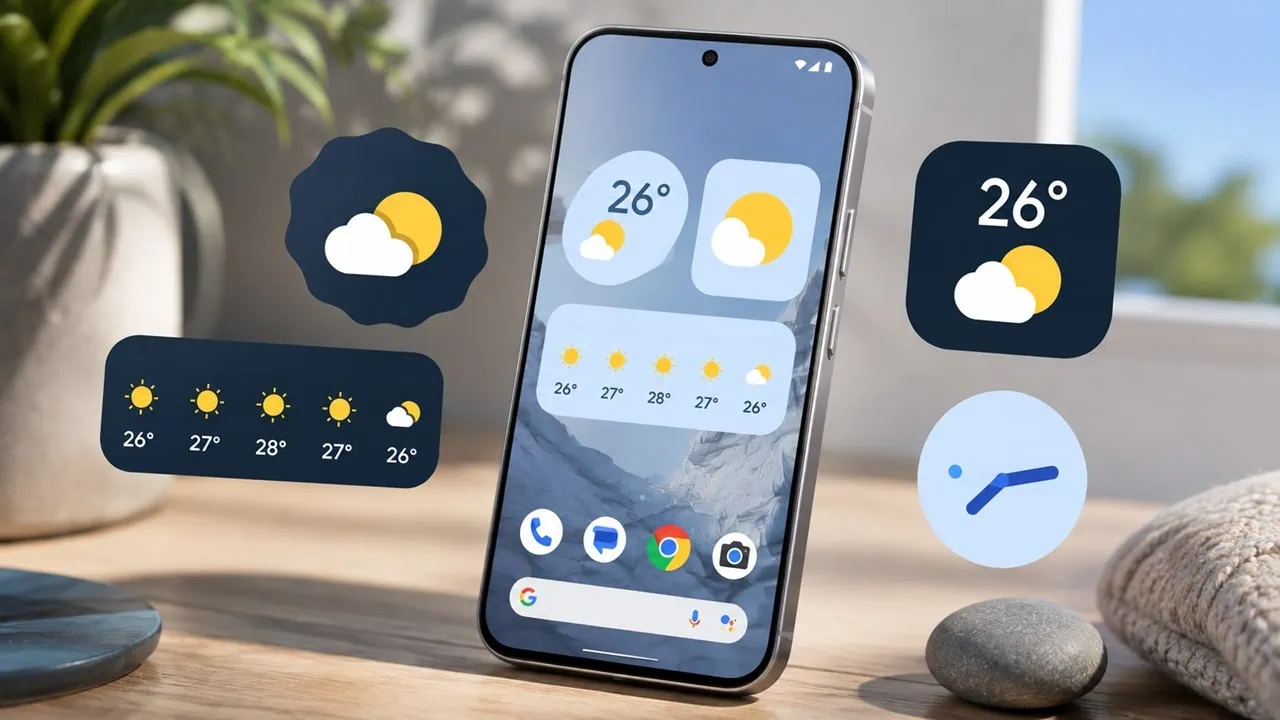
Google Pixel Weather app offers clean widgets for Android phones. Widgets previously were only available for Pixel devices but now they are not exclusive anymore. You can install Pixel Weather Widgets APK and get them on any phone running Android 15 or newer. Google developed Pixel Weather to offer a simple weather experience and unlike most other third party apps which add extra features. It gets weather data from Google and displays this information with clean design and Material You design that also matches the wallpaper you have.
This guide explains how to download and install the latest Pixel Weather APK and add its widgets to home screen. You will need Split APK Installer since Pixel Weather is a bundle and not a single APK. We have tested this on phones running Android 15 from OnePlus, Samsung and Xiaomi and it works flawlessly. The hitch is that the feature of AI Weather Summaries won’t work without Gemini Nano and this is exclusive to Pixel phones.
What is Pixel Weather?
Google’s Pixel Weather app first came out when the Pixel 9 series was launched. It gives you today’s conditions, forecasts for hourly and for ten days ahead. You can also look up forecasts for air quality and for UV and precipitation maps. App design uses Material You theme which adapts themes dynamically to match your wallpaper background.
The best part of this widget collection are different sizes: small, medium and large. They all show temperature, a condition symbol, city name and forecast data. Also they fit in any home screen because their colors automatically adjust.
Download Pixel Weather Widgets APK
As of now the newest version is 1.1.20260626.962582759. The size of the APK bundle is about 30.56 MB. If your device uses architecture arm64-v8a, download that variant.
Download Link:-
Version: 1.1.20260626.962582759.release
Release Date: 08/13/2026
List of changes: Drag and drop weather data blocks and track the weather in multiple locations. You can also view a summary in the “AI Weather Forecast” section. The app has a new Material 3 Expressive design, and magical weather tips are now available.
Install Using Split APKs Installer
Here is the step-by-step process: Install Multiple Split APKs APK, APKM, XAPK
- Install Split APK Installer from Play Store if you haven’t already
- Open Split APK Installer
- Tap Install APKs
- Browse to the downloaded Pixel Weather APK bundle file
- Select the base APK and all split APKs
- Tap Install and wait for the process to finish
The installation takes about a minute depending on your device. Once complete, you will see the Pixel Weather icon in your app drawer.
Add Pixel Weather Widgets to Home Screen
After installing the app, adding widgets is straightforward:


- Open the Pixel Weather app and grant location permission when prompted
- Go back to your home screen
- Long-press on an empty area
- Tap Widgets
- Scroll to find Pixel Weather in the widget list
- Choose your preferred widget size
- Drag it to your home screen
Different Android launchers handle widget placement differently. Some show a preview before placing. Others let you resize after adding. Check your launcher documentation if you are unsure about the exact steps.
Important Notes
- You have to keep permissions for location on. Otherwise widgets won’t display any data. You will see a message if you turn that permission off.
- Features work differently for phones that are not Pixel. For instance, AI weather summaries require Gemini Nano and that chip only works on Pixel phones with chips from Tensor but main forecast display and manual weather data widgets work fine on any device that is supported.
- Your phone needs Android 15 at minimum. If you have Android 14 or older, you cannot install the app even with Split APK Installer. Check your Android version in Settings before you begin.
- We’ve tested this on a lot of devices including OnePlus and Samsung phones. Widgets show up and work just fine in picker and dynamic themes match wallpaper too.
- This is quick and easy for Pixel phones to get widgets like that on your phone: from downloading to widgets working on your home screen usually takes about five minutes.