In Short
- OPPO Smartphones with Color OS 16 display personalized ads in various stock apps, but you can disable them.
- To disable personalized ads, access settings in each app like Music, Phone Manager, Calendar, and Weather.
- Color OS features include a clean interface, performance enhancements, and smart functionalities like PC Connect and Air Gesture.
- Disabling ads improves your experience by minimizing distractions while maintaining app functionality.
- You can revert ad settings anytime, allowing for flexible control over personalized ads.
The new OPPO Smartphone comes with personalized ads. If you are using an OPPO flagship Smartphone with the latest Color OS 16, you may see ads in the lock screen, Weather, music, and other stock apps. These ads are personalized ads that may not be seen every time. However, there is a way you can disable them. Here in this guide, we will show you how to Disable Personalized Ads On OPPO with Color OS.
In this guide, we will show how to Disable Personalized Ads On OPPO with the Color OS lock screen, Weather, Music, Phone Manager, Calendar, Google, and other third-party apps. Every app has an option to disable Personalized Ads. You have to go to the settings of every Color OS app. There, you can find the option to disable OPPO Personalized Ads.
Color OS Features
ColorOS is an Android operating system developed by Oppo with a focus on a clean, visually rich, animated interface with many user customization options (icons, themes, AOD, etc.). It has a number of performance enhancements. For example, it offers AI System Booster, RAM expansion, and GPA 2.0 to help maintain system responsiveness over time. As a result, you also get frame rate stability when performing resource-intensive actions.
Smart features in Color OS include PC Connect which allows you to interact seamlessly with your computer via your phone. Screen Translate is in the Smart Sidebar. The system also has Air Gesture and Adaptive Sleep controls to allow for easier access to common features through gestures. Color OS also includes enhanced accessibility features, customizable AOD, Omoji Avatars, and theme-based wallpapers to enhance the personalization experience and privacy of the end-user.
How to Disable Personalized Ads On OPPO
In this section, you can find how to disable ads on Oppo lock screen, Weather, Music, Phone Manager, Calendar, Google, and other third-party apps with a guide and a screenshot.
Disable Ads on OPPO Music App
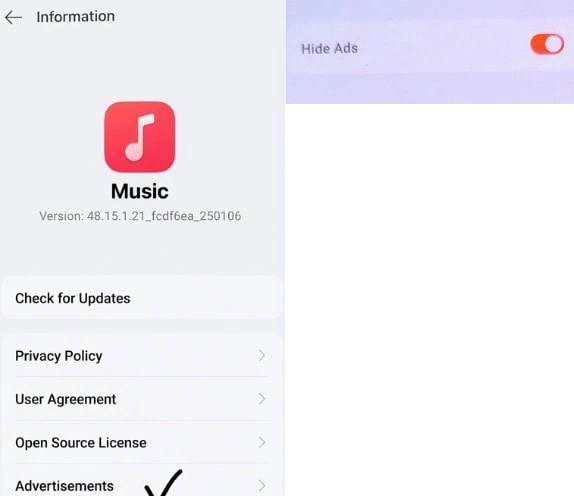
In OPPO Music. Click the round icon with the “person” in the top right corner > Information > Commercials > Hide Ads. Turn on the “Hide Ads” slider to turn off ads on the Music App.
New Color OS 13 – Go to About App -> Data Traffic -> Enable the sliders Deny mobile data access and Deny WiFi access. Also, disable the slider Allow background traffic.
Disable Ads in OPPO Phone Manager
In Phone Manager. Tap the three dots at the top right -> Settings -> Privacy -> Personalized Services. Disable the slider to turn off ads in the Phone Manager app.
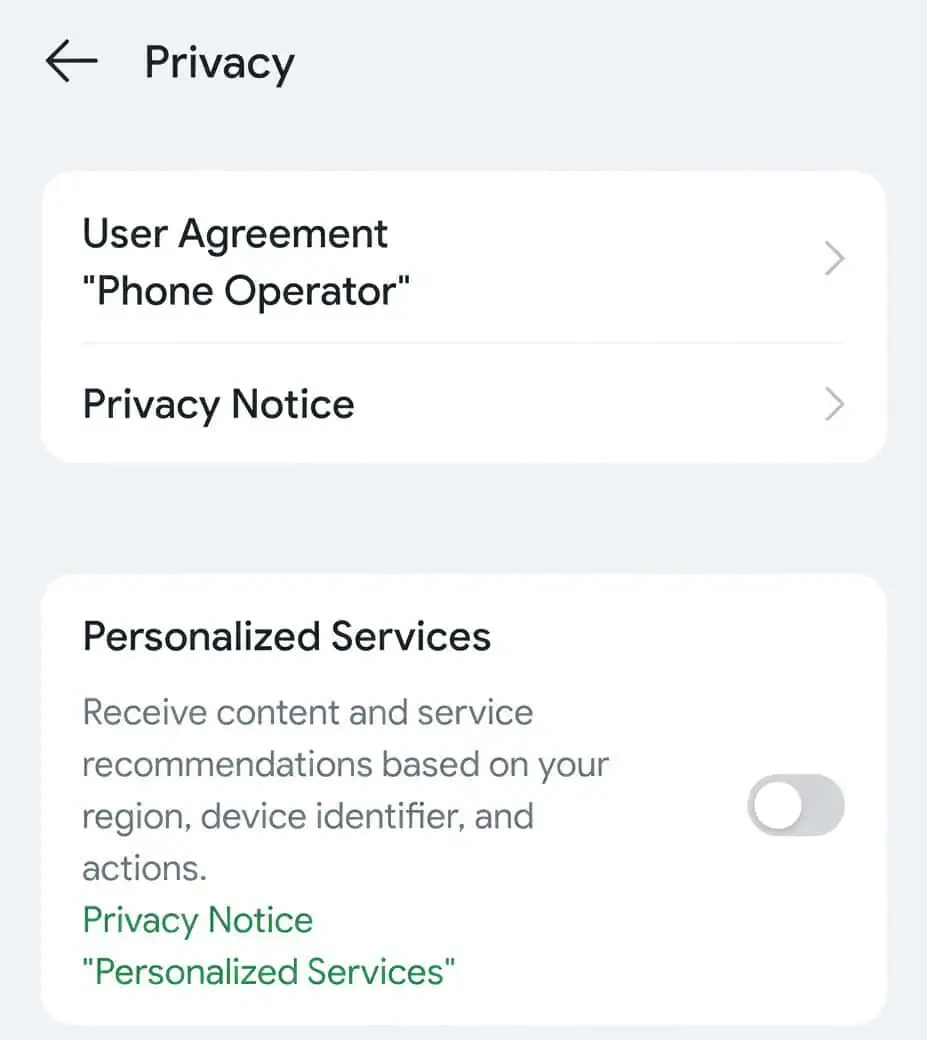
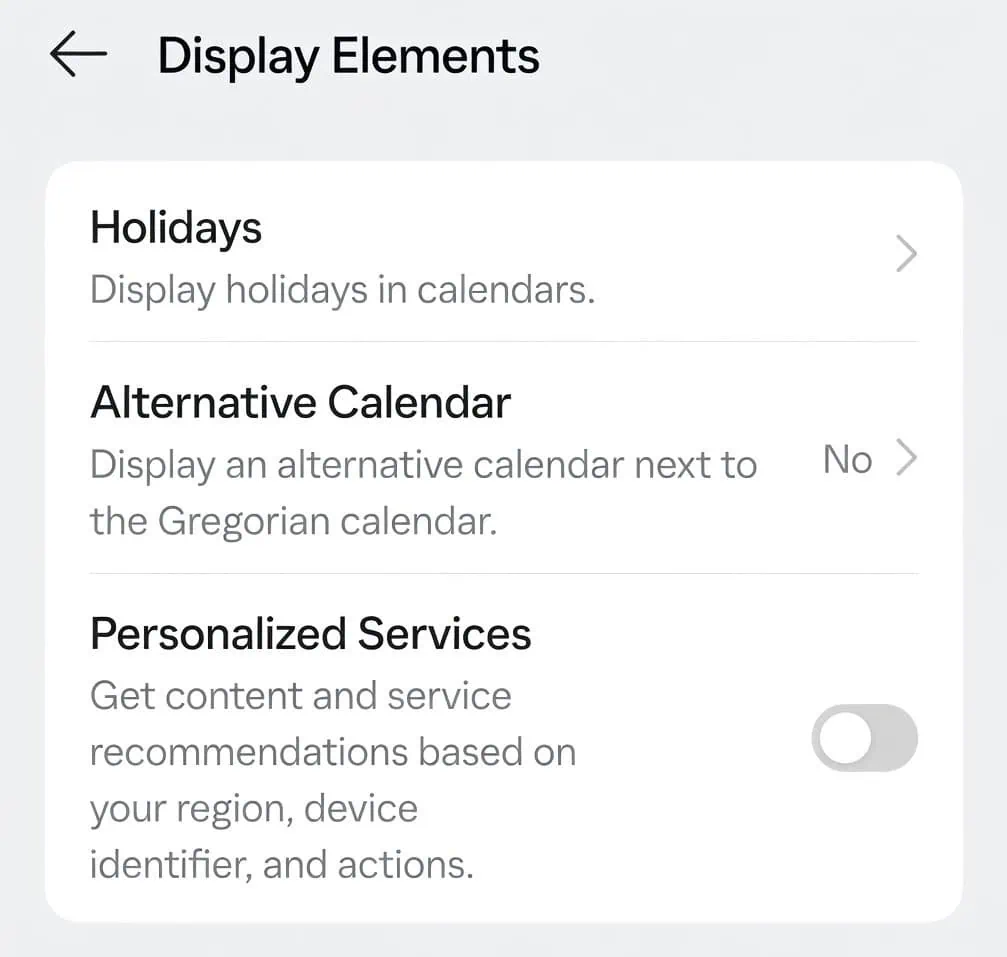
Disable Ads in OPPO Calendar App
In the Calendar, click the three dots at the top right -> Settings -> Displayed items -> Personalized services. Disable the slider.
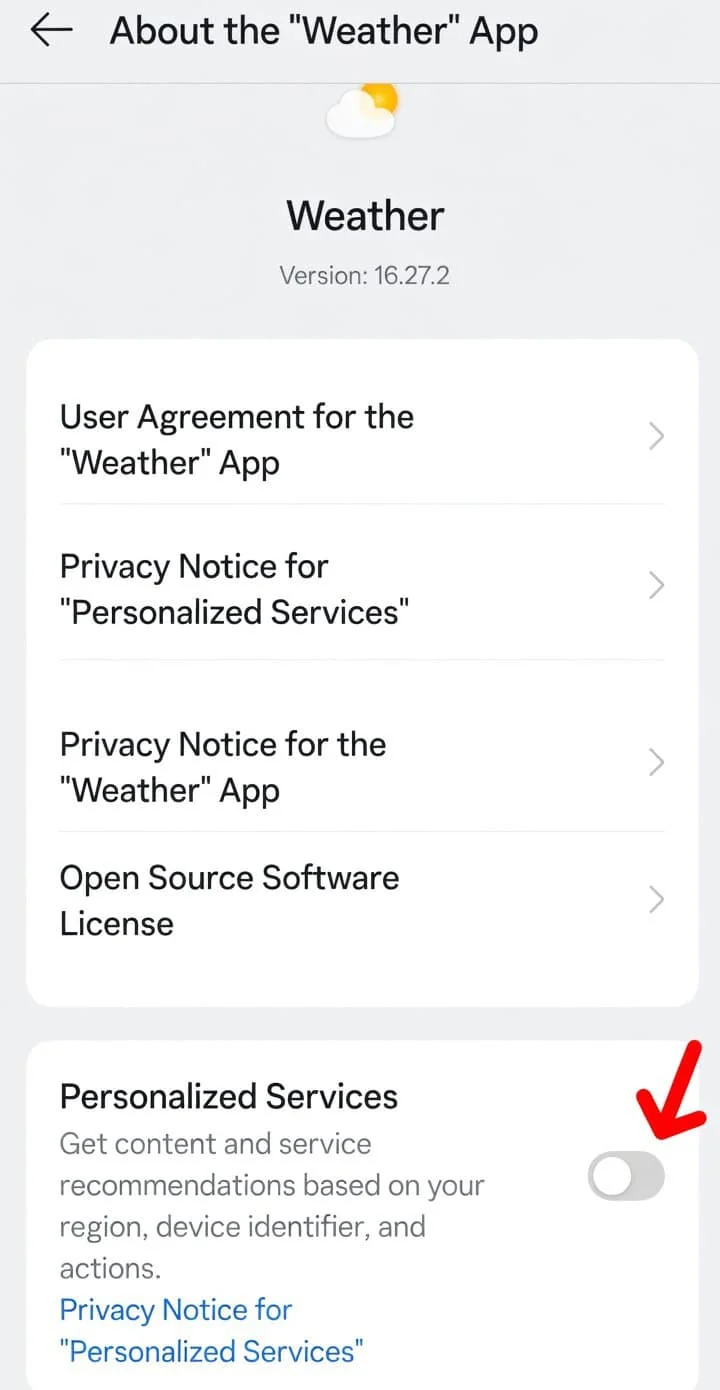
Disable Ads in OPPO Weather App
In Weather. Click the Settings icon at the top right -> About Weather at the bottom -> Personalized services slider at the bottom, to turn it off.
Disable Ads in Color OS Google App
- In Google App. Go to Settings->Security and Privacy->Privacy Settings->Advertising->
- – and here you can remove the advertising identifier, disable the sliders for privacy in advertising
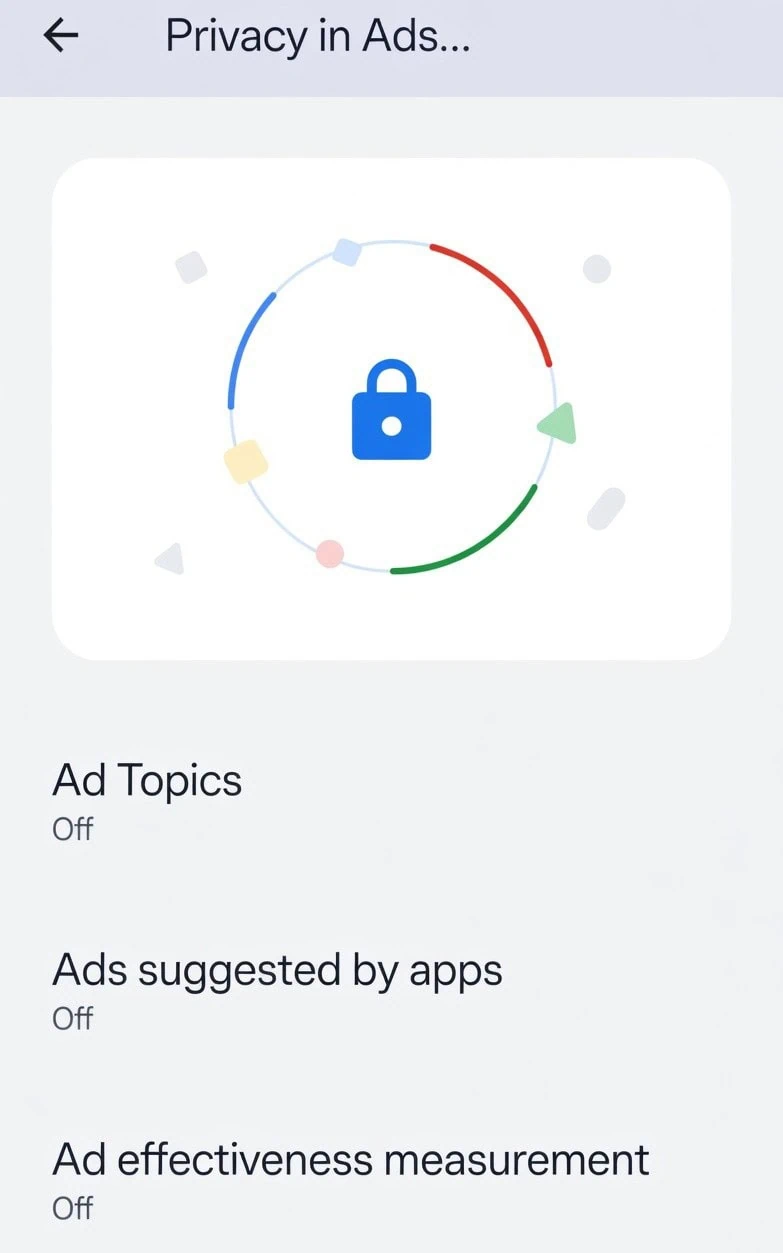
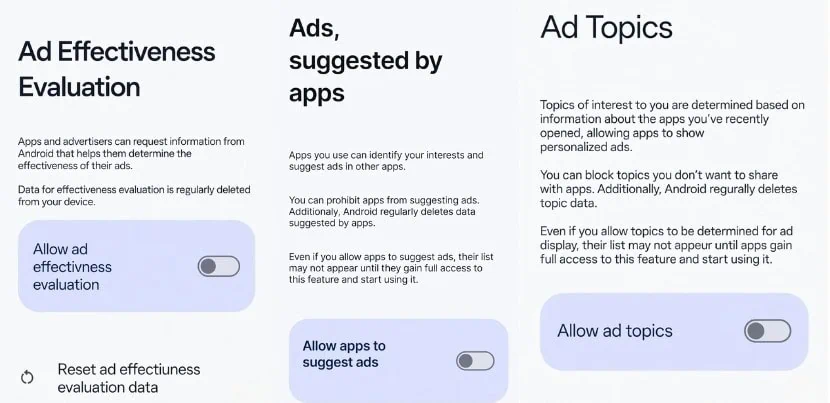
Disable Ad Topics, Ads Suggested, Performance Measurement in Lock Screen and other Oppo Services
Go To Google App find Ad Topics, Ads Suggested by Apps, and Ad Performance Measurement Toggle the slider to Turn Off Ads.
Conclusion
In summary, removing personalized ads from your OPPO device that is using ColorOS allows you to restore an uncluttered, distraction free experience in the areas of the lock screen, the system applications, as well as the Google Services. To get rid of most of these advertisement recommendations and maintain the core functions of the application, it should only take a few minutes for you to adjust the ad, and privacy settings, within the primary ColorOS applications.
Once you have turned off ad personalization in Music, Phone Manager, Calendar, Weather, and Google apps, you’ll see fewer recommendations based on what you like. As a result, you will have a more private environment overall. Reverting back to previous ad settings (to turn them back on) is quick. You can simply enable what you want to use again at any time.