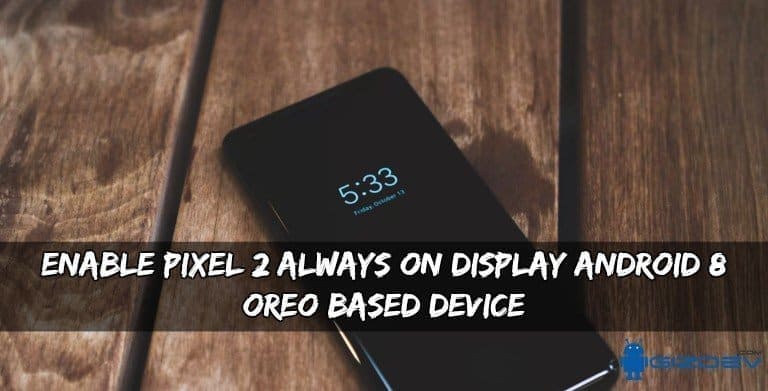
Enable Pixel 2 Always On Display In Android 8 OREO Based Device
This month Google launched Google Pixel smartphones which comes with 2 version Google Pixel 2 and Google Pixel 2 XL. Both smartphones have many new features. At this time Google Pixel 2 camera is best camera smartphone in the smartphone market. Whatever this device comes with another important feature that is Always in Display feature mode. We write more information below about this feature. Today we share a guide to enable Pixel 2 Always on Display in Android 8 OREO based device.
Always-on Display as know as Ambient Display which is turn on when there is any notification. It consumes more battery that’s why Google launched Always-on Display that comes in the Black and White screen. It takes the very low battery and you will see time, date, notification, audio name and much more without unlocking your device.
Recommended for you:
- Enable Voice Recording Feature on Samsung Galaxy S7
- Install Google Service and Google Play, Gmail, Gapps on Remix Os
- Guide To Enable Call Recording On EMUI 5.0 With This Mod
- Google Pixel Bootanimation For All Android Phones
Now, this feature is available for Android 8 OREO based device. One XDA Junior member “InFlames03” share a file that enables Always on Display for Android 8 OREO running device. To enable this feature root or any recovery does need but you should have Substratum theme engine installed on your device. You can now easily enable Pixel 2 Always on Display In Android 8 OREO based device. So don’t wait let’s go to the instruction.
Prerequisite:
- Android 8.1 Oreo Developer Preview 1.
- Installed Substratum theme on your device.
⇓⇓ Download Always On Display APK ⇓⇓
Guide To Enable:
- Download and install always-On-enabler APK on your device.
- Install this app like a simple app install.
- After install complete now open Substratum and look for “Always On Enabler” by Sai in the theme list.
- Click on it. Click on “select to toggle all overlays.”
- Then tap on the floating paint roller button.
- Now select “Build & Enable.”
- After that process reboots your device.
- After turn on your device now open setting > display.
- Expand the “Advanced” category and tap on “Ambient display.
- You should see an “Always on” toggle.
- Now you can Disable and re-enable it.
- Enjoy!