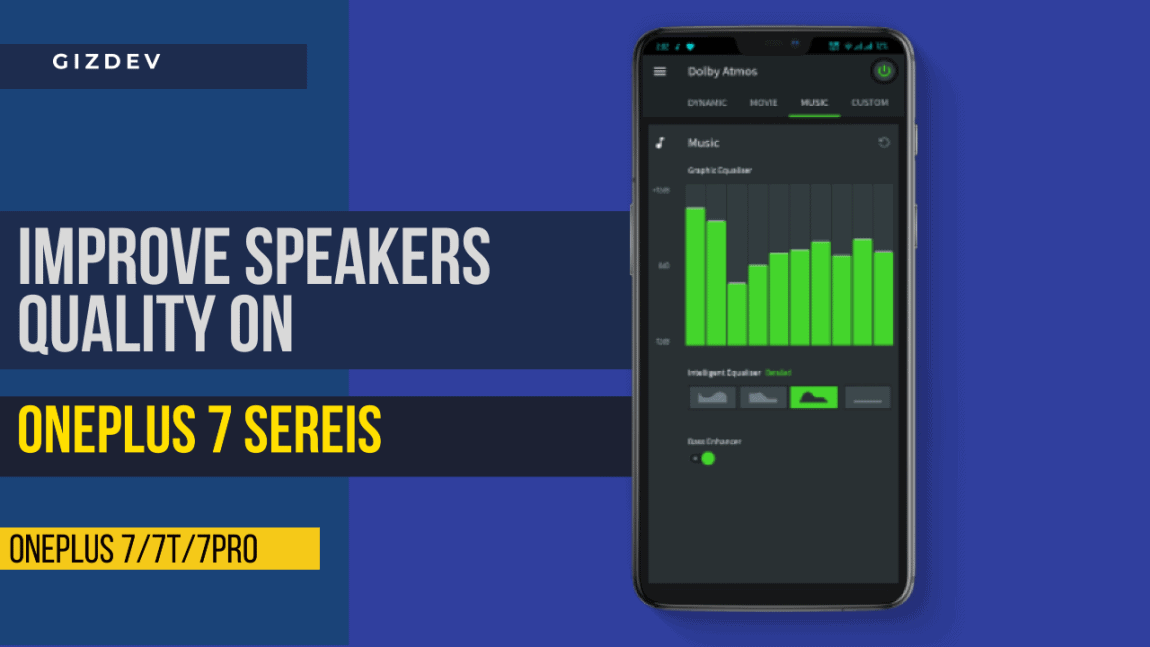
Android is the place where you can do anything with your phone. The best of the sound MOD available right now is Dolby Atmos. For many years Dolby Atmos is popular among the Android enthusiast for best Audio experience on any Android smartphones. New OnePlus 7 series comes with Dolby Atmos audio mod. OnePlus series phone comes with default Dolby Atmos sound profile. The OnePlus 7 series Speakers Quality is not good with the default Dolby Atmos settings. But you can improve Speakers Quality on OnePlus 7, OnePlus 7T, OnePlus 7 Pro with custom configure. In this guide, we will guide you on How to improve Speakers Quality on OnePlus 7 / 7T and 7 Pro by editing dax_sqlite3.db.
Dolby Atmos
The popularity of Dolby Atmos for Android is a lot. Nowadays every manufacture flagship phones are coming with the Dolby support. Back them mostly Lenovo devices were coming with the Dolby support. Now Dolby support has become some kind of standard to for best audio quality. There’s no doubt about the capability of Dolby Atmos. The various audio modes availability, the tuning these were the features of Dolby Atmos.
Nowadays phones like Razer Phone the Dolby app comes pre-installed. Here comes the Android enthusiast. They have extracted the Dolby Atmos APK For Android and it working on lots of phones. OnePlus 7, 8 like devices which have similar configurations the app is working well enough. There are various equalizers settings you can try in Dolby Atmos APK. You can adjust every bit of the equalizer setting to get the right audio for yourself.
Prerequisite:
- Enable USB debugging and Developer option to connect your phone.
- Unlock bootloader ⇒ How To Unlock OnePlus Phone Bootloader
- Root your OnePlus Device ⇒ OnePlus 7/ Pro, OnePlus 7T/Pro.
- Download Download and install SQLite Editor on your PC or your Phone.


How to improve Speakers Quality on OnePlus 7 Series Phone
1. First root your device and Install SQLite Editor on your PC or Phone.
2. Use root File Explorer like Root Explorer or Solid Explorer on your phone.
3. Now Browse to data/vendor/dolby/ and open dax_sqlite3.db file with SQLite Editor App or copy to your PC and edit file with SQLite Editor.
/data/vendor/dolby/dax_sqlite3.db
4. Now go to go to “tunings” Open record with “speaker_landscape_normal” and edit 2 parameters, then save the file.
- Edit audio_optimizer_gain_l with new value
-56,0,40,16,8,0,0,0,0,0,0,0,0,0,0,0,0,0,0,-16- Edit “audio_optimizer_gain_r” with new value
-16,24,72,48,40,32,32,32,32,32,32,32,32,32,32,32,32,32,32,165. Save the file and Reboot.
6. Now enable Audio Equalizer on Dolby Atmos using this guide and dolby atmos equalizer for loudspeakers.
Related –
- OnePlus Notch Killer, Watch Full-Screen Apps And Videos
- Guide To Enable Always On Display On OnePlus Device (AOD)
- How To Boost Headphone Volume On OnePlus 7 Pro Magisk Module