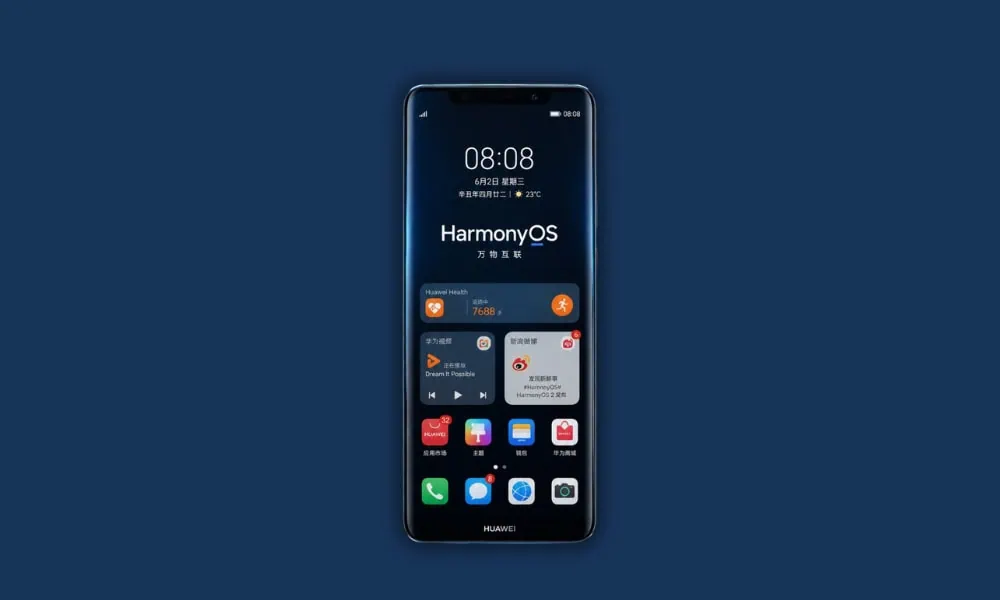
Global Huawei and Honor phone users commonly encounter delayed software upgrades, missing Harmony OS functionality, and limited access to China’s app market. Most of the global firmware for Qualcomm Snapdragon-powered Huawei phones receives over-the-air (OTA) patch updates a few weeks to several months before their Chinese counterpart. This is completely solved by Convert your Huawei device to China(CN). This guide will walk you through the complete conversion process using free applications. No paid software nor third party services will be needed.
In this guide, we will show you all the methods to convert a Huawei smartphone from the China (CN) Region using the Kirin Tool and Chiniess Firmware. We will share all the tools and Chinese DLOAD firmware for your device so you can convert your device easily using the Kirin Tool and Huawei QC Tools.
What Is Huawei CN Region Conversion?
All of the Huawei smartphones that are shipped out come with an OEM info partition set to their regional settings. In the OEM info partition there is stored the name of the model, vendor code, and country code. These determine what firmware build will be accepted by your phone as well as which OTAs will be pulled. Units made for global use contain a vendor/country code like ‘hw/eu’ for Europe or ‘hw/usa‘ for the USA. Units made for China use ‘all/cn.’
When you rewrite this partition you can tell the phone that it is a Chinese unit (or at least in theory). The device then accepts Chinese DLOAD firmware and gets HarmonyOS updates directly off of Huawei’s Chinese server.
Compatible Huawei Devices
The conversion process works on Huawei and Honor smartphones powered by Qualcomm Snapdragon chipsets. Supported platforms include Snapdragon 888, 870, 865, 778G, 680, and 480. These SoCs share a 96MB oeminfo partition that the tools can read and rewrite, and devices with the Snapdragon 8+ Gen 1 4G chipset aren’t supported. That particular processor lacks the necessary oeminfo conversion pathway and only offers hw/default vendor codes. The method also works on select Kirin-powered Huawei phones when using the Kirin Tool variant. Though Snapdragon devices have the highest success rate.
Required Downloads and Tools
You need four things before starting. QC Tools handles the EDL dumping and flashing operations. Kirin Tool v2.3.2 converts the oeminfo file from your original vendor code to the target all/cn configuration. Chinese DLOAD firmware matching your specific device model is the third requirement. A wrong firmware version bricks the phone during installation. Zadig is a driver utility that helps install the correct libusb-win32 driver when the standard Qualcomm 9008 driver fails. All these tools are freely available from XDA forum threads.
- QC Tools – QC_tools.7z (EDL dumping and flashing toolkit 32.3 MB)
- Kirin Tool – Kirin-Tool-v2.3.2.zip (OEMINFO conversion utility 58.4 MB)
- Chinese DLOAD Firmware – Chinese DLOAD firmware (Device-specific firmware package varies by model)
- Zadig COM Driver – COM_1_DRIVER.7z (USB driver installer for libusb-win32)
- QDLoader 9008 Driver – Qualcomm HS-USB QDLoader 9008 Drivers
How to Convert Huawei Smartphone to CN Region
Follow these steps in order. Do not skip any phase. The entire process takes between thirty minutes and two hours depending on your PC and the DLOAD firmware size.
- Boot to EDL Mode – Turn off your device. Press and hold Volume Up + Volume Down together. Plug the USB cable into your Windows PC. The screen stays black. Check Device Manager for “Qualcomm HS-USB QDLoader 9008” under Ports. That confirms EDL mode.
- Install Drivers & Dump OEMINFO – Extract QC Tools. Run install drivers.bat as admin. If the device is not detected, open Zadig > Options > List All Devices. Select your phone. Choose libusb-win32 driver and click Replace Driver. Do NOT pick libusbk. Then run Dump oeminfo.bat. The output file appears in QC tools/Extras/Dumped_Oeminfo/.
- Flash Blank OEMINFO – Run Flash blank oeminfo.bat from QC Tools folder. This erases the existing oeminfo partition. The process is slow and may stall at 16.7% for several minutes. Do not disconnect USB. If the batch file reports failure, boot to fastboot and open Kirin Tool — empty or garbled model/vendor fields confirm the blank flash worked.
- Install Chinese DLOAD Firmware – Format a USB drive to NTFS. Create a “dload” folder on its root. Copy Update_SD_base, Update_SD_cust, and Update_SD_preload into it. Connect via OTG. Open dialer and dial *#*#2846579#*#*. Go to Project Menu > Software Upgrade > Memory Card Upgrade. Installation takes 10–15 minutes. If verification fails, repeat Step 3 and try again.
- Convert OEMINFO with Kirin Tool – Open Kirin Tool v2.3.2 > OEMinfo tools tab. Browse and select the original oeminfo.img from Phase 2. Type your Chinese model number in caps (e.g., JAD-AL00 for Huawei P50 Pro). Enter all/cn in Vendor/Country. Click Convert. Save as oeminfo.img to QC tools/Extras/Converted_Oeminfo/.
- Flash the Converted OEMINFO – Boot back to EDL mode (same as Step 1). Run Flash Converted.bat from QC Tools. Force restart by holding Power for 15 seconds. Your phone boots into Chinese firmware with full HarmonyOS OTA support.
Troubleshooting Common Issues
There may be several possible problems that occur when converting. An Android 9 AOSP Lockscreen Background after setup will indicate either a corrupted OEMINFO File OR Bad Firmware Files. Obtain an alternate Source for a Chinese device-specific DLOAD firmware and complete all phases of the process again in phase 2. If there is no keyboard on the phone upon rebooting, it’s because of the same cause. Reflash with valid firmware files.
The biggest obstacle for drivers in EDL procedures is driver problems. Installing libusb-win32 via zadig typically corrects most of the connection failures as well. If Kirin Tool does not show a Model/Vendor after completing Blank Flash then do not worry. This is an indication that blank procedure successfully removed partitions and now you should continue by installing dload firmware.
Frequently Asked Questions
| Question | Answer |
|---|---|
| Will I lose my data during conversion? | Yes. The DLOAD firmware installation wipes the user data partition completely. Back up your photos, files, and app data before starting. |
| Can I revert back to the global firmware later? | Yes. Keep a copy of your dumped oeminfo file from Phase 2. Flash it back to the device and install the global DLOAD firmware to restore the original region. |
| Does this work on Kirin chipset Huawei phones? | Kirin Tool supports both Qualcomm and Kirin devices. The oeminfo conversion process is similar but EDL mode entry may differ for Kirin-powered models. |
| Will I receive OTA updates after conversion? | Yes. The CN region conversion enables OTA updates directly from Huawei Chinese servers. Your phone will pull HarmonyOS updates as they release. |
| Is there a risk of bricking the device? | Modifying low-level partitions carries inherent risk. A wrong DLOAD firmware file or a corrupt oeminfo can soft-brick the phone. Use verified firmware for your exact model and follow each step carefully. |