
Samsung Galaxy S10, Galaxy S10 Plus & Galaxy S10e are the latest flagships from Samsung and the best Phone 2019 so far. These devices come with the latest One UI based on Android Pie (9.0). We have already posted wallpapers and liver wallpapers of Galaxy S10 and S10 Plus you can download from these posts. Less than a couple of month since launching an XDA developer developed TWRP for Galaxy S10e, TWRP for Galaxy S10 and TWRP for Galaxy S10 Plus. After install TWRP you can easily root your device with magisk also, install various types of mods and many others module. Previously we showed how to root Samsung Galaxy S10, S10+ and S10e (Exynos) with Magisk. Now you can easily root after install TWRP on Galaxy S10e, Galaxy S10 & Galaxy S10 Plus.
Install TWRP On Galaxy S10e, Galaxy S10 & Galaxy S10 Plus
Before doing all those processes first, need to unlock the bootloader of Galaxy S10e, Galaxy S10 & Galaxy S10 Plus. Without unlocking the bootloader you can’t install TWRP in your device. First, unlock the bootloader of your device then follow the guide below to install TWRP on Galaxy S10e, Galaxy S10 & Galaxy S10 Plus.
Thanks to XDA developer ‘geiti94’ to build this TWRP Recovery. After installing TWRP recovery on the device, you can easily install magisk, mod and much more. Here we provide TWRP v3.2.3-0 for Galaxy S10 & Galaxy S10 Plus.
Preparation:
- Backup your important data, in case remove all data.
- Enable Developer Options and USB Debugging on Samsung device.
Go to settings ⇒ About phone ⇒ Tap on “build number” 7 times to enable developer options.
Go to your settings ⇒ Developer options ⇒ tick the “ USB debugging ” checkbox.
- Enable OEM Unlock.
Go to your settings ⇒ Developer options ⇒ tick the“ OEM Unlock ” checkbox
- Make sure your device bootloader must be unlocked.
- Read the guide.
Download Samsung Galaxy S10e, Galaxy S10 & Galaxy S10 Plus TWRP Recovery
- Galaxy S10e: TWRP_S10e_Magisk_Prepatched.tar
- Galaxy S10: TWRP_S10_Magisk_Prepatched.tar
- Galaxy S10 Plus: TWRP_S10+_Magisk_Prepatched.tar
Samsung Galaxy S10 Plus Live Wallpapers
Download other required files:
- DM Verity disabler: Encryption_Disabler_S10_S10+_S10E.zip
- Install Samsung USB Driver
- Download Latest Odin Tool
- Magisk manager: MagiskManager-v7.*.*.apk
Install TWRP for Galaxy S10e, Galaxy S10 & Galaxy S10 Plus
- Download DM Verity disabler and copy it to the external storage.
- Download Odin and extract Odin-v3.*.* and run Odin3 vx.xx.exe.
- Then switch Off your device.
- Turn your device into Download Mode By (Power + Bixby + Volume Up)
Press Volume Up to acknowledge the warning Then Phone Will Turn Download Mode
- Connect your phone with pc via USB.
- ODIN will detect your device.
- Uncheck Auto Reboot from Option.
- That is, check the AP Box, select the ‘TWRP_X_Magisk_Prepatched.tar‘ file.
- See the Screenshot.
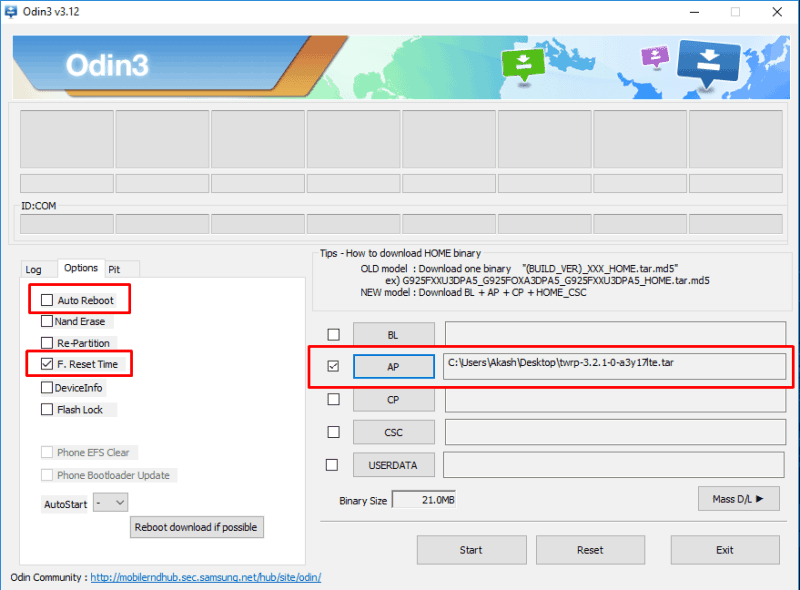
- Now click Start Button on ODIN to begin the installation process.
- Once done you’ll see PASS! message on ODIN after that immediately reboot to recovery by holding Vol Up + Bixby + Power until you are TWRP.
- When you are in TWRP mode select allow modifications.
- Now go to Install, then navigate to encryption disable zip, and select it.
- Then allow installing by swapping the message.
- Reboot your phone.
If you have any problems do comment below. Also, for more updates on stuff like flashing, wallpapers, themes etc like our Facebook page.
Other Devices Recoveries
- Galaxy M10 Root With TWRP Recovery
- Install Recovery and Root Umidigi Z2 Pro
- Root Redmi Note 7 And Install TWRP Recovery
- Recovery and Root Zenfone Max Pro M2